Apple TV for Kids

Tech & Entertainment, Streaming

Capturing the $62M Family Streaming Market

Tech & Entertainment, Streaming

Happy children playing pretend with a toy boat, telescope, rocket crafts, and paper crown indoors.

Apple TV is the only major streaming platform without dedicated kids' profiles. While competitors like Netflix, Disney+, and HBO offer robust parental controls and age-appropriate content filtering, Apple TV's family subscribers share a single profile across viewing—mixing adult content with kids' content and offering no control settings.

Concept Work

Promote Engagement & Retention

62M+ Subscribers
Enhancing Family Streaming With Trust & Safety

01

A Gap in the Family Stream

Apple TV is not really tapping into the family market. While every other major streaming platform offers a dedicated kids' profiles, Apple TV remains the only holdout - prompting parents or guardians into considering subscribing elsewhere and leaving a large market segment oddly underserved.

The Prospective Market Impact

62M+ estimated subscribers with countless in family or guardian households

Higher churn rate among families vs. individual users

Lost acquisition opportunities as parents may chose competitor platforms

ViacomCBS CEO Bob Bakish stated that kids and family content was "the top genre on Paramount+ for both acquisition and engagement." Apple TV+ was leaving this opportunity on the table.

02

Why Kid's Profiles Matter

It's crucial to grasp the context in which families and children interact with streaming platforms like Apple TV. The following statistics shed light on the demographics, usage patterns, and parental concerns that underscore the need for a kids’ profile experience on the app.

Streaming Dominates

Children aged 2-11 in the US spent 62% of their increased TV time in June 2023 on streaming services. (Nielsen, June 2023)

Multiple Viewers

According to statistical data from the U.S. Census Bureau in 2023, the average number of children under 18 per family in the United States is 1.94.

The largest user group is 6-11 years old (42%), followed by 2-5 year olds (34%) (JustWatch, 2023).

Parental Concerns

Screen time worries 70% of parents, and 87% desire greater control over their kids' streaming (Common Sense Media, 2022).

03

The Design Reality Check

One hour into research, I already knew this would be a bit tricky. I hit the classic designer's dilemma: how do you innovate within strict Apple Design System constraints?

My QA background kicked in immediately—I started thinking about failure points before they could derail the project. Apple's design system wasn't just the guideline—it was like a "trust signal" parents need to feel confident letting their kids stream independently.

The biggest reality check? This feature needed to follow Apple TV+'s functionality, not just fill a competitive gap. Every design decision for the new profile had to feel distinctly Apple.

Challenge 1

Maintaining consistency with Apple’s design system.

Implications: Maintaining consistency with Apple's design system is crucial for a cohesive and intuitive user experience.

→ This involves thoroughly analyzing existing design patterns, UI components, and interactions before and during testing.

Challenge 2

Balancing user experience for both children and parents while ensuring ease of navigation and robust parental controls (’identifying the must-haves’).

Implications: This involves researching the needs and preferences of the ‘most common’ features, considering restrictive factors such as "sprint bandwidth."

Challenge 3

Building on the Apple TV+ brand experience.

Implications: The Kids profile should not only be functional but also enhance the overall Apple TV brand and strengthens its value proposition for families.

04

The 4 Points that Drove Everything

After diving deep into family streaming apps and sitting down with some parents, a clear picture emerged: parents just needed a simple feature, and Apple TV+ was clearly missing that.

These conversations distilled revealed 4 focus areas:

Integration

How might we ensure that the feature seamlessly integrates with existing design systems, allowing for intuitive setup and management?

Safety

How can we create a safe, engaging viewing experience for kids, and how might we distinguish that experience from the adult experience?

Personalization

How might we personalize kids' profiles based on age, interests, or watch history for age-appropriate recommendations?

Navigation

How can we ensure a streamlined setup process for kids' profiles and intuitive management options within the app?

Five kids playing in colorful indoor playroom with cardboard rocket, binoculars, and reading a book.
Five kids playing with colorful toys and balloons in a bright indoor playroom with orange walls.
05

The Problem: Why In-App Profiles Matter

How do you create a kids' streaming profile experience that feels like Apple while meeting the standards parents expect from other platforms?

Building the Foundation

With market research complete and these insights in hand, I faced the ultimate product challenge: how do you catch up to competitors while designing distinctly Apple?

I approached feature planning like a strategic sprint, asking "What would make parents choose Apple TV+ over Netflix for their kids?" The answer was just nailing the fundamentals.

Must-Haves (Core MVP)

Content Maturity Ratings: Restricts access to content based on age ratings (2-4, 4-6, 6-10, 10-12) or pre-defined categories (e.g., educational, animated).

PIN Protection: Requires a PIN to switch out of the kid's profile, preventing unsupervised access to content not catered to kids (4 digits is standard).

Avatars: Profile personalization for a kid’s profile, which is basic customization offered across streaming services currently in the market.

Should-Haves (Enhanced Experience)

Viewing Time Limits: Daily or sessional viewing time limits to allow parents to set a maximum amount of time a child can spend per day or per session.

Could-Haves (Future Enhancements)

Curated Content: Curating genre-specific shows upon selecting at least 3 genres, which are chosen in profile settings or selected during profile creation

Personalized Themes: Personalized, color-based themes for the TV experience and transitional animations when entering or exiting Kids’ Profiles.

Would-Haves (Out of Scope for now)

Personalized Recommendations: AI-powered recommendations based on viewing history and watchlist adds to introduce new, relevant educational content or entertainment.

06

The Solution: Seamless Family Streaming

Introducing Apple TV+ for Kids—a dedicated profile experience that transforms click-heavy family viewing into a controlled, engaging experience with maturity rating controls.

1. Instant Profile Creation

A few-click profile setup from account landing

Age-appropriate content filtering (2-4, 4-6, 6-10, 10-12)

Custom avatar selection for personalization

2. PIN-Protected Safety

4-digit PIN prevents unsupervised profile switching

Maintains parental control without complexity

Standard across all streaming platforms

3. Curated Kids Experience

Dedicated watchlist for their saved content

Easily switch between profiles from 2 places

No exposure to mature content previews

07

Design Deliverables

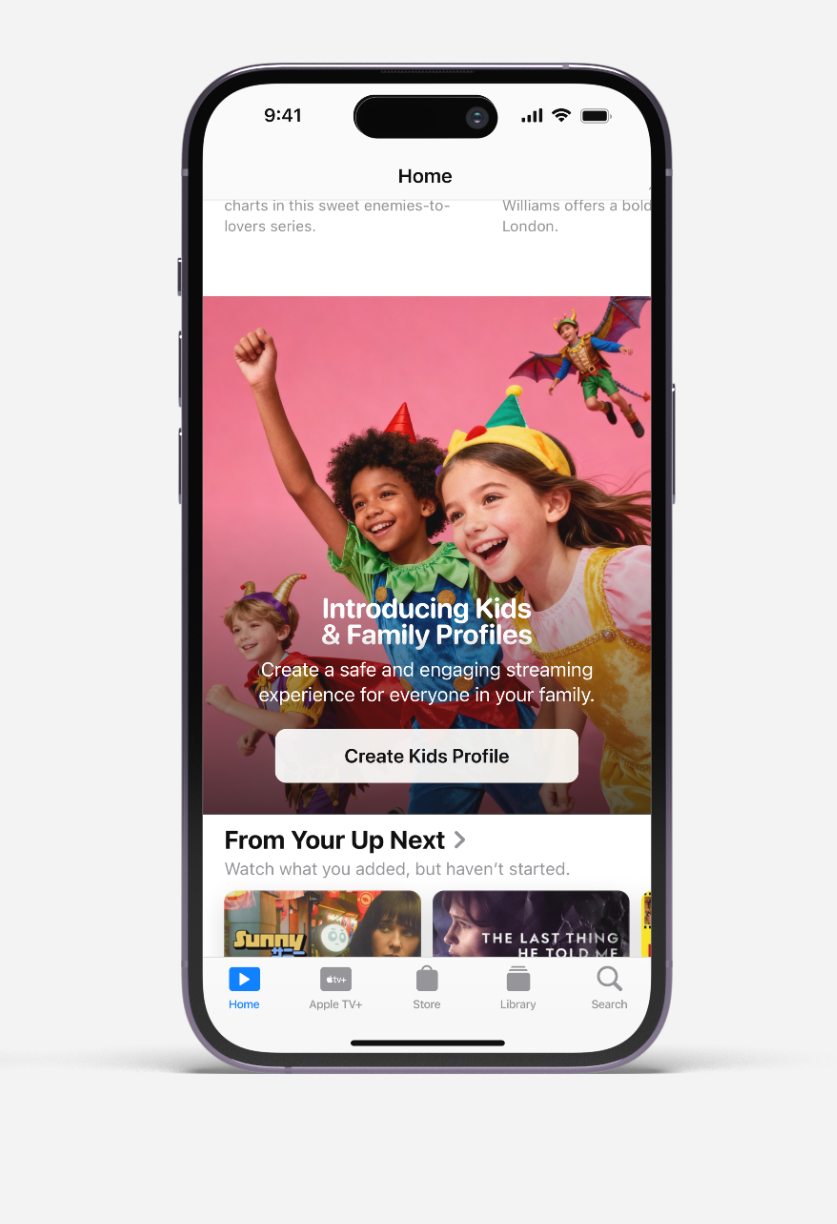
How do I introduce Kids Profiles to Apple TV+ users in a way that feels natural, non-intrusive, and clearly communicates the value proposition for families?

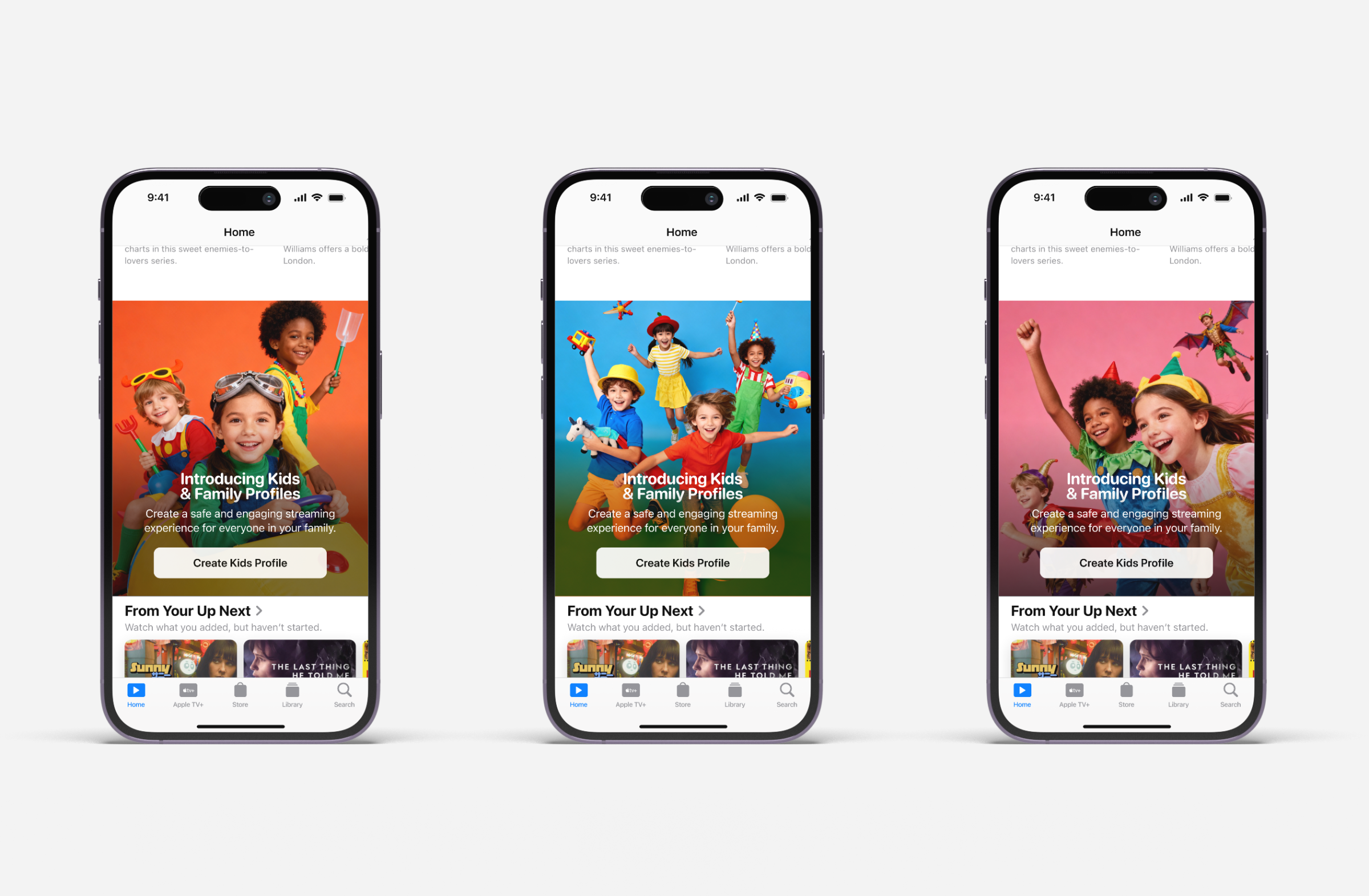
I explored three distinct approaches to announcing the Kids Profiles feature, each exploring different levels of user engagement and branding integration:

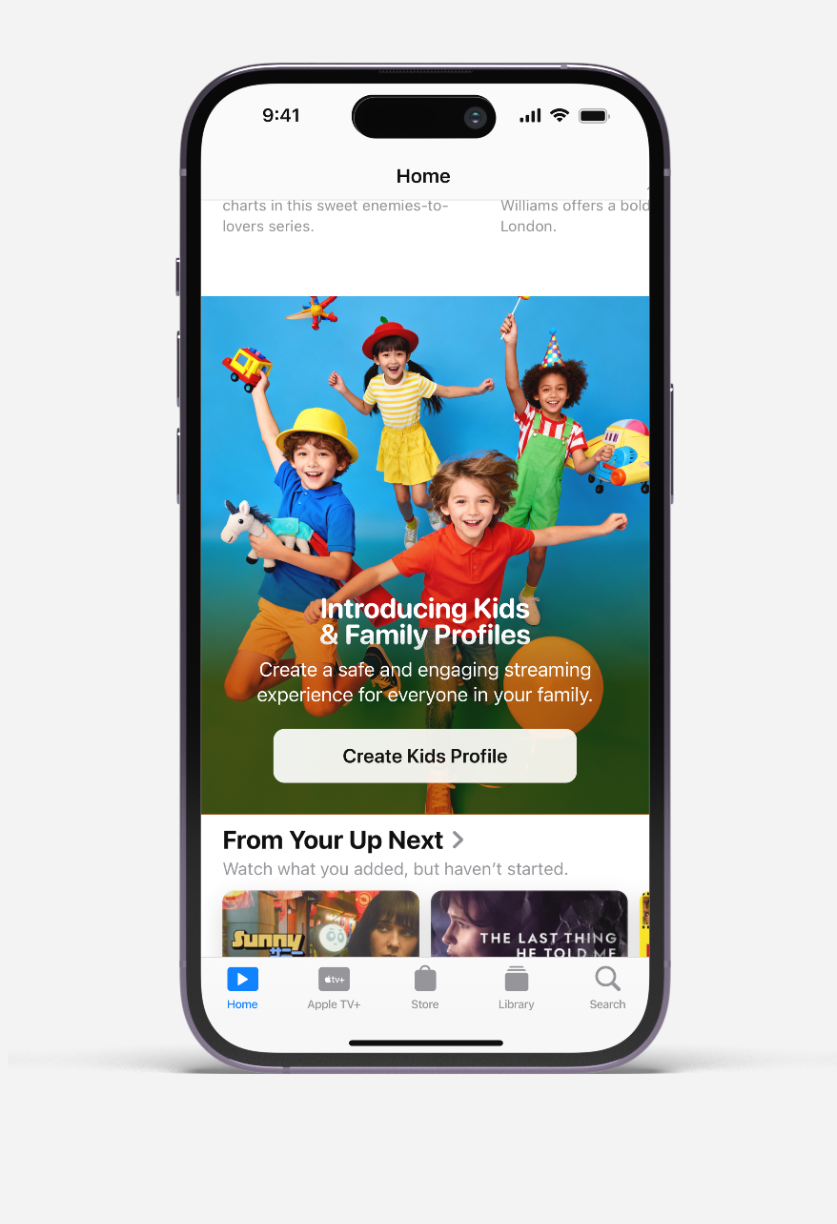
1. Marquee Integration

Embedded announcement within the existing home feed as a prominent card, reserved typically for content placements, but is highly visible to subscribers.

2. Home Feed Integration

Integrated announcement on the homepage, providing less of an immediate announcement about the new feature but is still highly visible to subscribers.

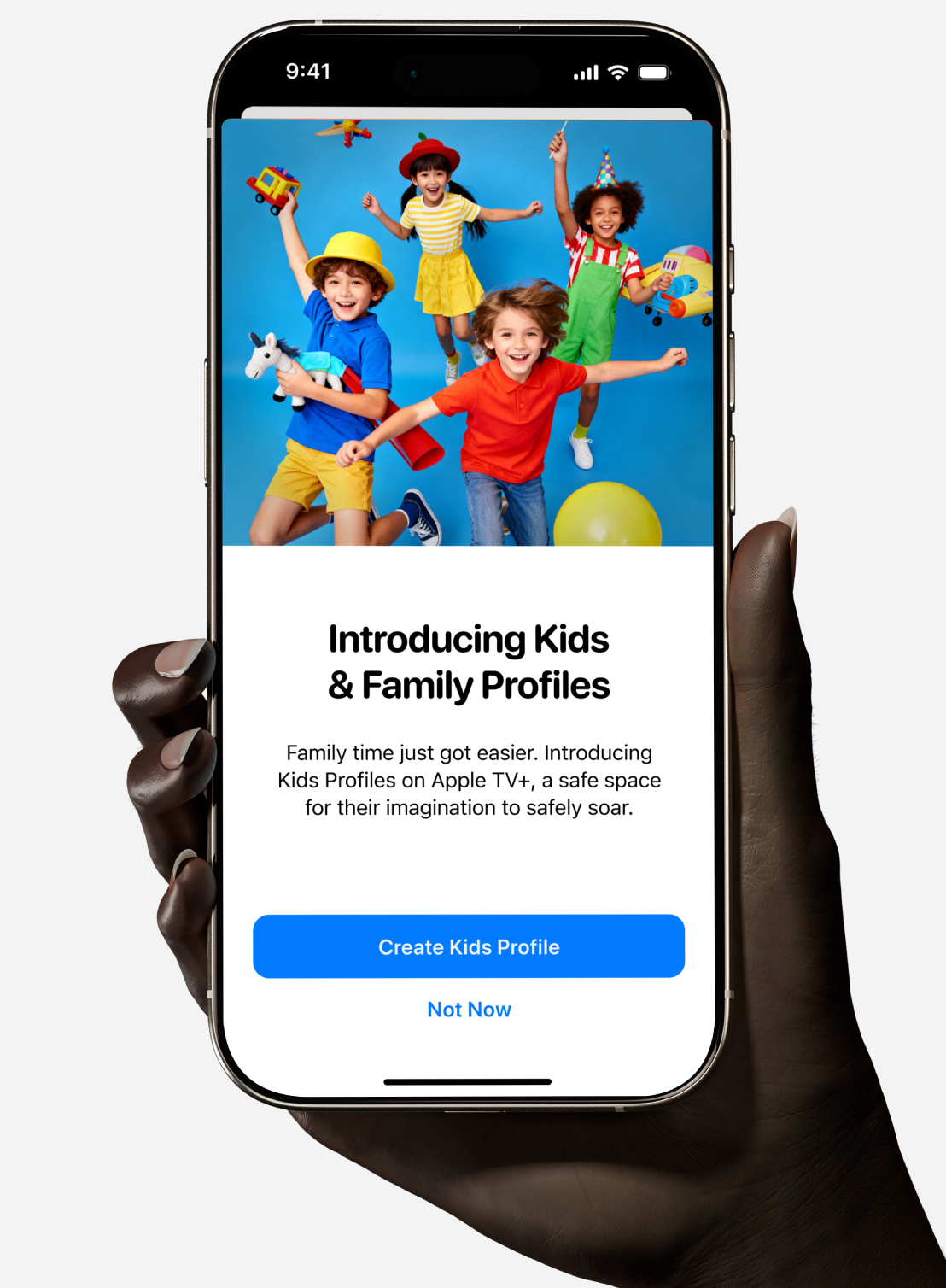
3. Dedicated Interstitial

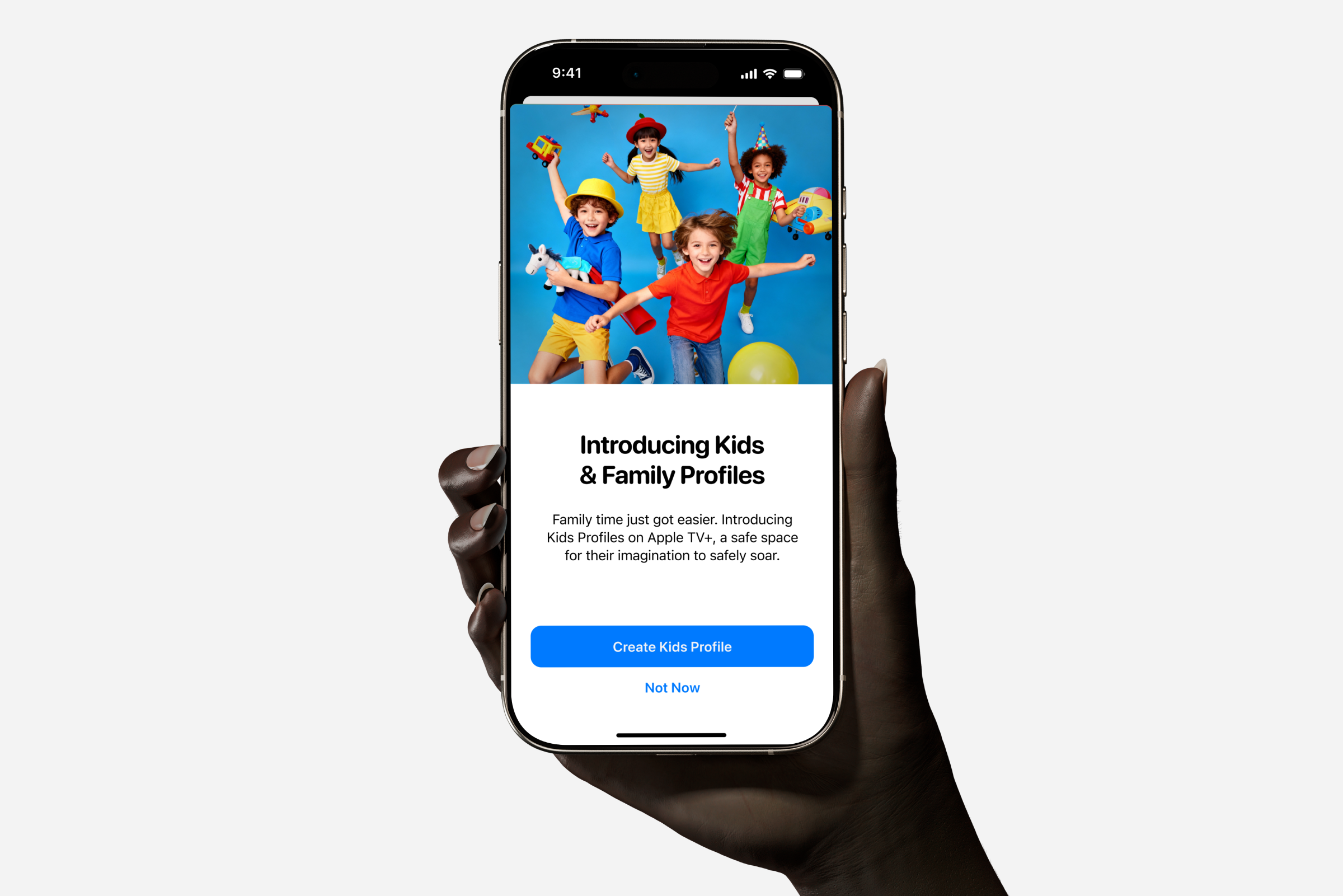
Full-screen announcement with focused messaging and clear call-to-action, which was ultimately chosen as the dedicated space for the feature announcement.

Hand holding phone showing Kids & Family Profiles intro screen with children playing and app buttons.
Among the Marquee Integration, Home Feed integration, or Interstitial, the interstitial was ultimately chosen as the dedicated space for the feature announcement.
Three phones showing Kids & Family Profiles screens with children in costumes and a create profile button.
Home Feed Integration: An alternative version for advertising the new Kids profile feature. Even a detail as small as a background gradient was explored.
Hand holding phone showing Apple TV+ Kids & Family Profiles feature with kids playing and a create profile button.
Among the Marquee integration, Home Feed integration, or Interstitial, the interstitial was ultimately chosen as the dedicated space for the feature announcement.
Smartphone screen showing kids' profiles feature with three smiling children on an orange background.
Marquee Integration: An alternative version for advertising the new Kids profile feature. Even a detail as small as a background gradient was explored.
Smartphone screen showing kids and family profiles with four happy children holding toys, button to create profile.Mobile screen showing Apple TV app feature for Kids & Family Profiles with kids in costume and Create Kids Profile button.
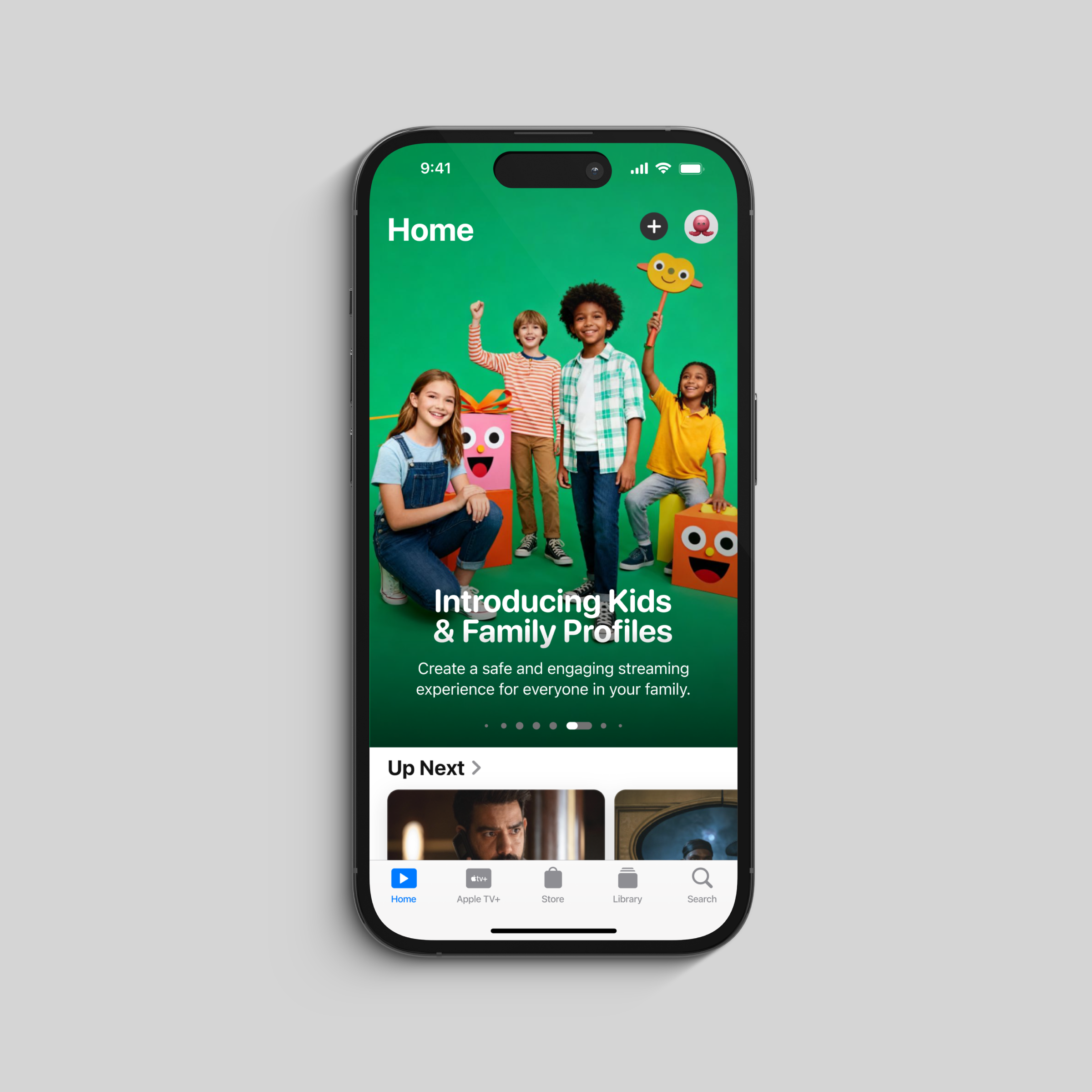
Smartphone screen showing Kids & Family Profiles intro with four children smiling on a green background.
Though marquees are content-only, this design scored well: a more vibrant, studio shot of children, full of energy and a kid-friendly vibe with a focus on fun and diversity.
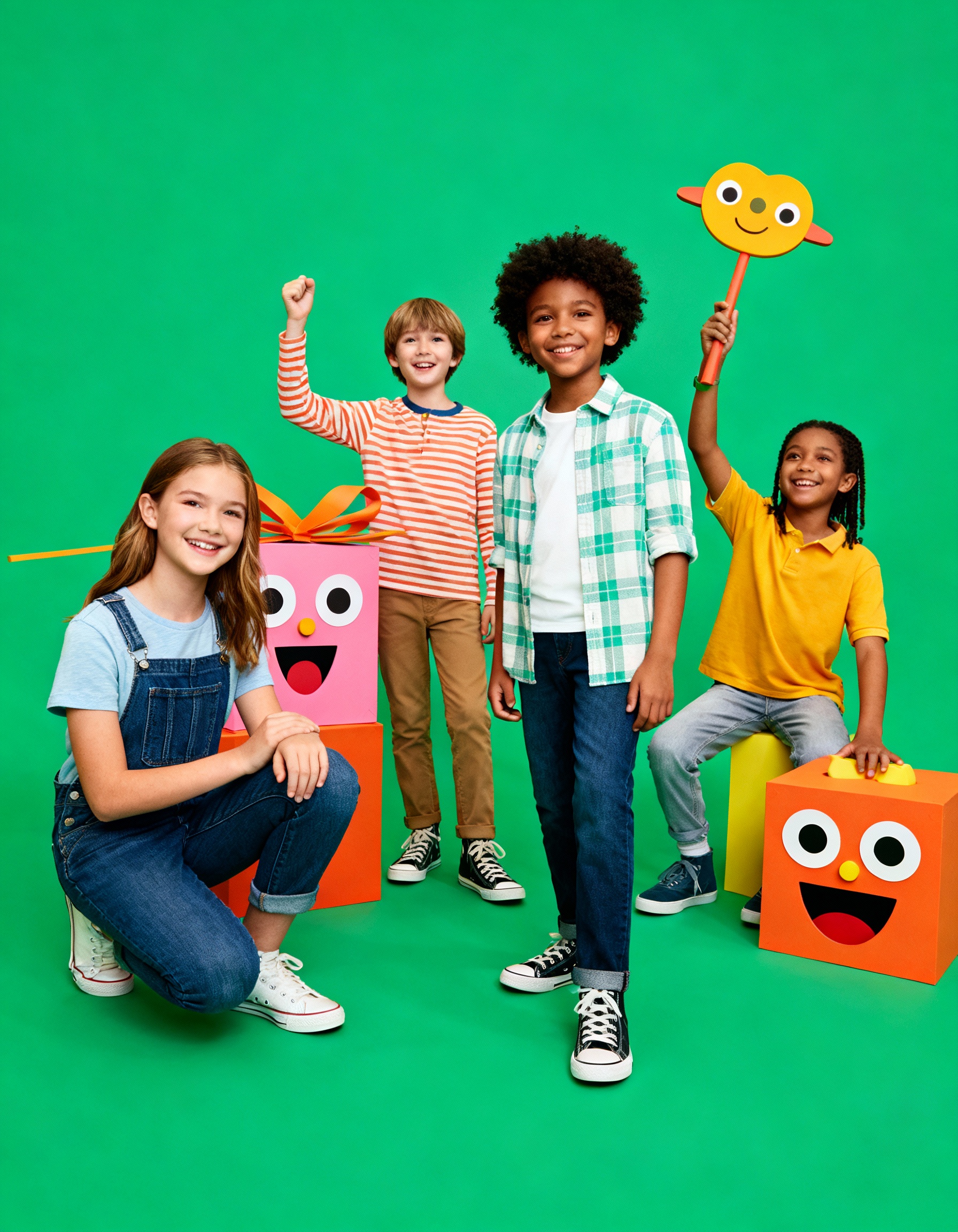
Four happy kids with colorful smiling gift boxes on green background, one holding a cheerful face sign.
Generated by Freepik Pikaso

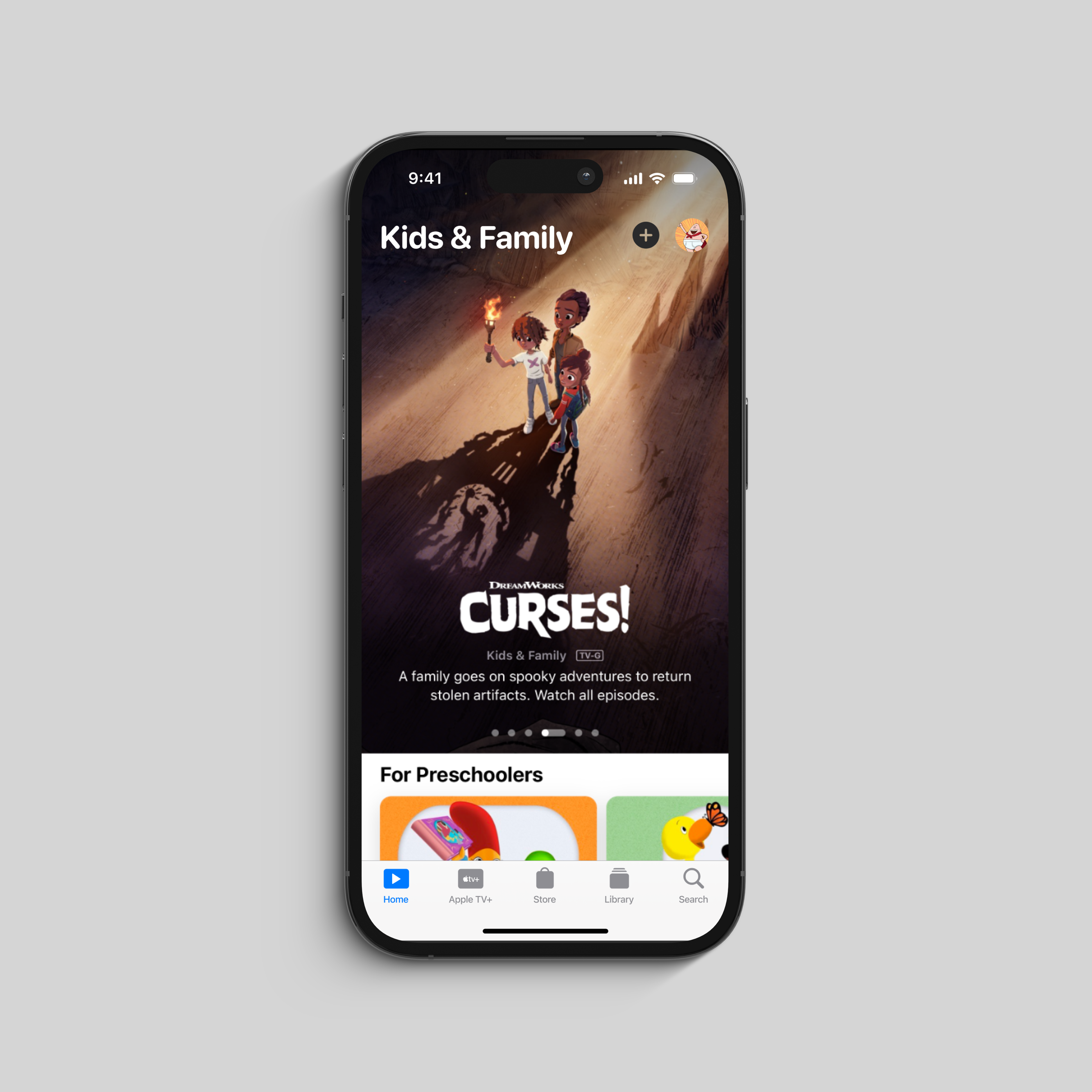
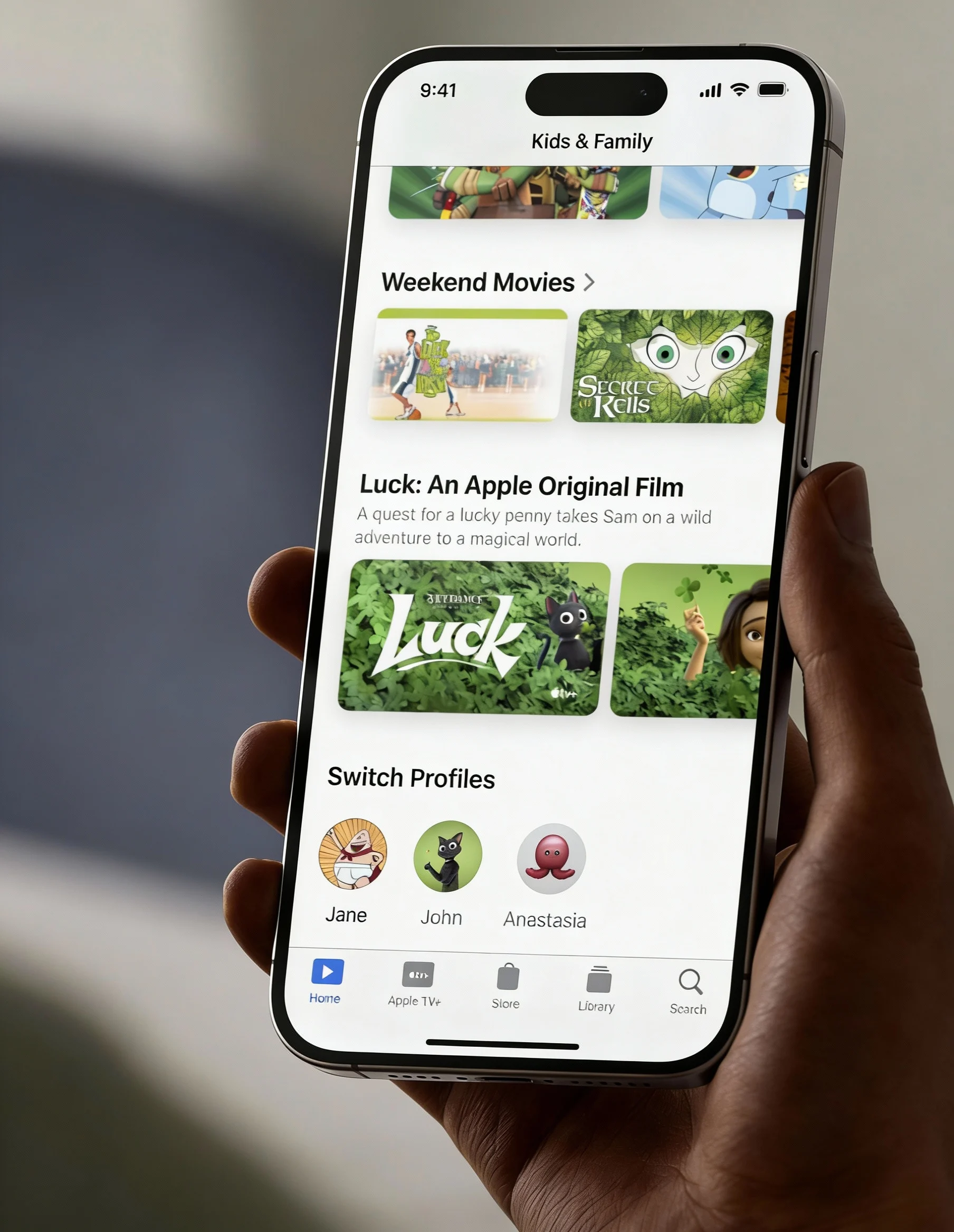
Kids & Family Home

The home screen features curated content sections like "For Preschoolers" and "Weekend Movies." A prominent "Switch Profiles" section allows easy profile switching among family members.

Apple TV app screen showing 'Curses!' with kids holding a torch and cast shadows on the wall.
Kids & Family Home (subscriber is in Kids mode).
Apple TV Kids & Family screen showing Weekend Movies, Luck film, and profiles for Jane, John, and Anastasia.
Switch Profiles shows circular user avatars in an intuitive row layout, enabling one-tap switching between family members' personalized viewing experiences.

Creating & Personalizing Streaming

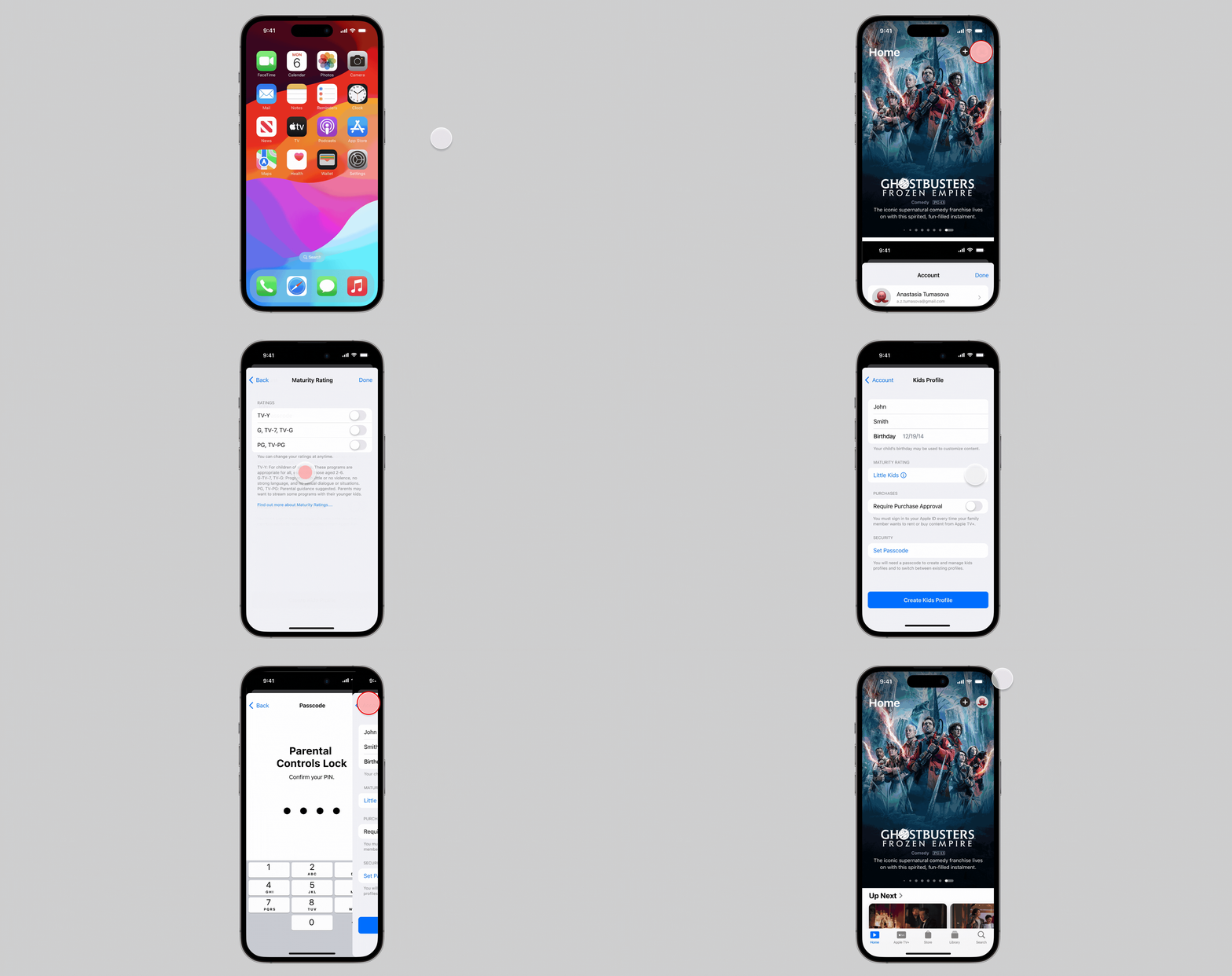
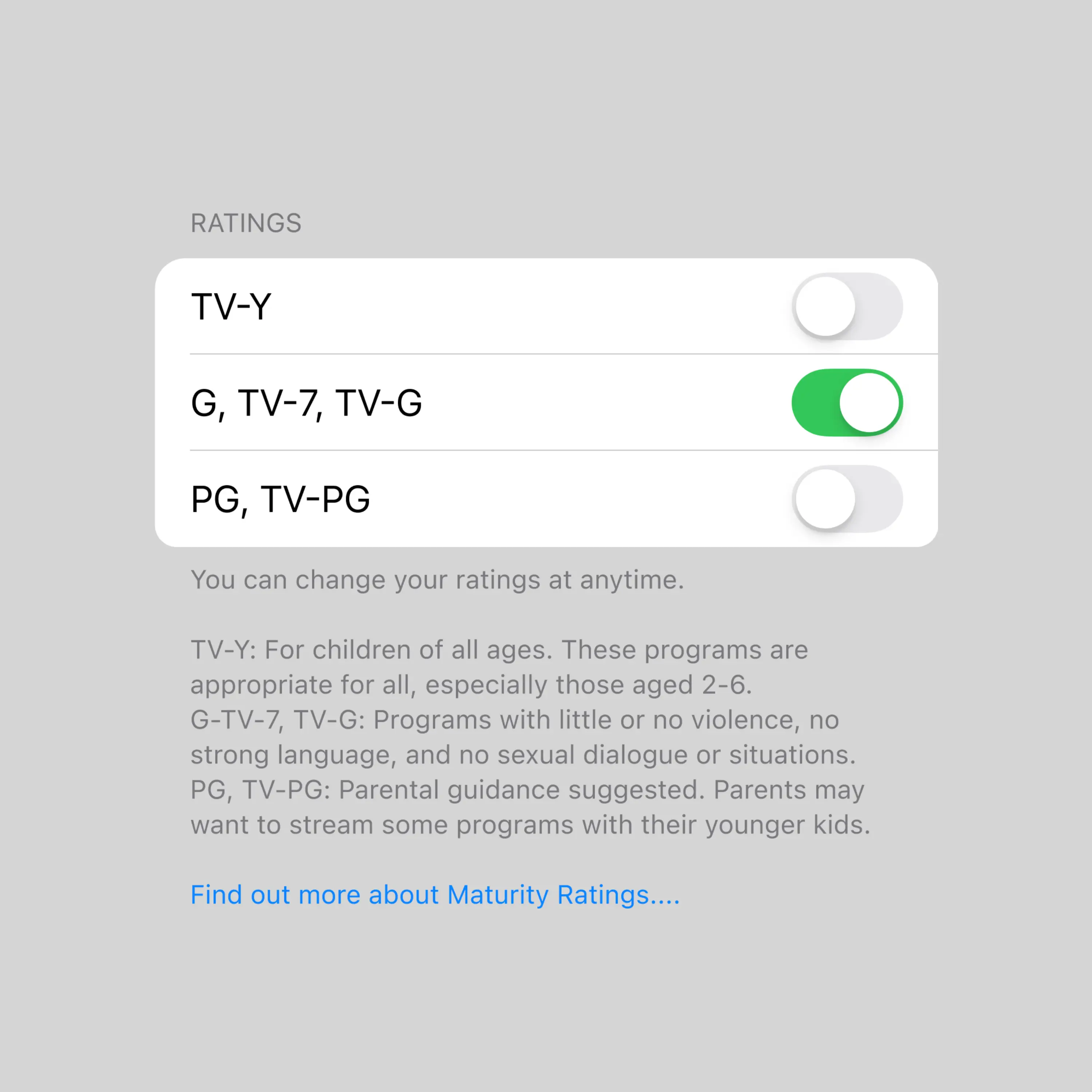
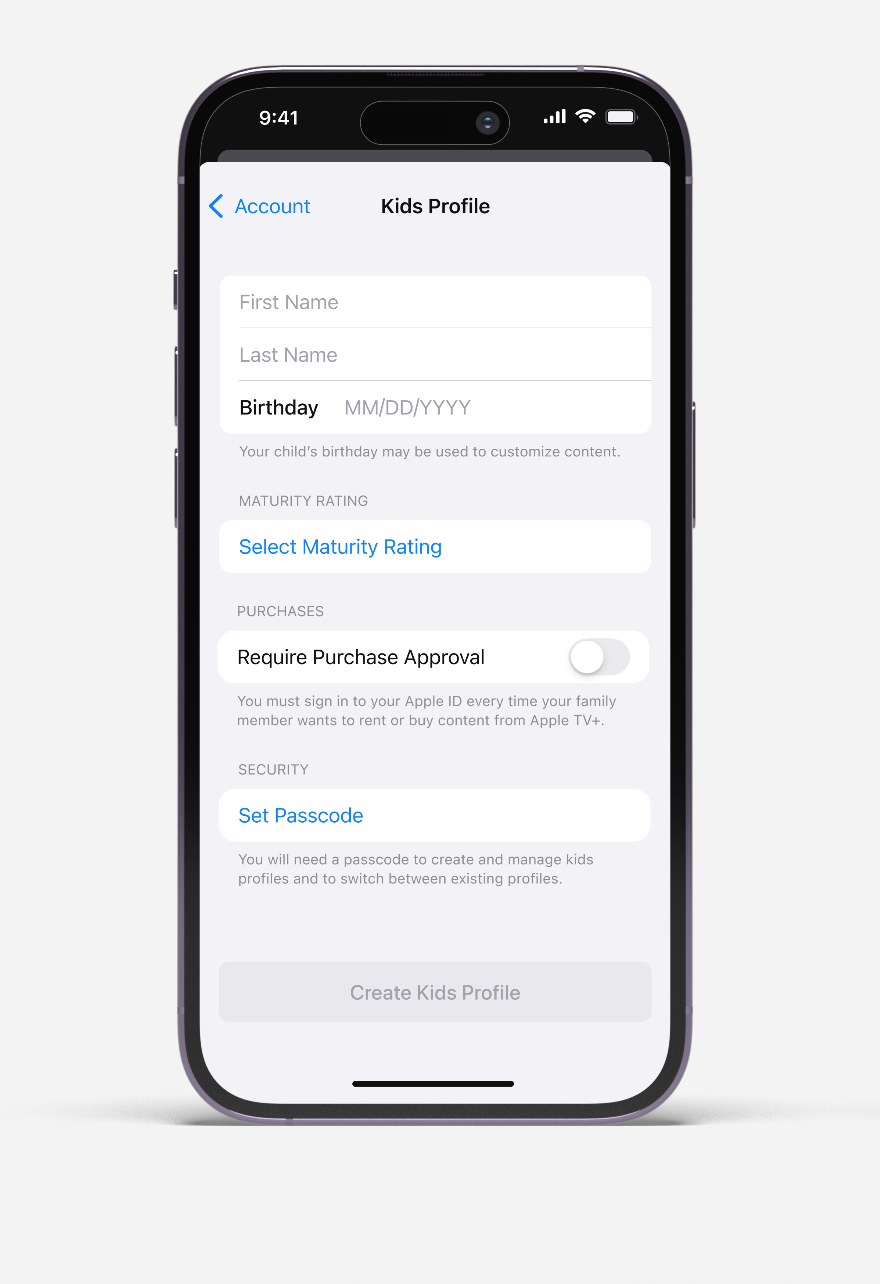
While Kids Profiles are easy to create, the app also implements mandatory age-appropriate content filtering to ensure children only access content suitable for their developmental stage.

iPhone screen showing an Apple TV+ prompt to create Kids and Family Profiles with four children running.
Maturity rating selection is required during profile creation.
iPhone 14 Pro showing home screen with default apps and colorful abstract wallpaper background.
The platform implements mandatory age-appropriate content filtering to ensure children only access content suitable for their developmental stage.
Screen showing TV content ratings settings with G, TV-7, TV-G toggled on and others off.
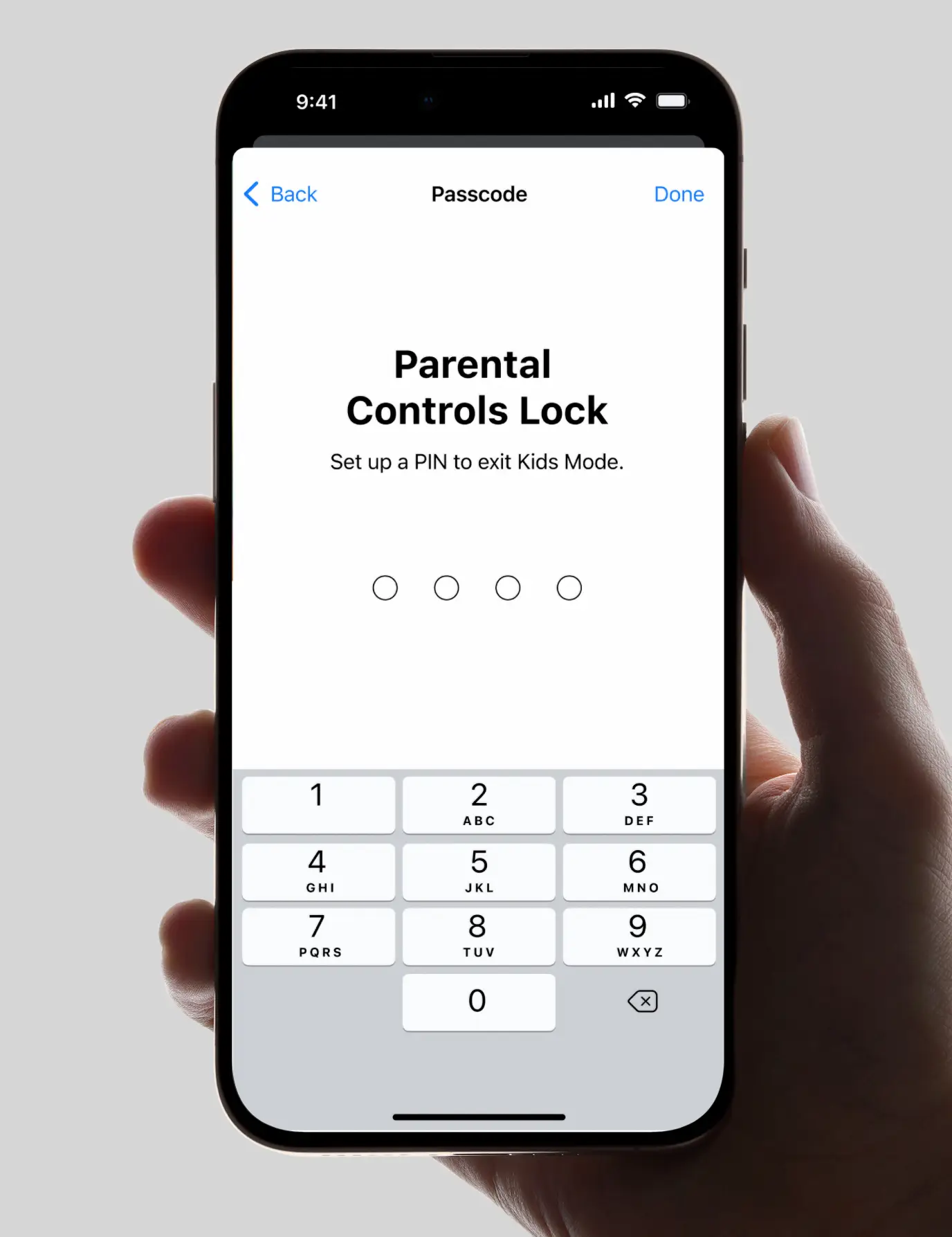
Hand holding iPhone displaying screen to set PIN for Parental Controls Lock in Kids Mode.
A 4-digit PIN is standard across streaming platforms.
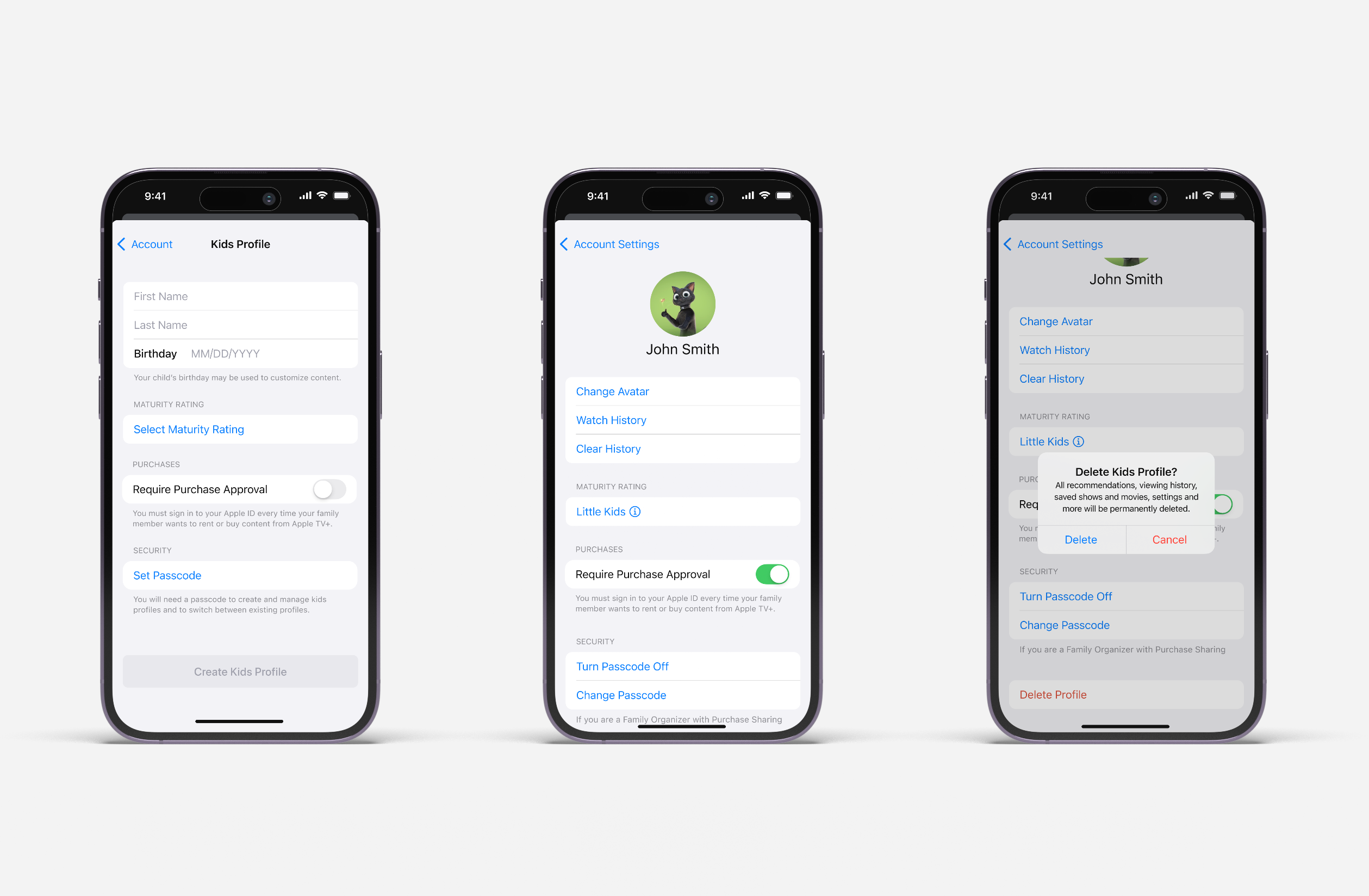
Three iPhones showing Kids Profile setup and settings screens with maturity rating and purchase approvals.
Smartphone screen showing Kids Profile setup with fields for name, birthday, maturity rating, and purchase approval.
Maturity rating selection is required during profile creation.
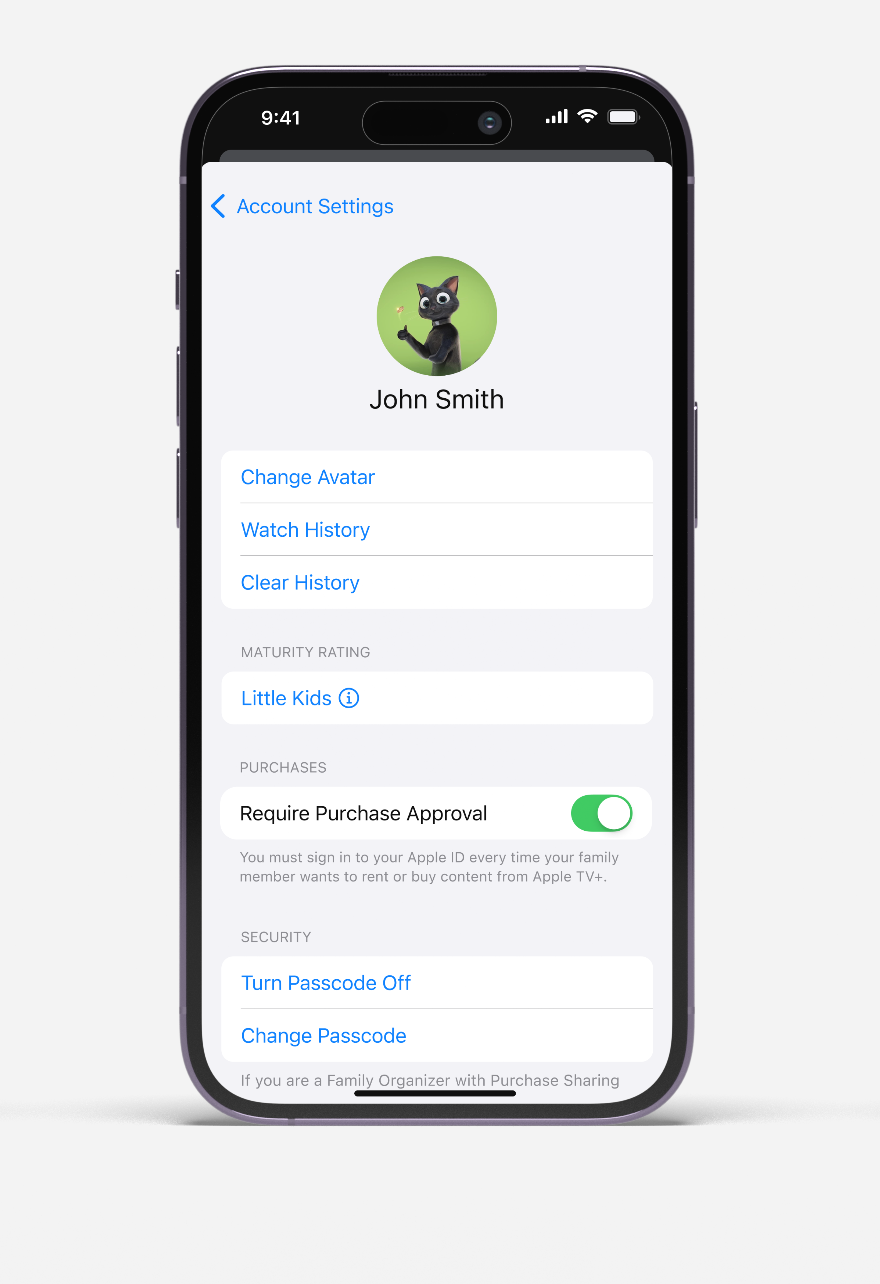
iPhone screen showing John Smith's account settings with avatar, maturity rating, purchase approval, and passcode options.
Maturity rating selection is required during profile creation.
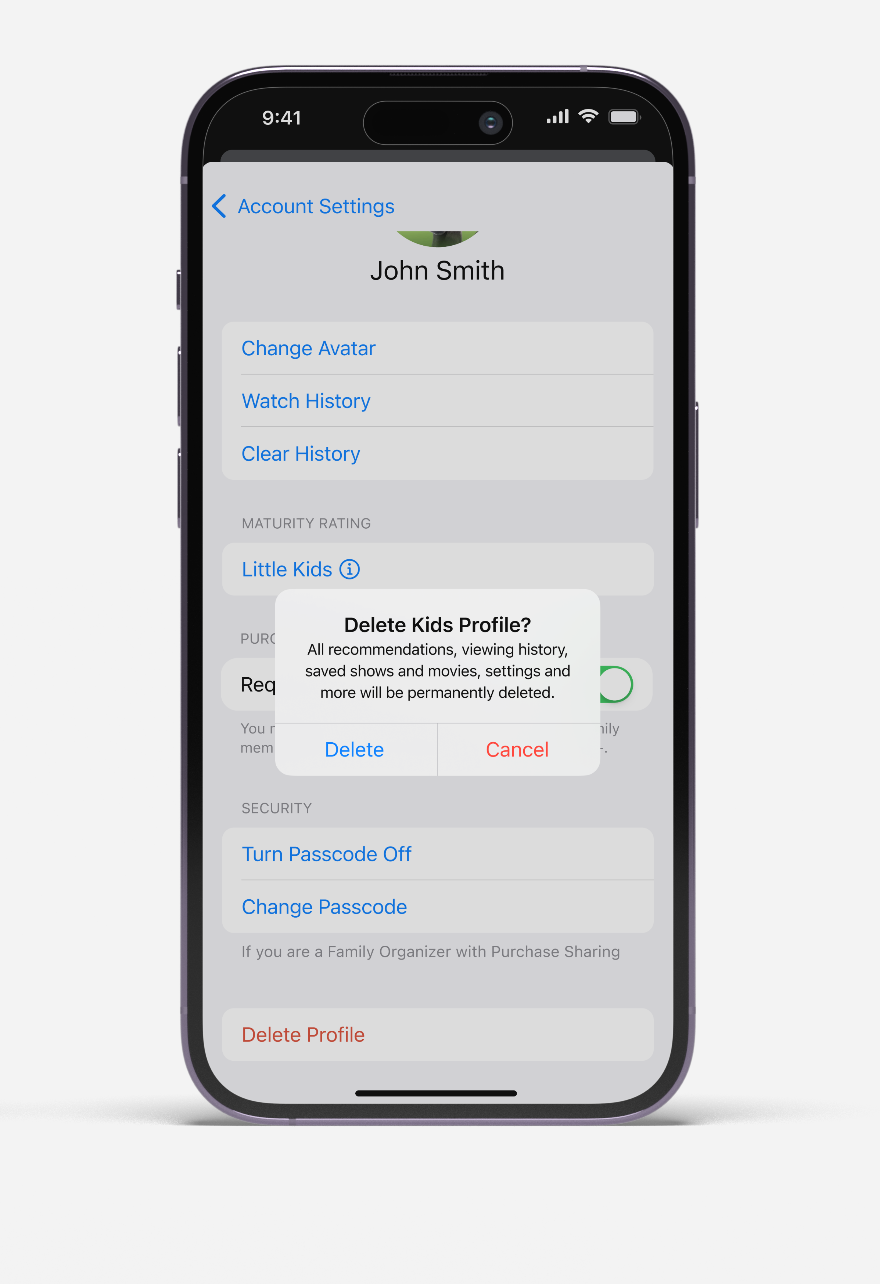
iPhone screen showing John Smith's account settings with pop-up to confirm deleting kids profile.
Maturity rating selection is required during profile creation.

Purchase Approvals for Kids

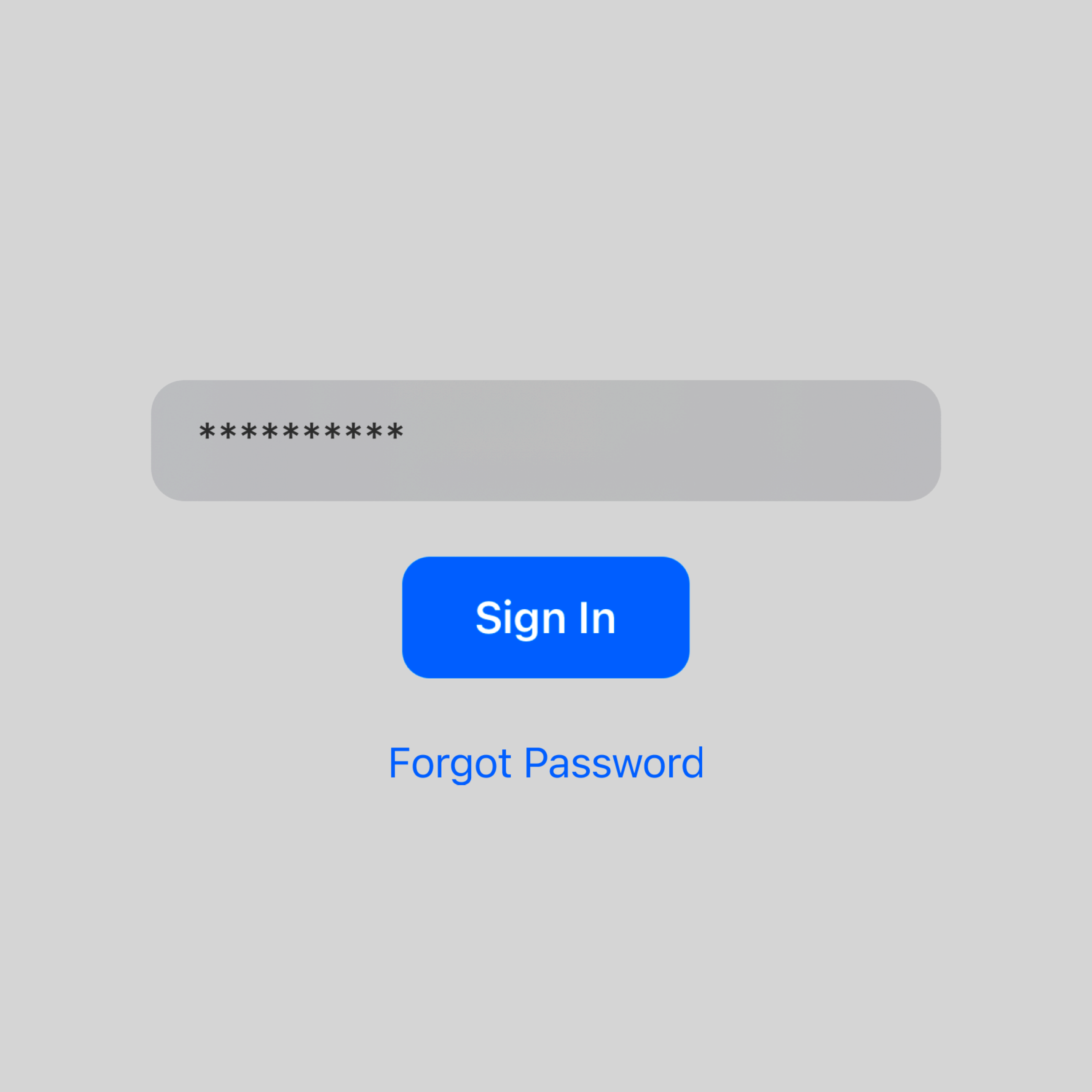
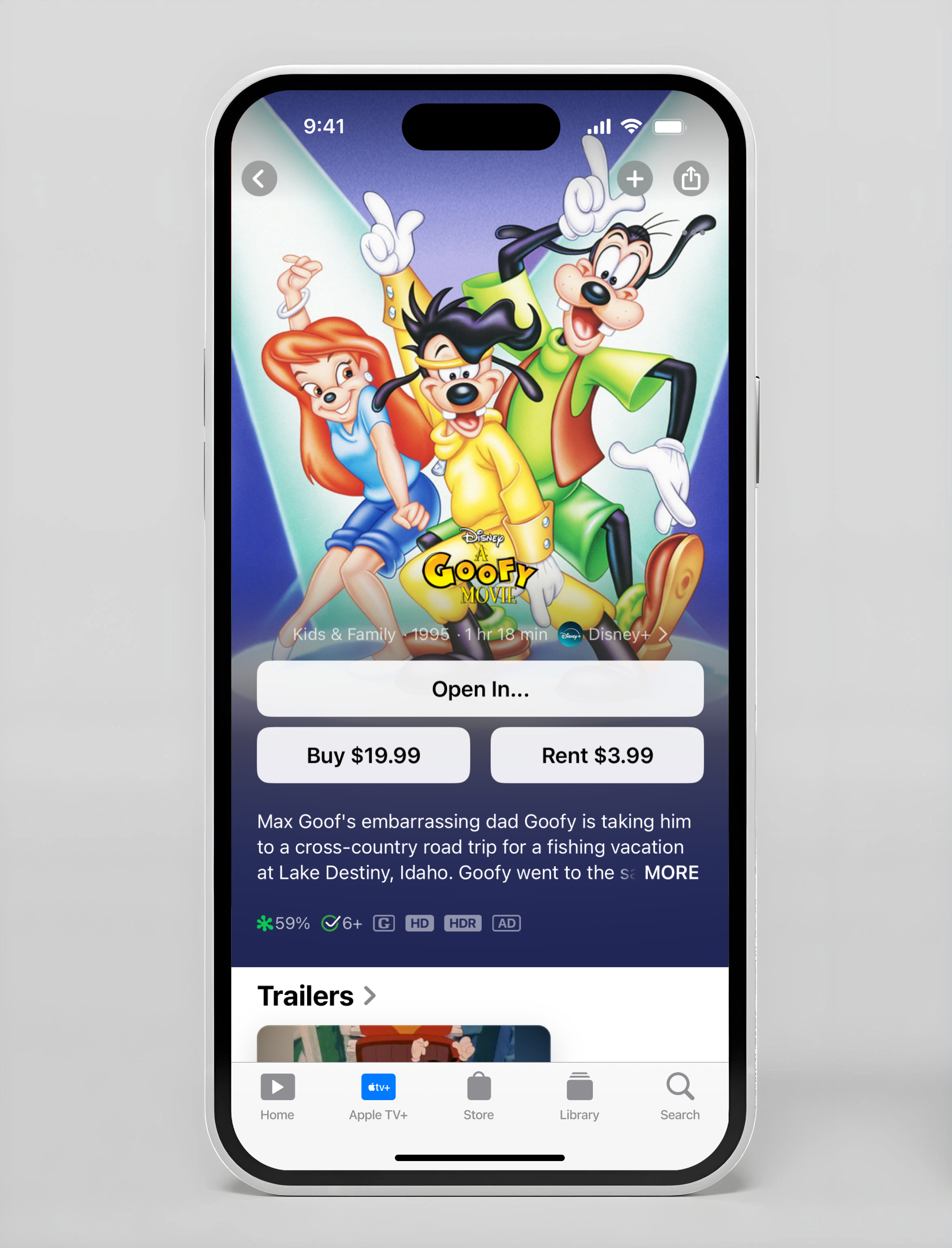
Parents can optionally enable Purchase Approvals, which requires account authentication before kids can rent or buy content, providing an additional layer of control against excess charges.

Password entry box with hidden characters, blue Sign In button, and Forgot Password link below.
iPhone showing Disney's A Goofy Movie page with buy and rent options and movie description.

Switching & Managing Profiles

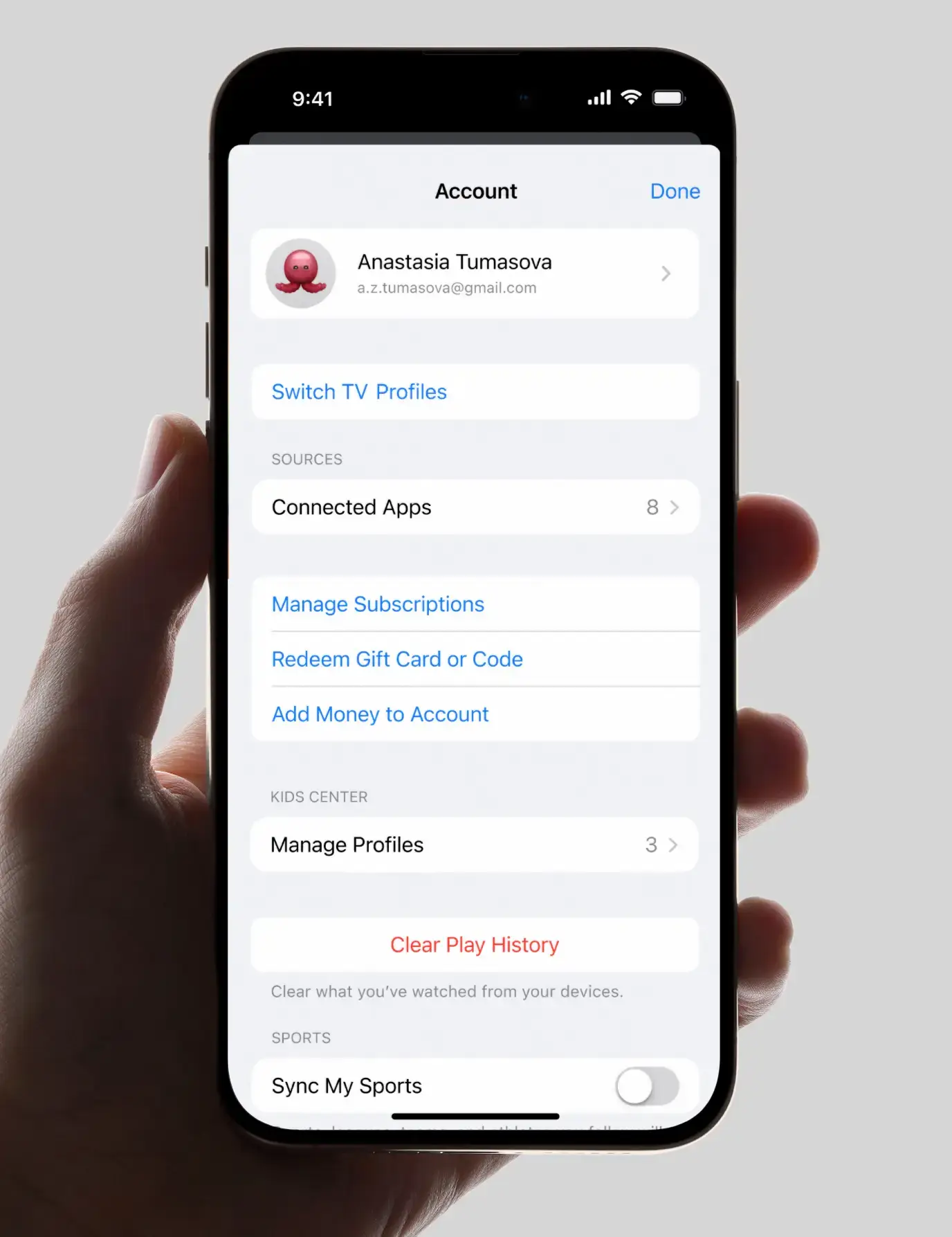
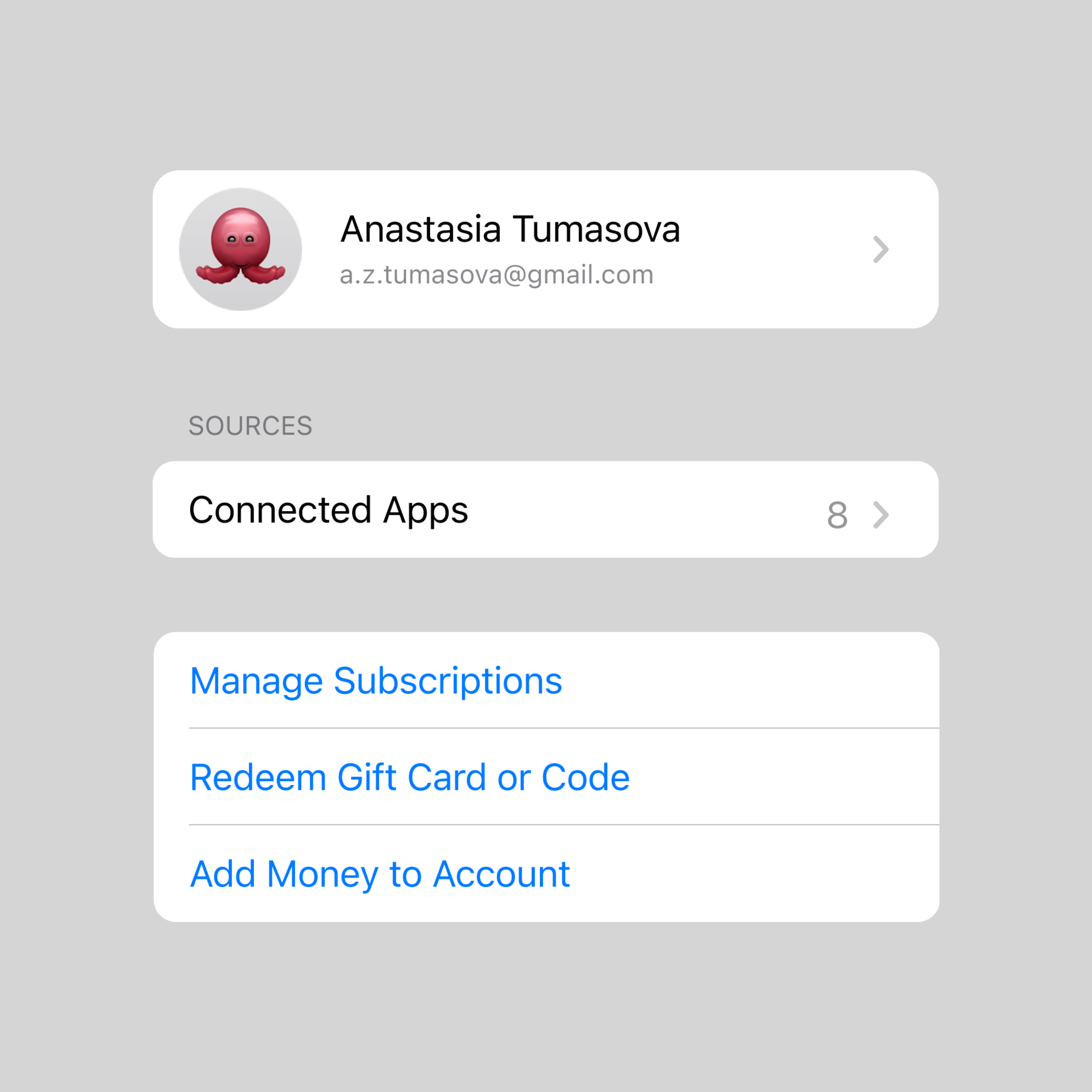
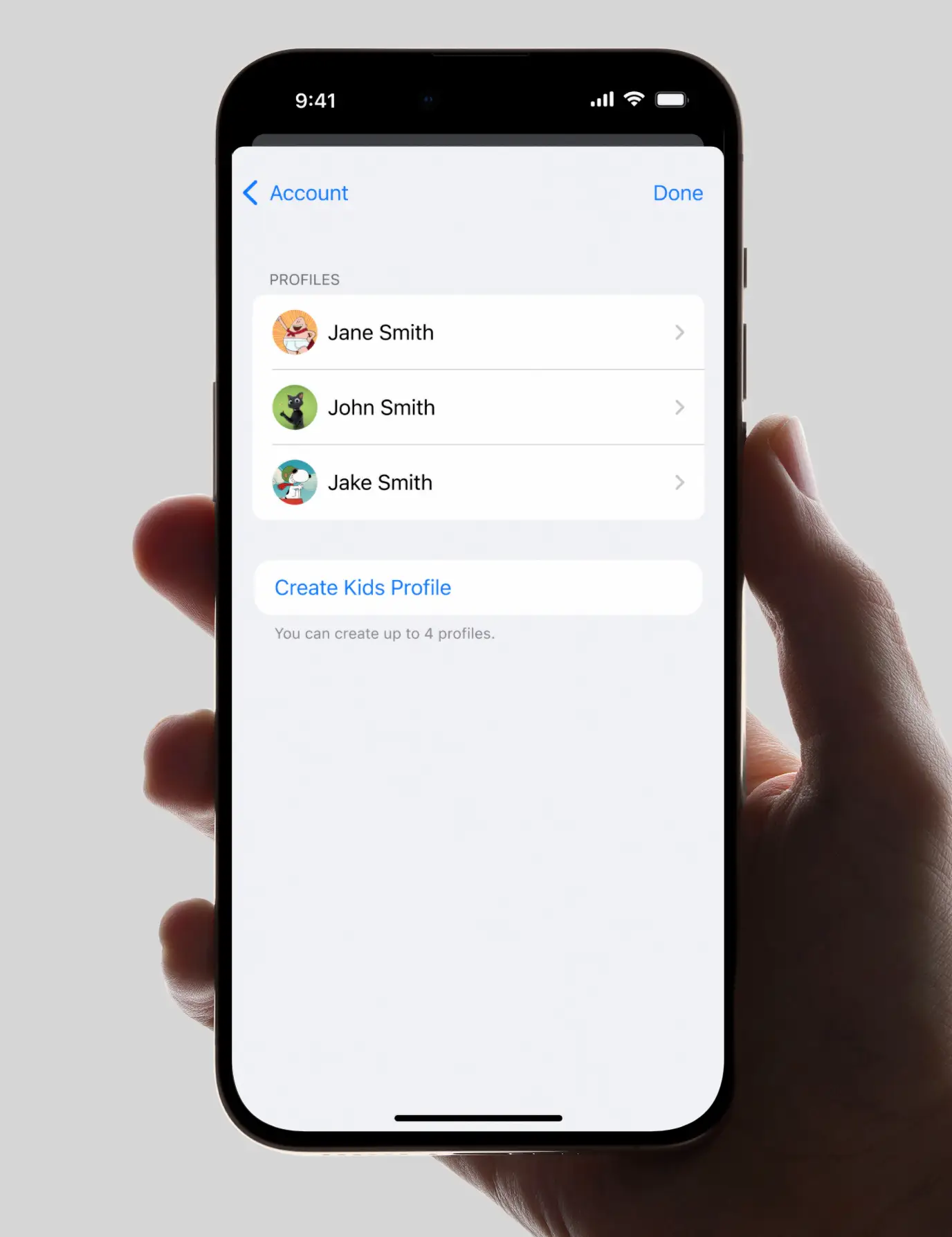
Account landing provides parents with centralized control over family viewing through the "Manage Profiles" section within the Kids Center. This dedicated area consolidates all kids profile settings, making it easy for parents to configure and adjust restrictions across multiple profiles. The interface clearly displays the total number of profiles, helping parents track their family's streaming setup at a glance.

Hand holding phone showing account settings with profile, app connections, subscriptions, and play history options.
Creating a kid's profile triggers the "Switch TV Profile" CTA, which is positioned at the top of the account landing for optimal visibility.
User profile with octopus avatar, Anastasia Tumasova's account and options for connected apps and subscriptions.
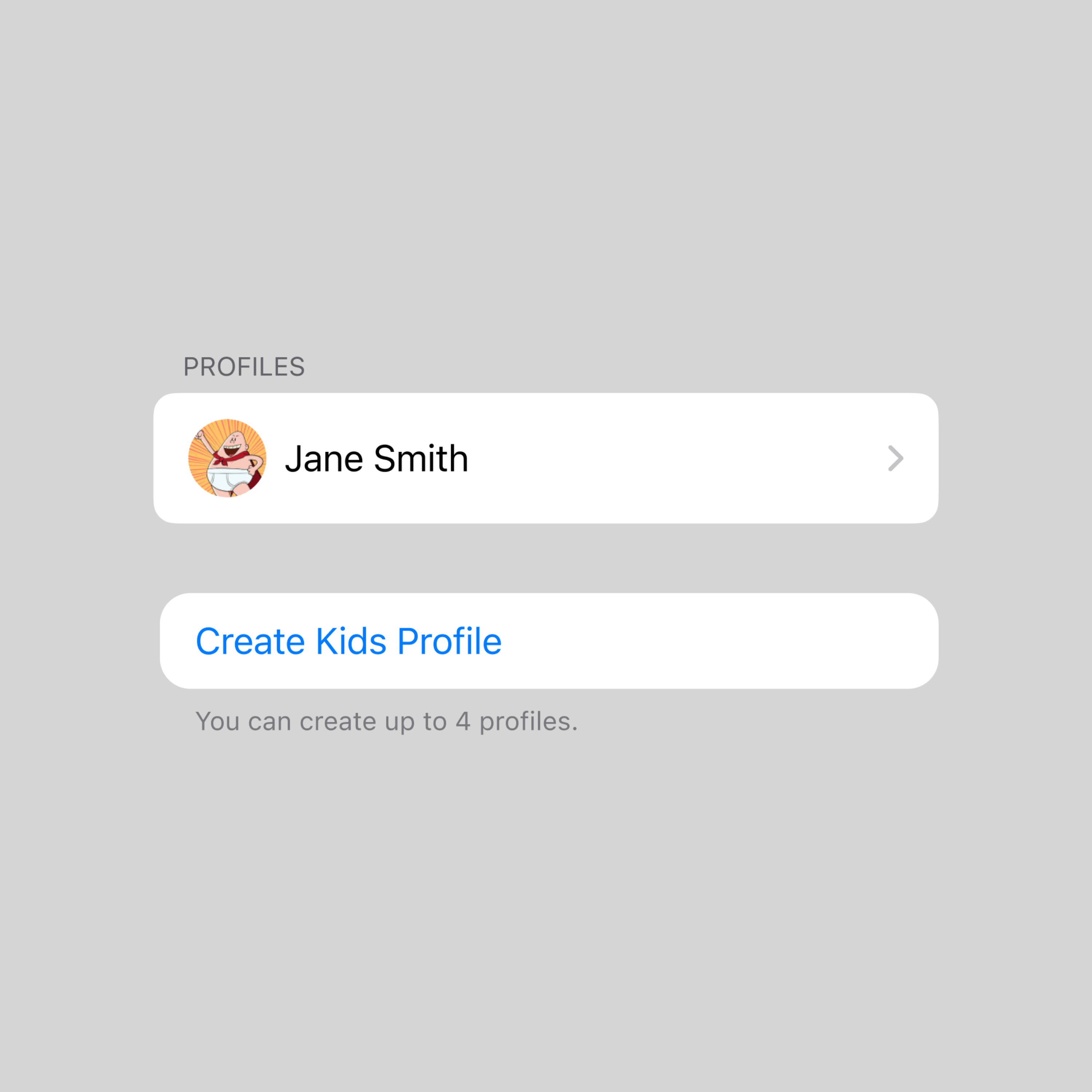
User profile list with one named Jane Smith and an option to create a kids profile.
Phone screen showing profiles for Jane, John, and Jake Smith with option to create kids profile.
Each profile features a distinctive avatar alongside the name. The interface supports up to 4 profiles for now, with the current allowed count indicated below the CTA.

Securing a Kid's Profile

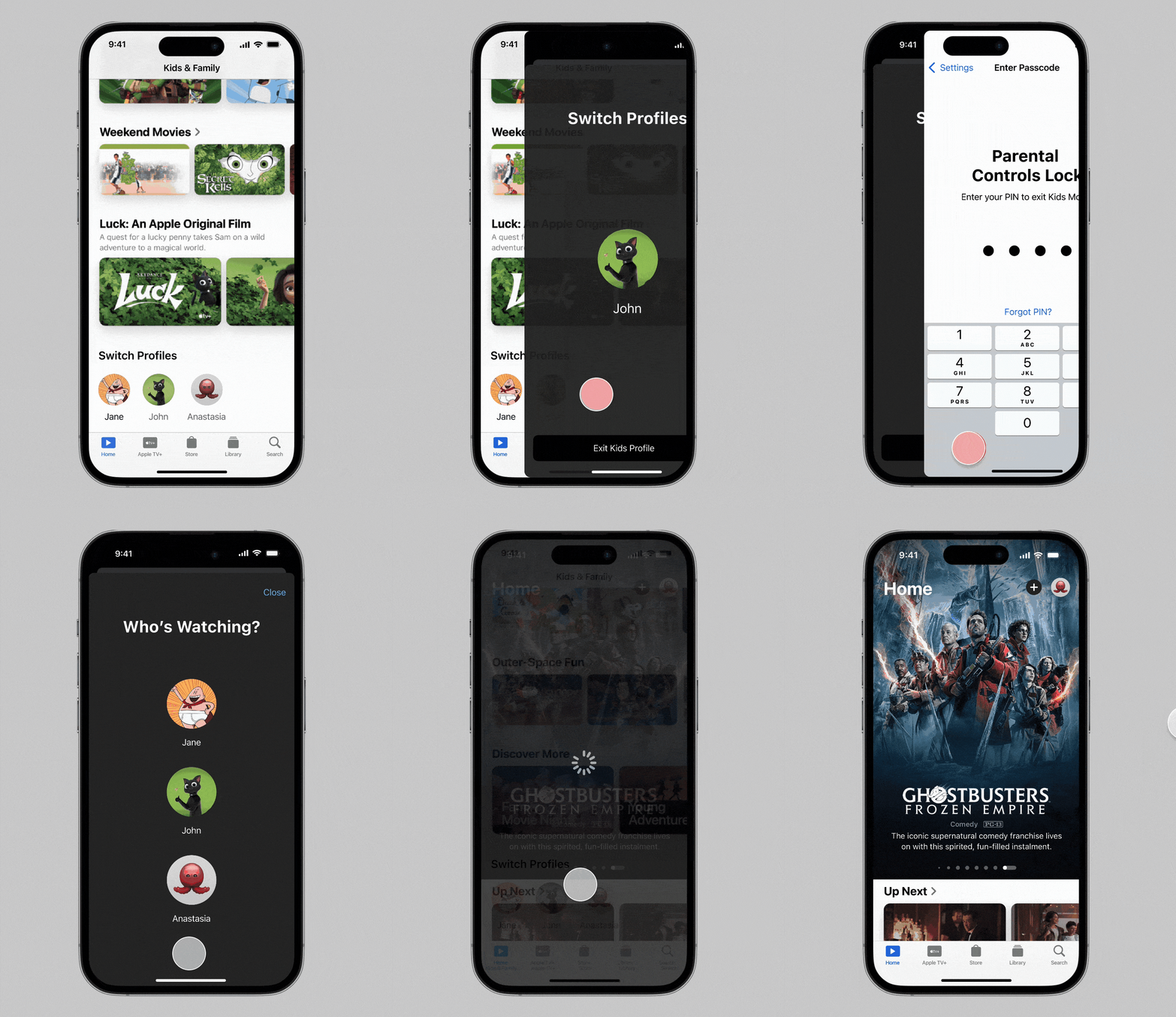
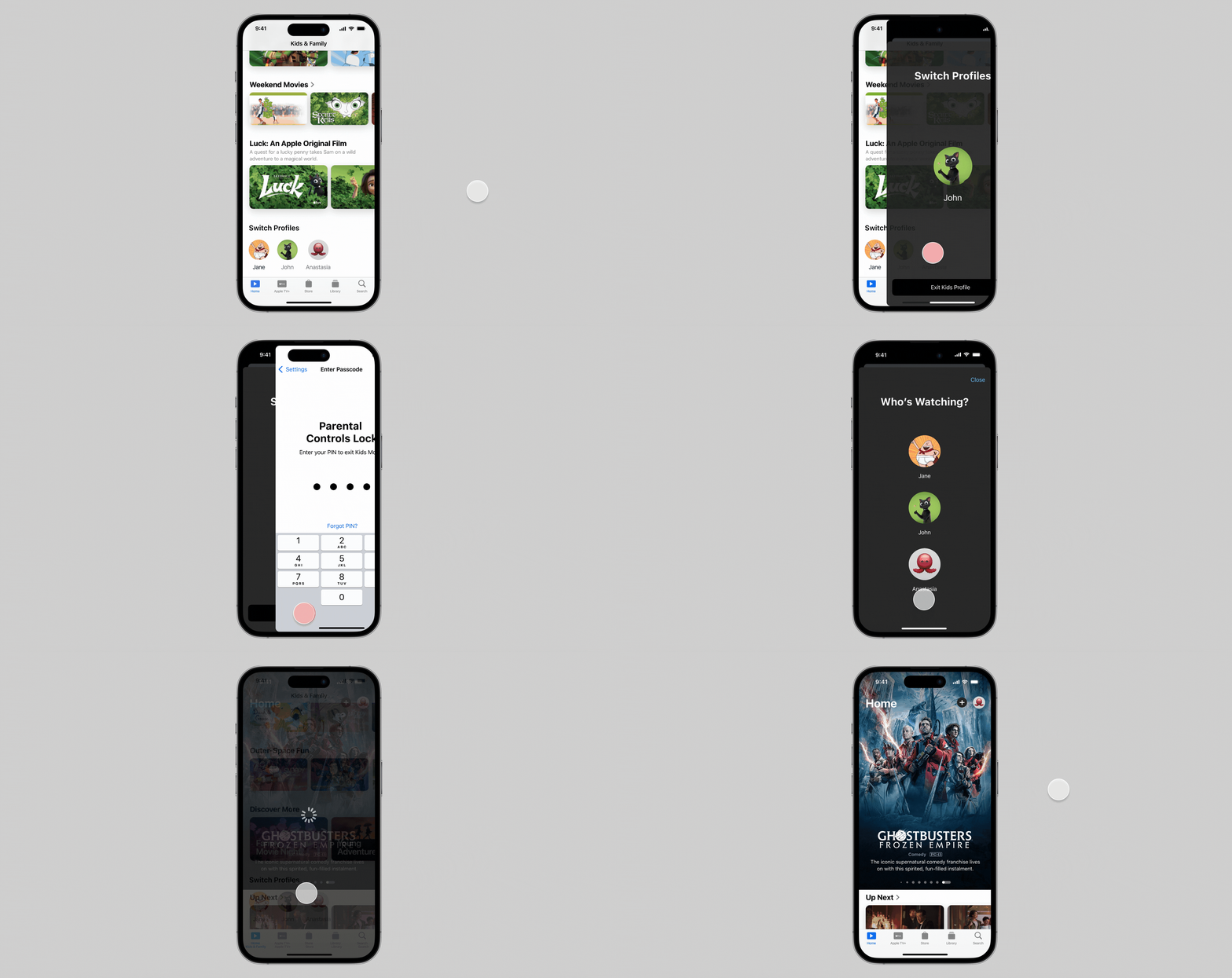
A 4-digit PIN requirement—consistent with streaming industry best practices—creates a secure barrier that prevents children from switching to other profiles.

iPhone screen showing Apple TV Kids & Family section with Weekend Movies and Luck movie featured.
In Kids mode, the profile avatars will appear on the Home screen, making it easy to Switch Profiles.
A 4-digit PIN is standard across streaming platforms.
iPhone screen showing Apple TV Kids & Family section with movies and profile switch icons.
In Kids mode, the profile avatars will appear on the Home screen, making it easy to switch profiles.
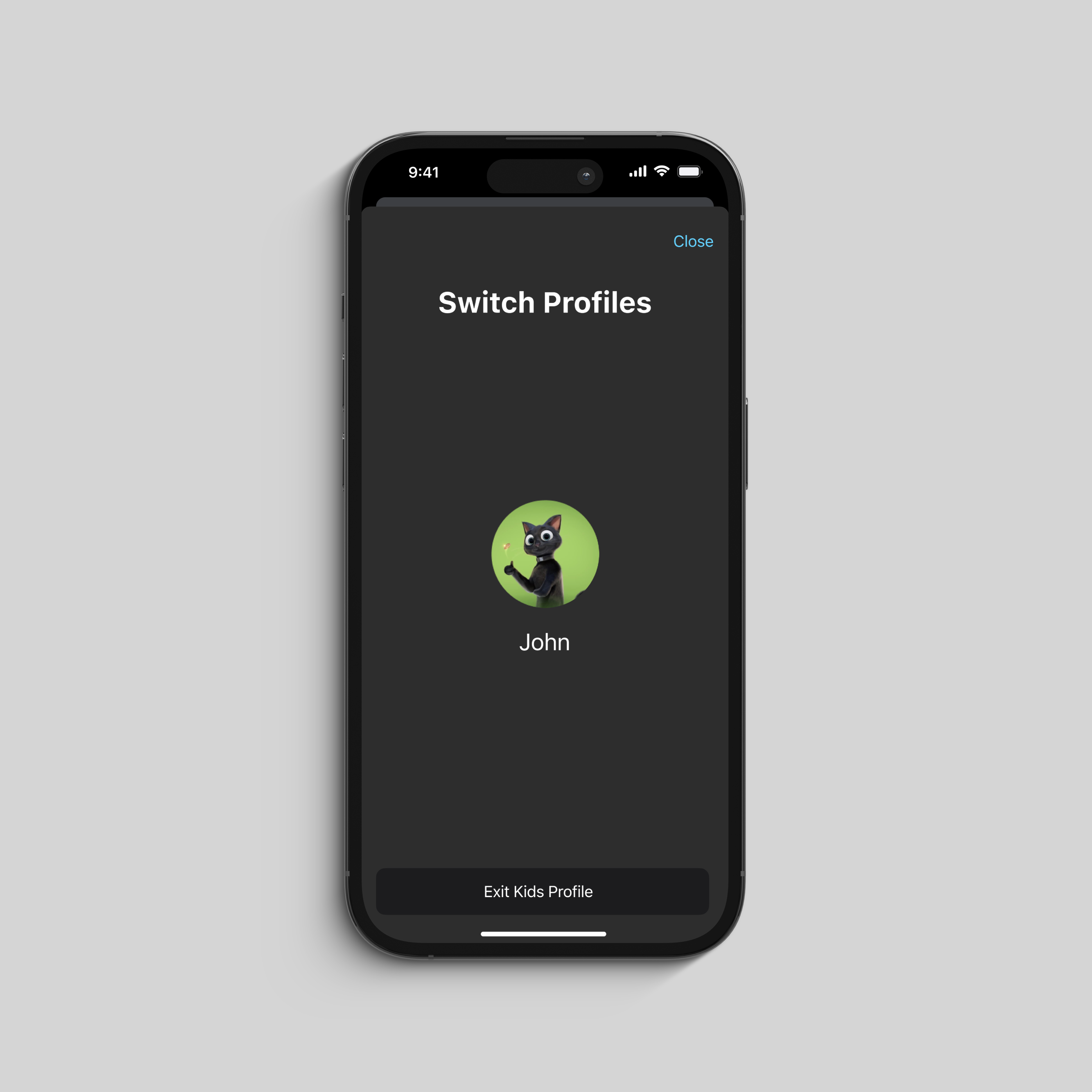
iPhone screen showing a switch profile option with a cat avatar labeled John and Exit Kids Profile button.
It's a smooth transition to the PIN screen after selecting Exit Kids Profile.
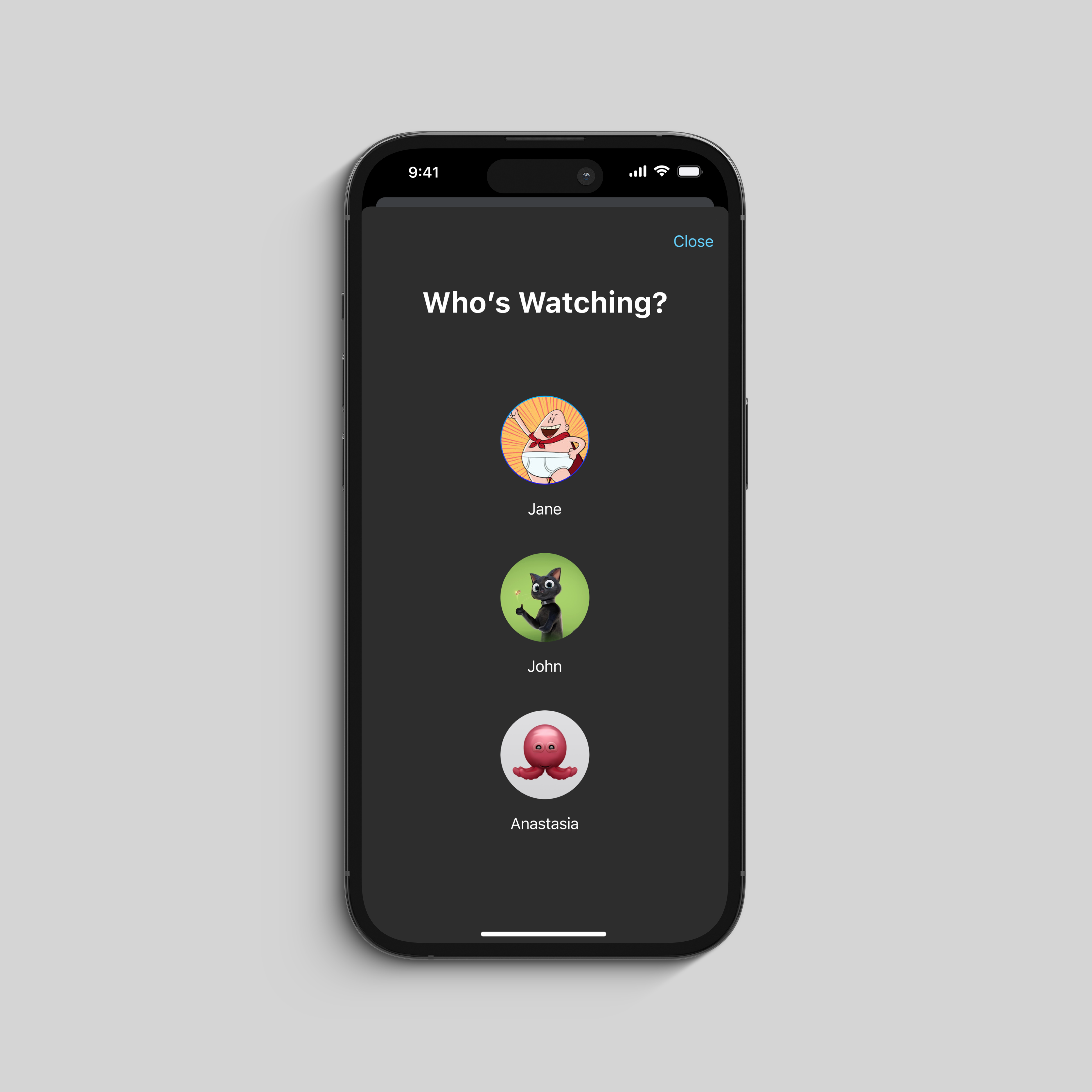
Mobile screen showing a 'Who’s Watching?' prompt with profiles Jane, John, and Anastasia with cartoon icons.
After entering the PIN, an overview of existing profiles is displayed.

Why a PIN & Not Biometrics?

It is a very common pattern to use a PIN code vs. biometric authentication for switching out of kids mode. PINs are standard and easy to set up and remember for parents.

Biometrics are not present on all viewing devices (e.g. smart TVs).

Profile Switch Variations

I did explore other layouts for profile switching, testing combinations of actions and information hierarchy. These iterations show the evolution from a more complex multi-option layout to a streamlined final design that prioritizes the core actions parents need most—simply, just to exit kids mode.

Kids profile screen showing cartoon character wearing white underwear and red cape, labeled Jane.
Version 1
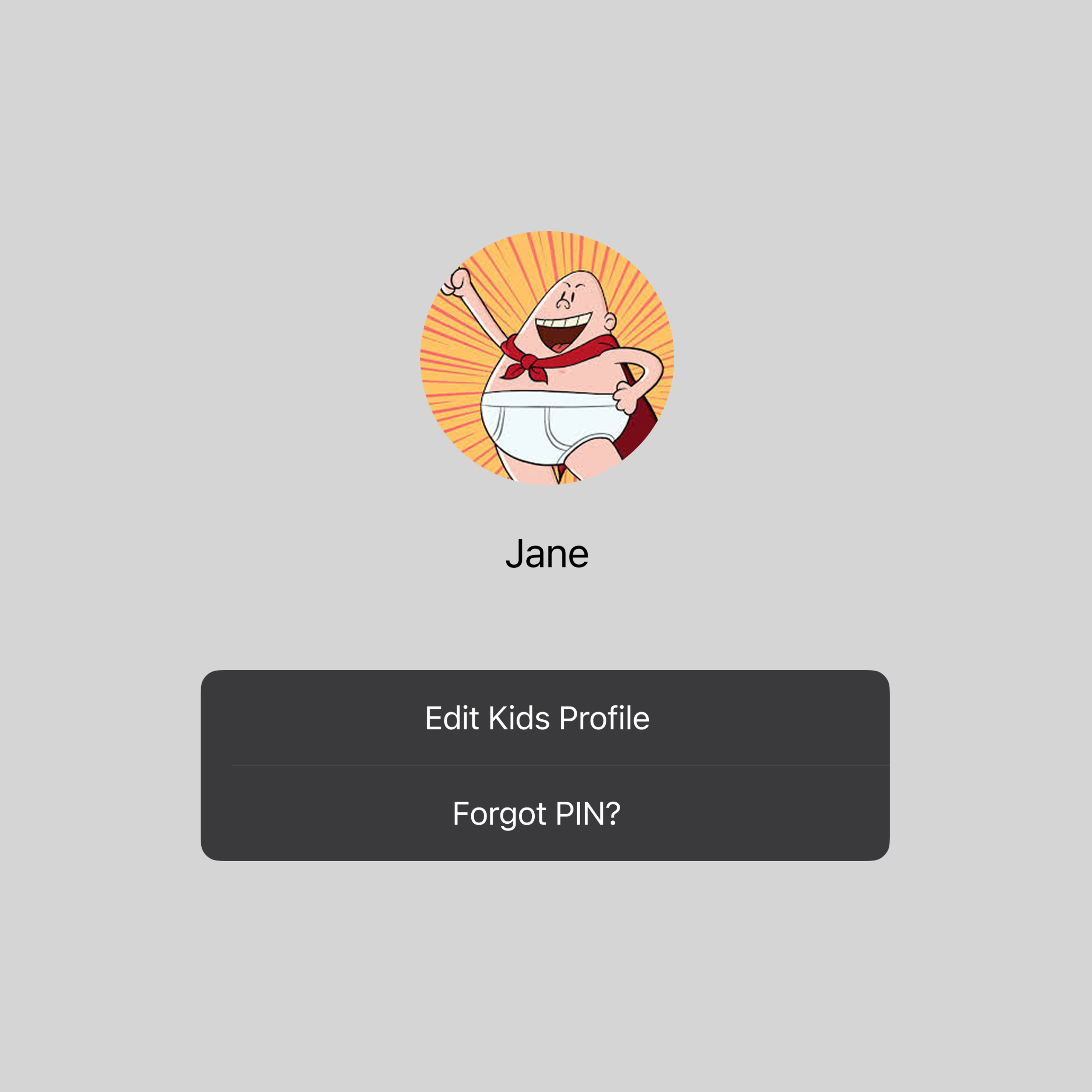
Kids profile screen showing cartoon character avatar labeled Jane with options to exit, recover PIN, or edit profile.
Version 2
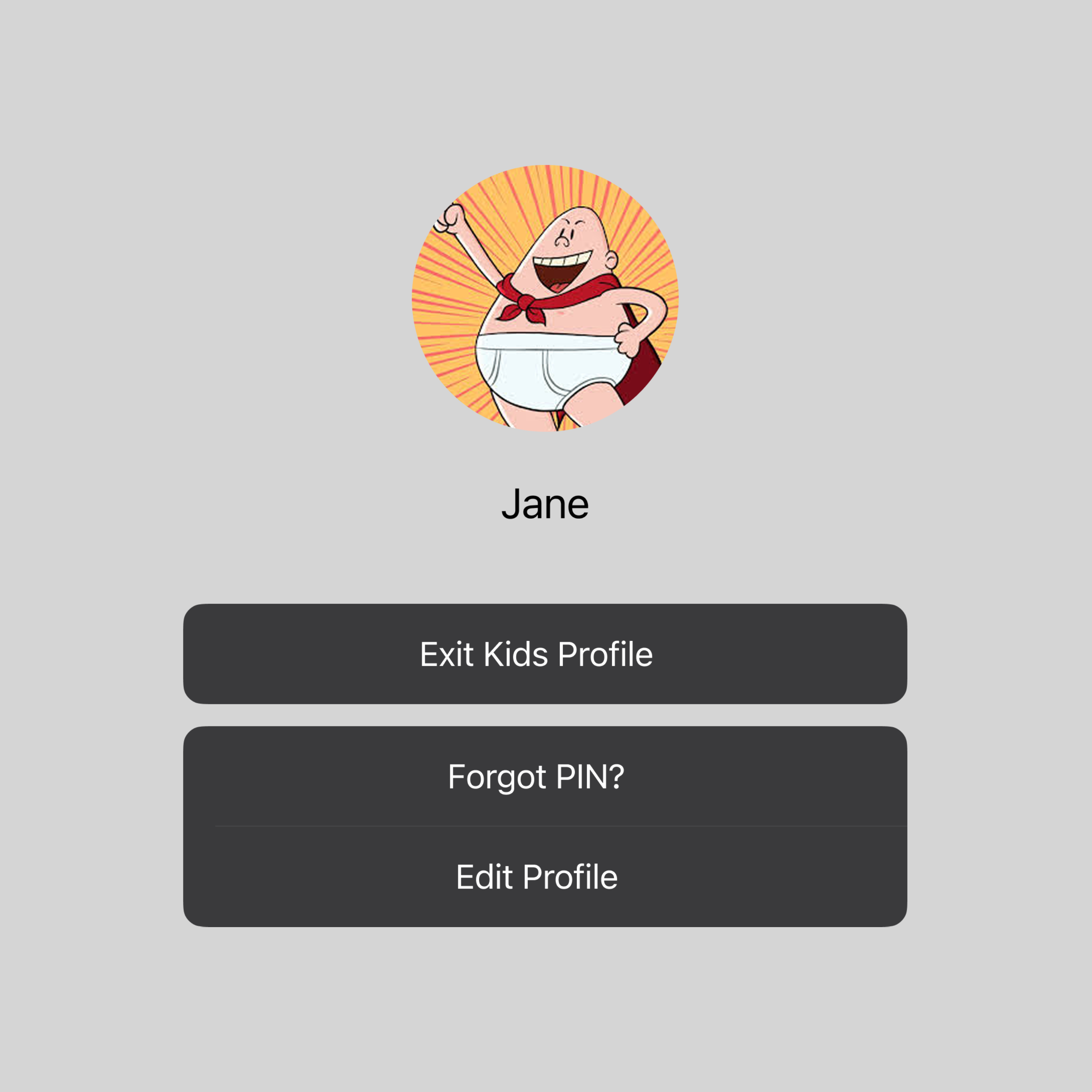
Kids profile screen showing avatar of cartoon character with red cape labeled Jane with profile options.
Version 3
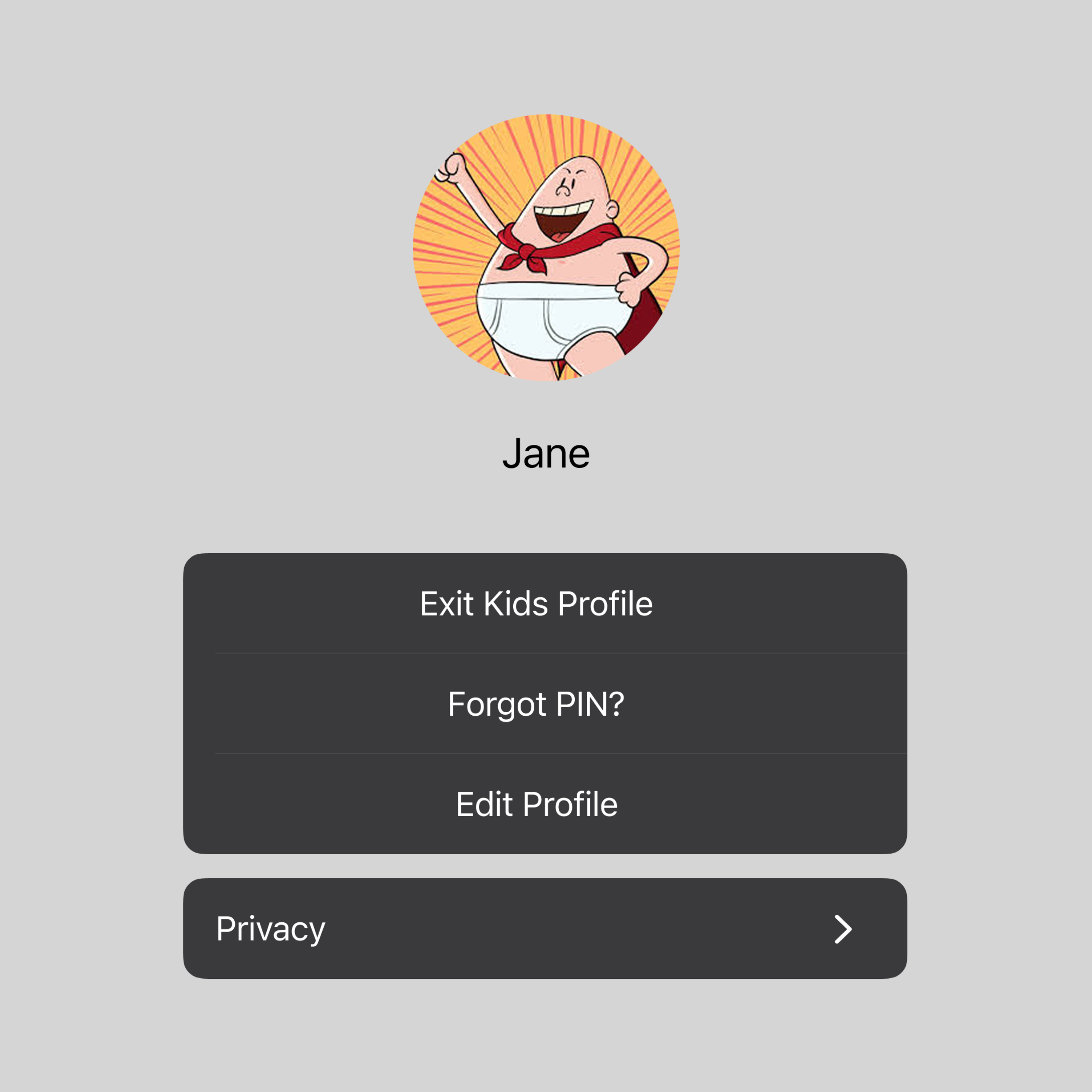
Kids profile screen for Jane showing cartoon character with red cape and three menu options below.
Version 4

Exit Kids Profile Interface Variations

Version 1

Simplified two-option interface focusing on the most essential functions—"Edit Kids Profile" and "Forgot PIN?" combined in a single, streamlined action group.

Version 2

Separated action layout with another grouping for each function—"Exit Kids Profile" as the main CTA and "Forgot PIN?" and the additional "Edit Profile" CTA as a secondary grouping.

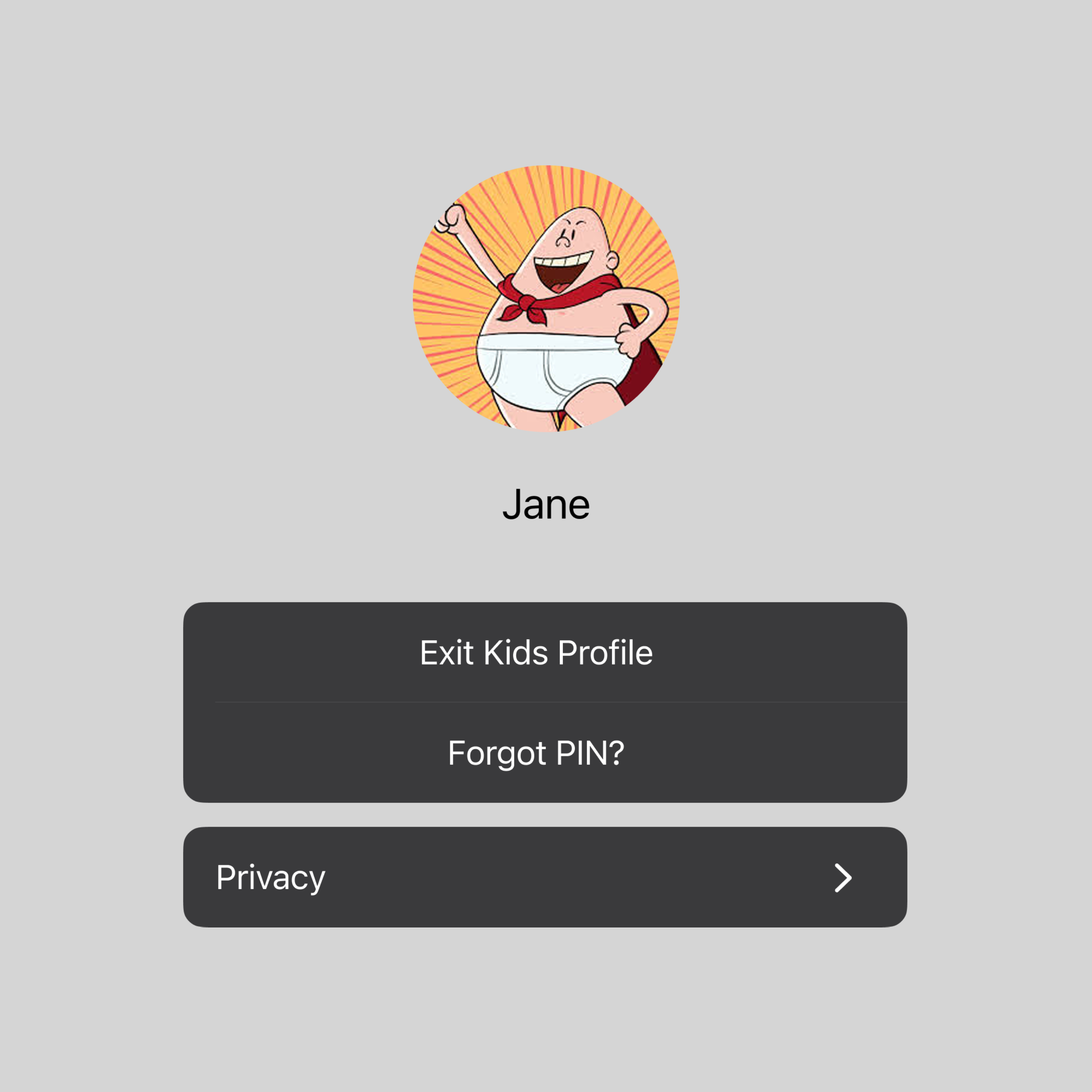
Version 3

Expanded single-profile view with all of the CTAs grouped together by hierarchy. This version consolidates three key functions while keeping a new "Privacy" disclaimer separate.

Version 4

Basic profile switching interface with essential actions grouped together—"Exit Kids Profile" and "Forgot PIN?" in one button group, with a separate "Privacy" option below.

Smartphone screen showing account settings with user info, subscriptions, profiles, play history, and sports sync toggle.
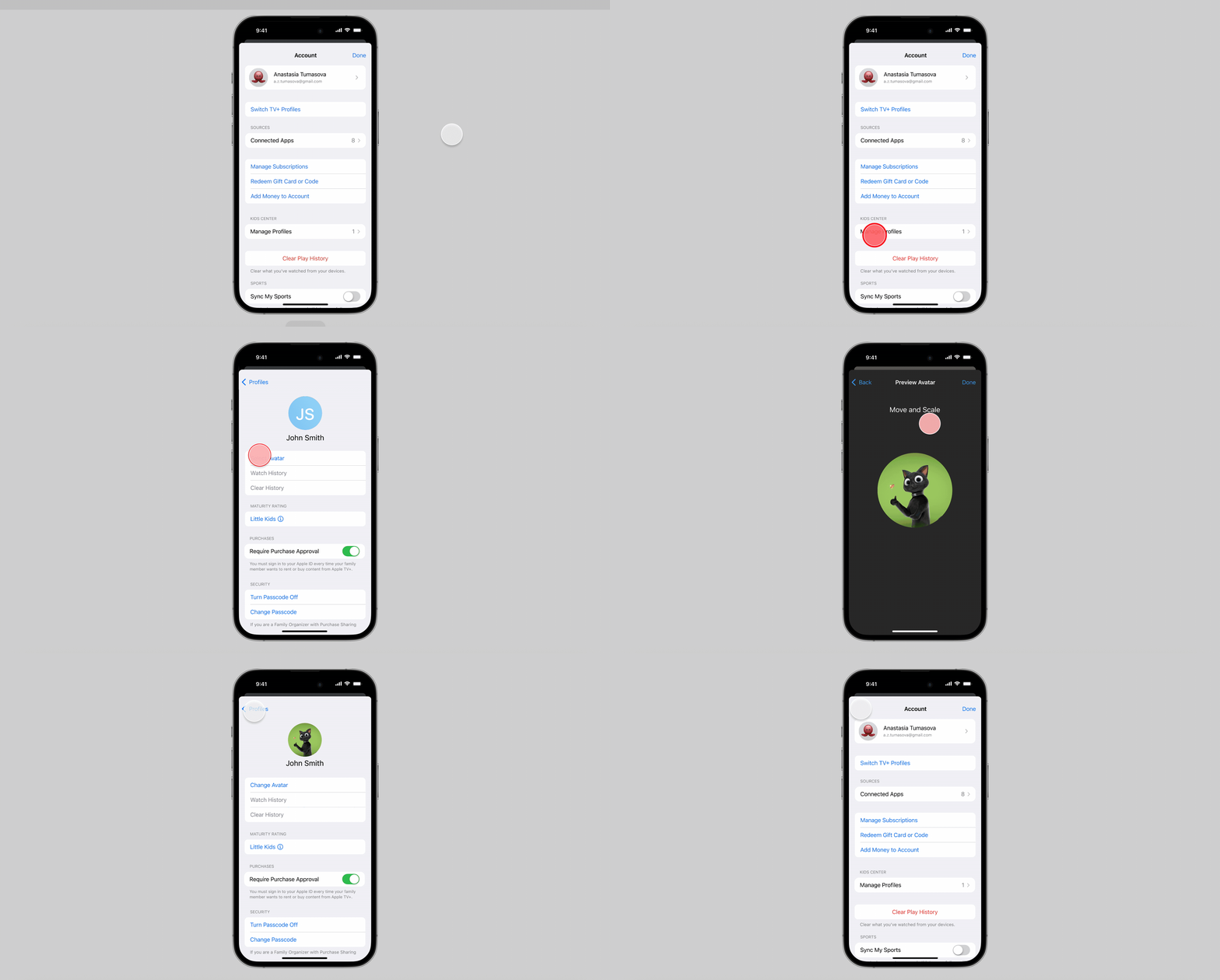
Profile avatars as well as potential future features like Kids themes personalize the experience, making it their space and customizable whenever change is wanted.
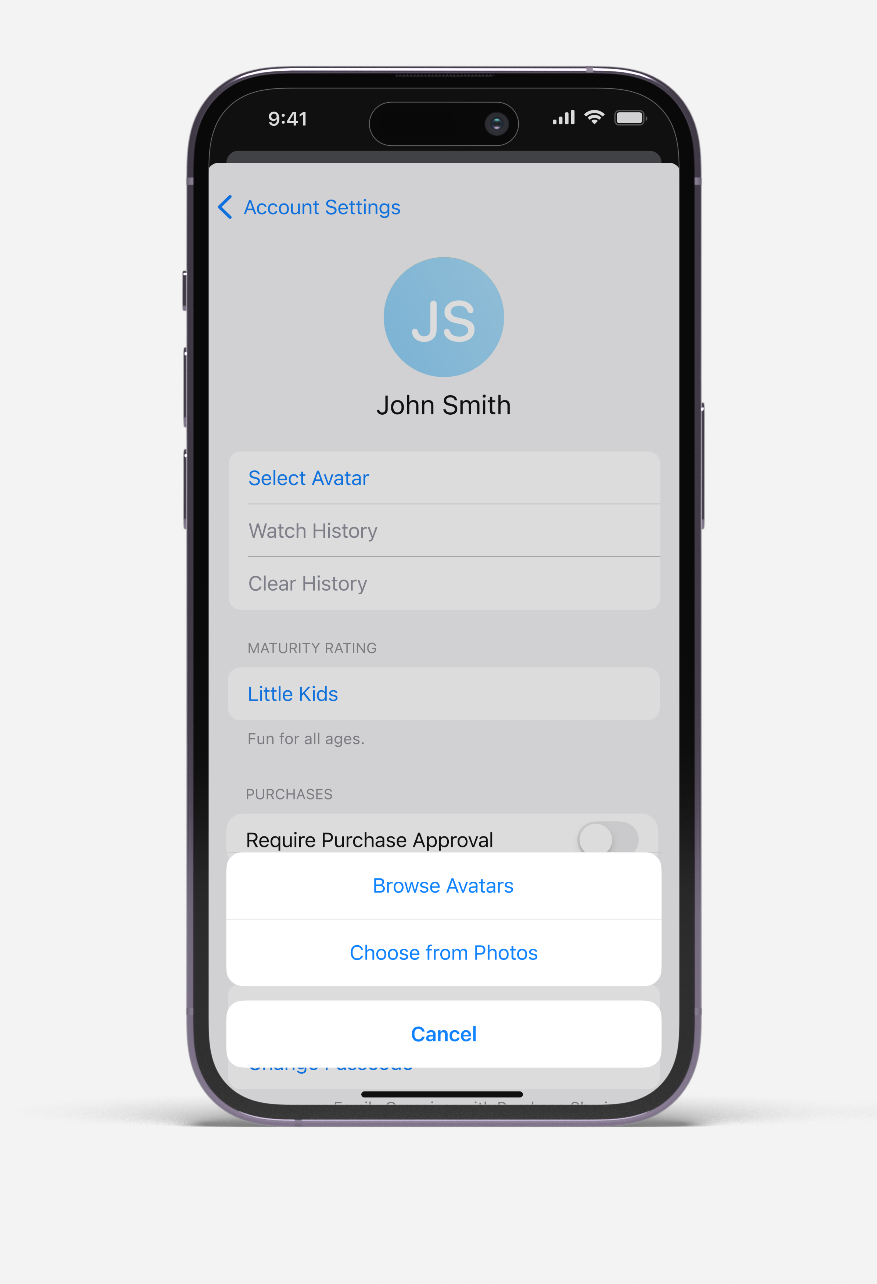
iPhone screen showing account settings for John Smith with avatar options and maturity rating for little kids.
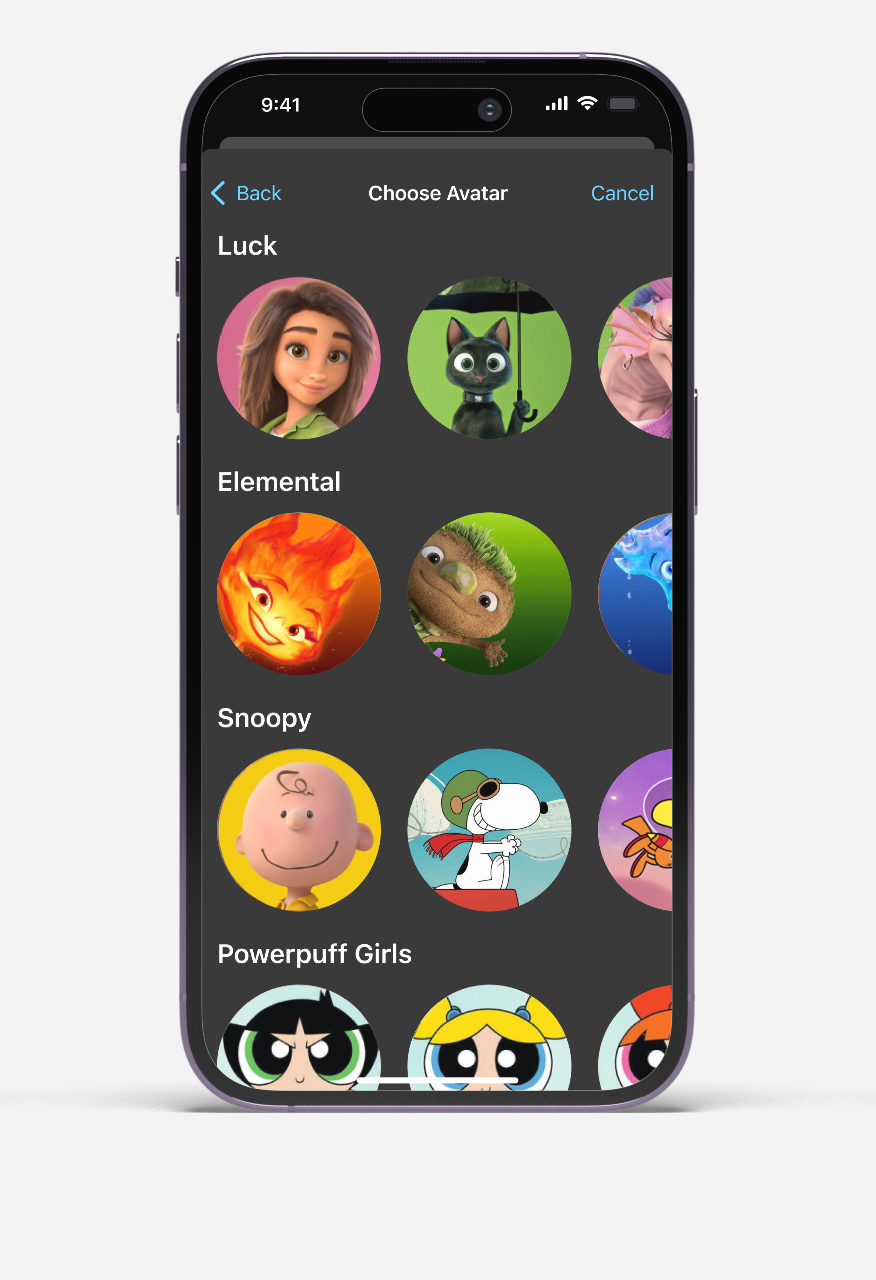
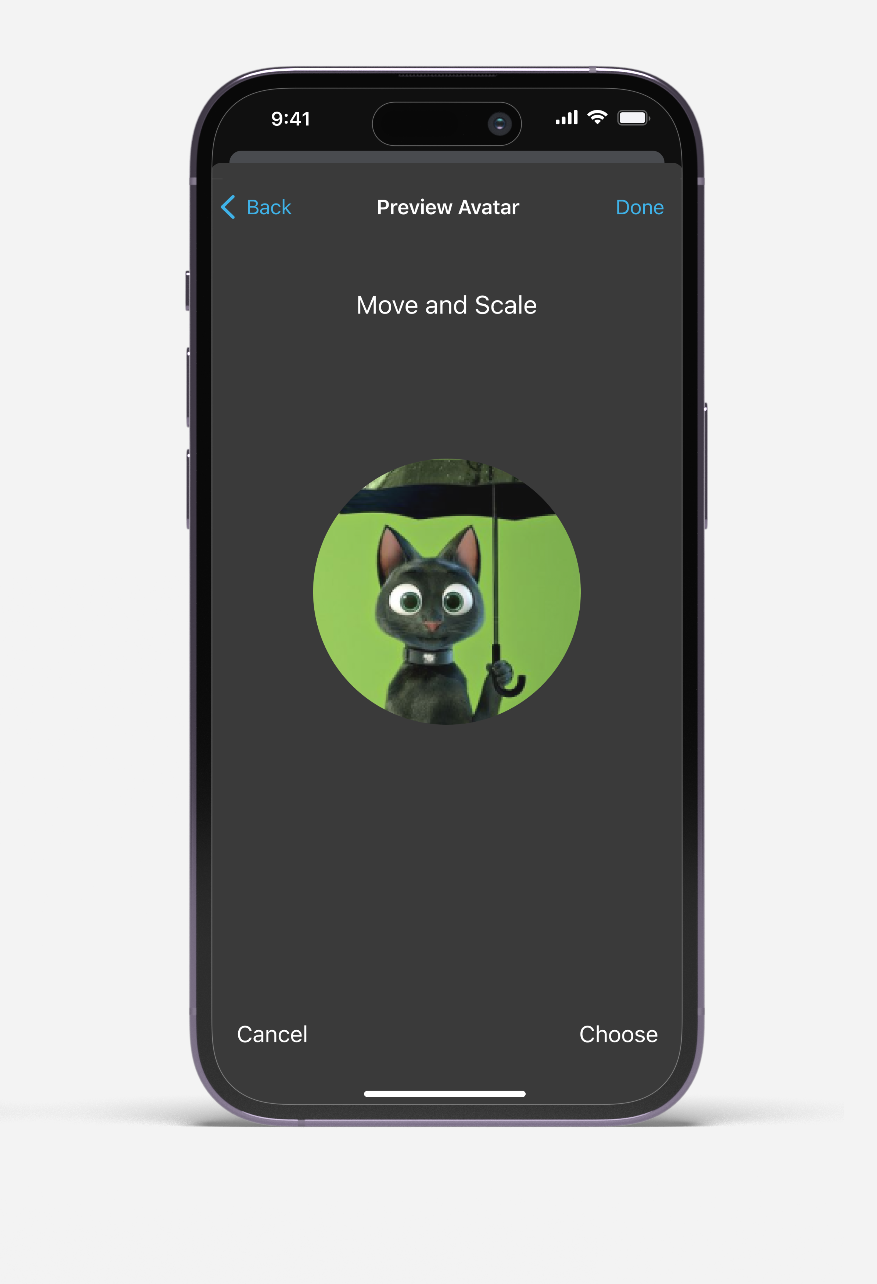
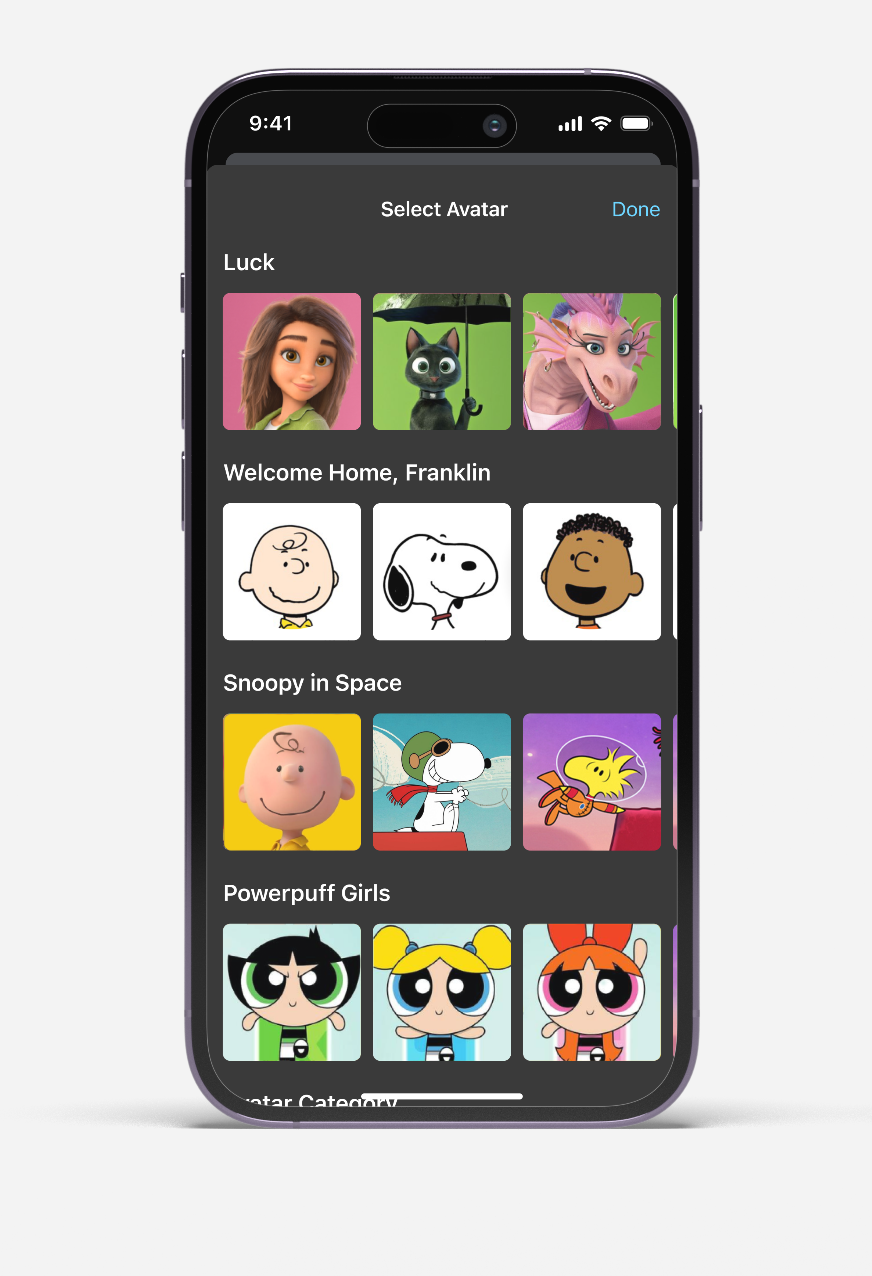
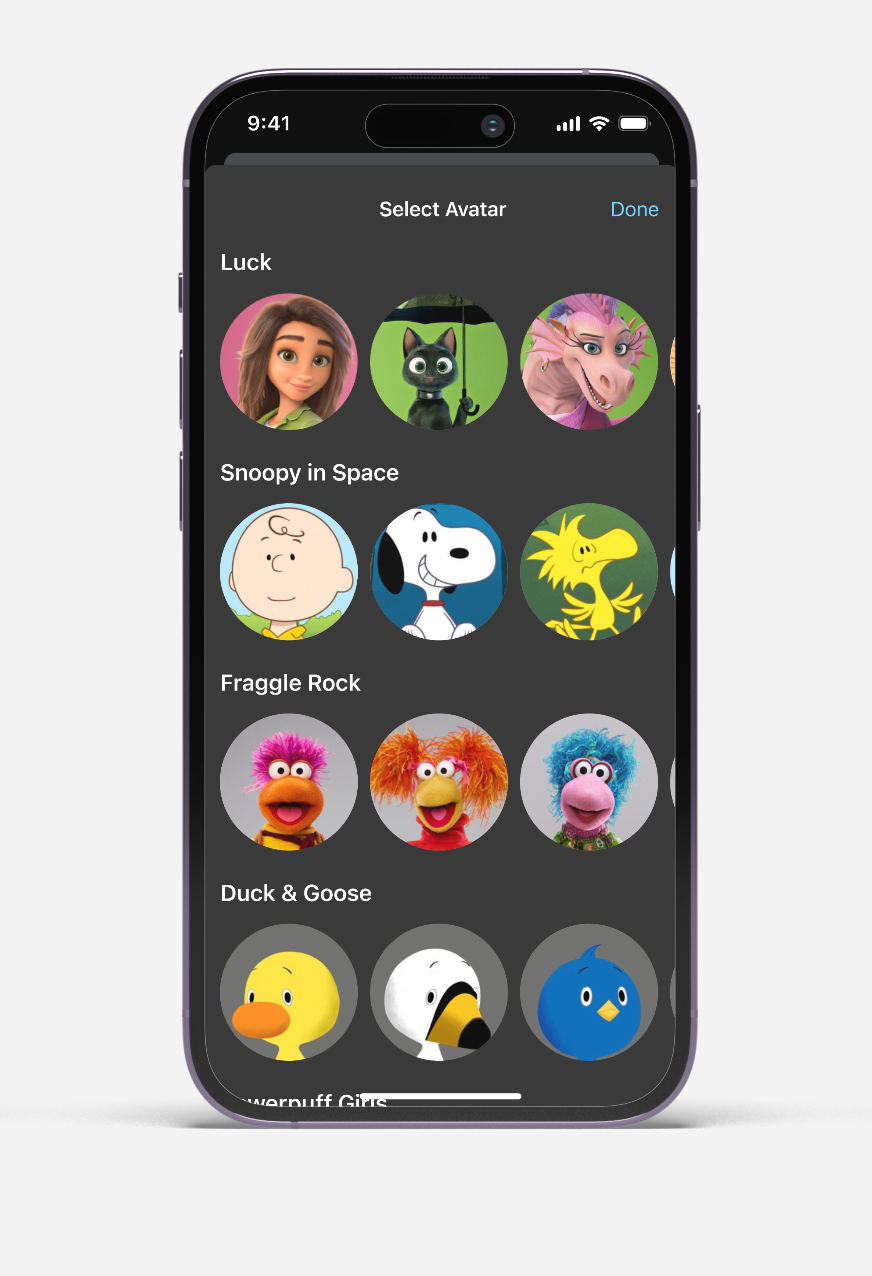
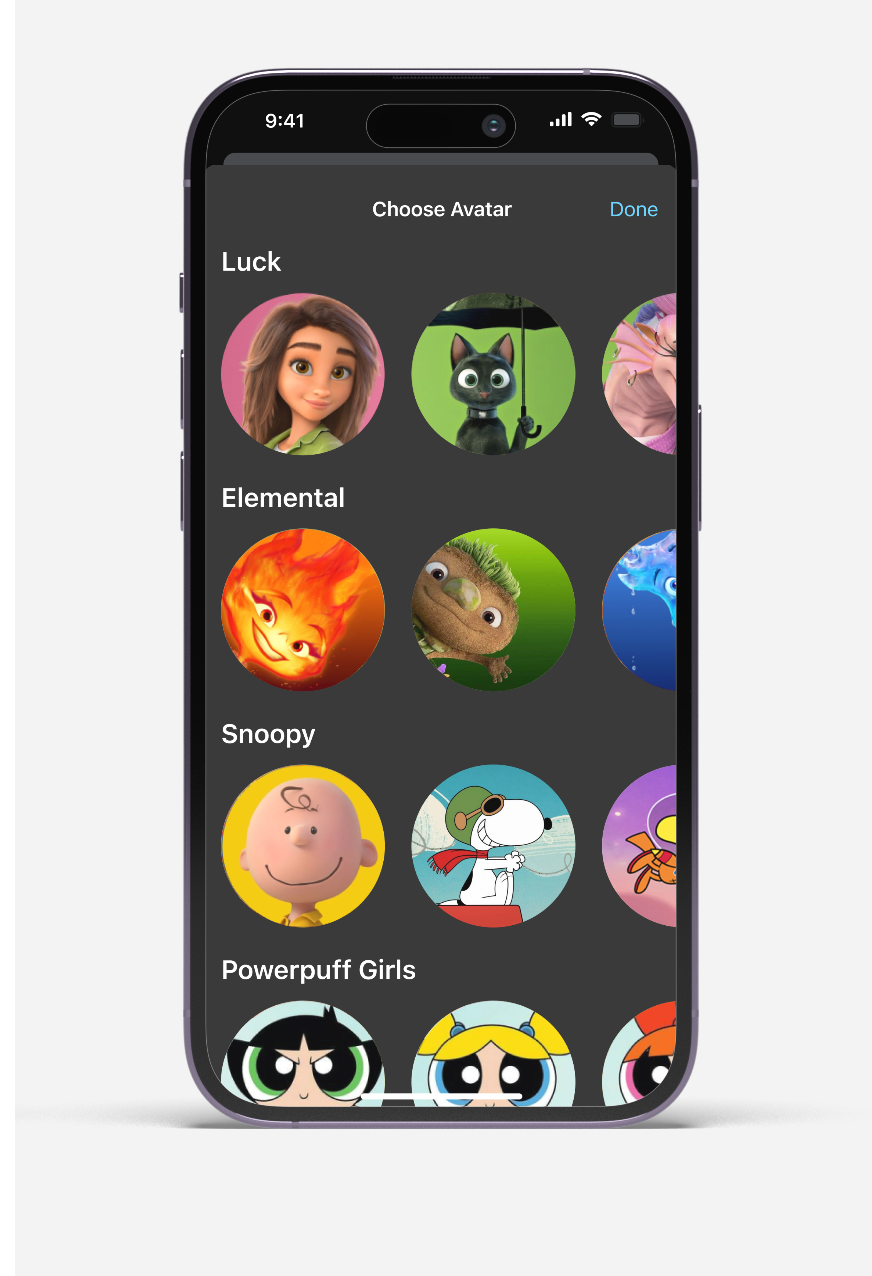
Introduces thematic groupings ("Luck," "Elemental," "Snoopy") with circular thumbnails, reducing cognitive load while promoting original content.
Smartphone screen showing avatar choices from Luck, Elemental, Snoopy, and Powerpuff Girls.Smartphone screen showing a black cat avatar holding an umbrella on a green background in avatar preview mode.
Smartphone screen showing account settings with subscription and profile management options.
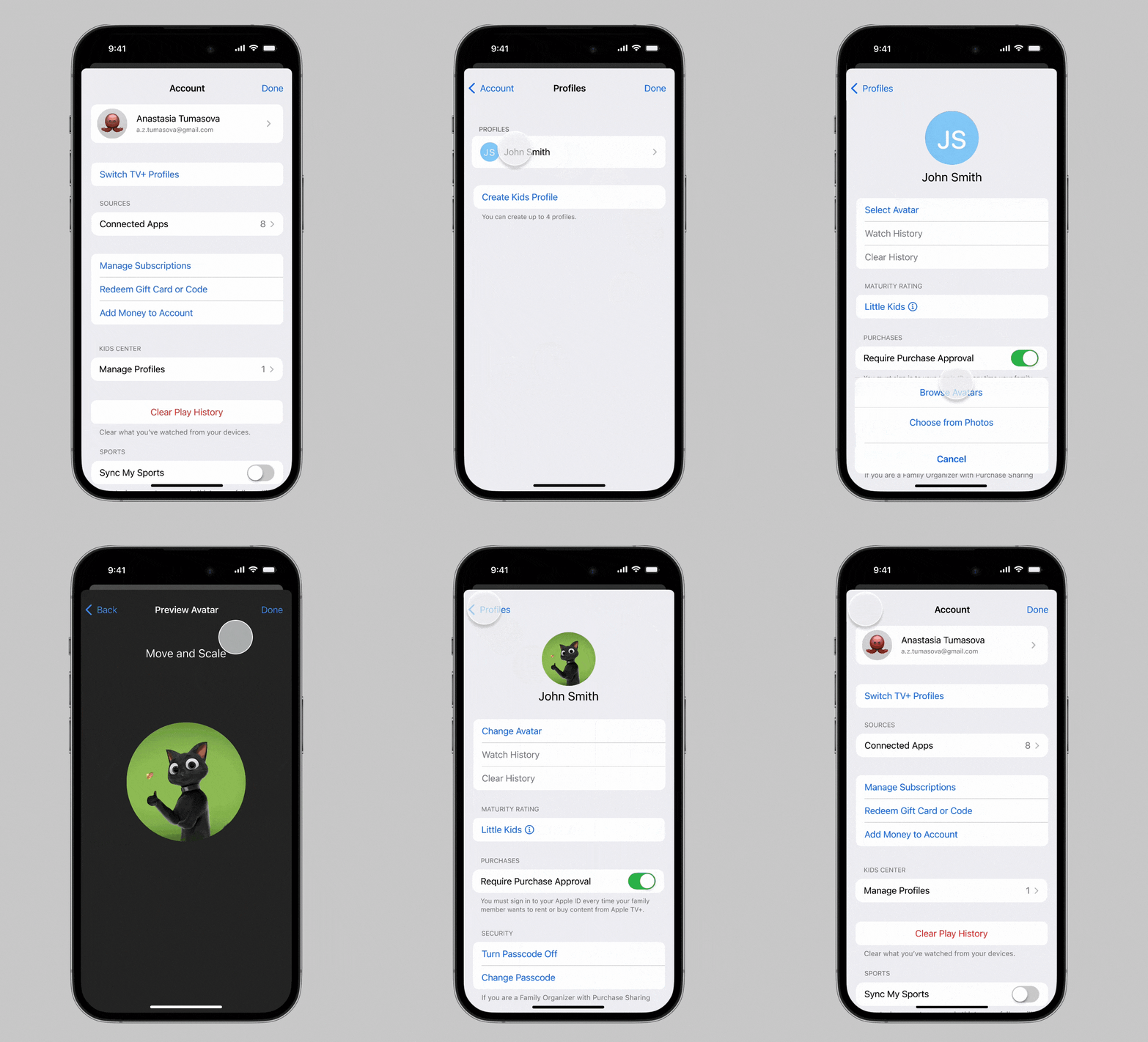
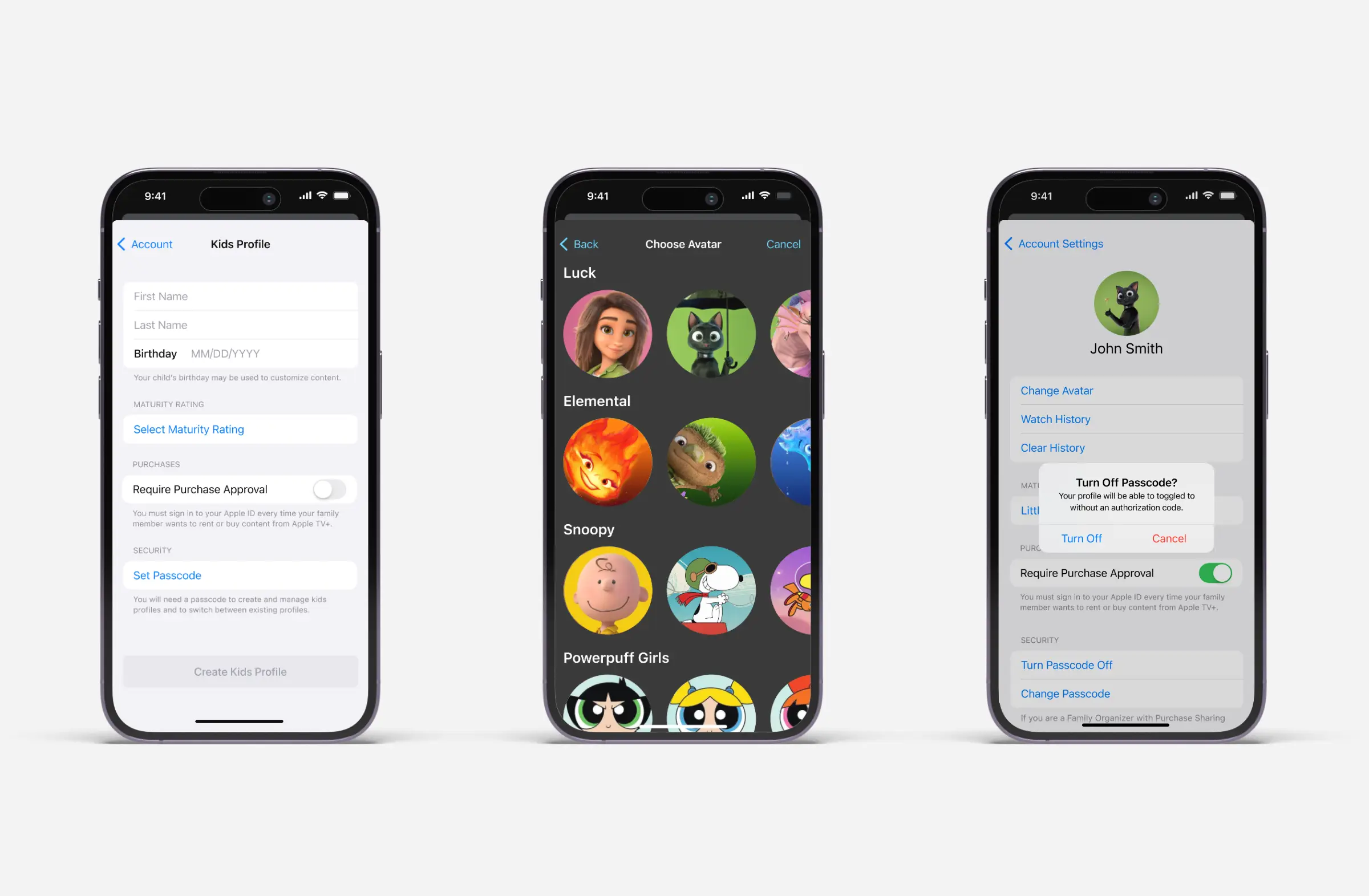
Three iPhones showing kids profile setup, avatar selection, and passcode turn off confirmation screens.
Introduces thematic groupings ("Luck," "Elemental," "Snoopy") with circular thumbnails, reducing cognitive load while promoting original content.
Profile avatars as well as potential future features like Kids themes personalize the experience, making it their space and customizable whenever change is wanted.

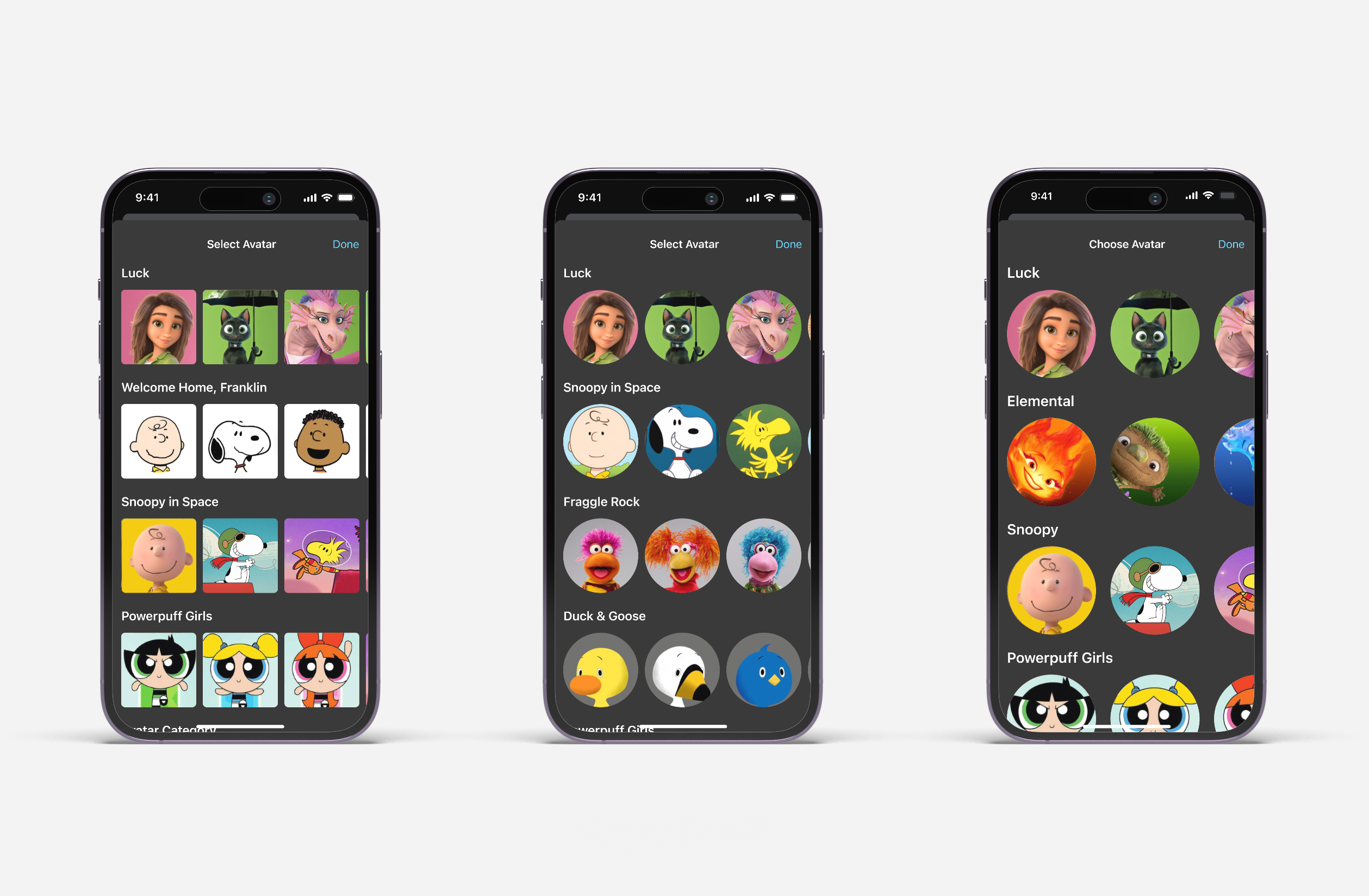
From left to right (below):

Version 1

Introduced thematic groupings ("Luck," "Elemental," "Snoopy") with square thumbnails.

Version 2

Maintains categorical structure but introduced circular avatars for easier navigation and viewing.

Version 3

Chosen design. Improved upon Version 2 by increasing the size of the avatars.

Note: The final design incorporated a Back button for intuitive navigation.

Three phones showing avatar selection screens with cartoon and animated character icons.
Mobile screen showing avatar selection with categories including Luck, Snoopy, and Powerpuff Girls characters.
Introduces thematic groupings ("Luck," "Elemental," "Snoopy") with circular thumbnails, reducing cognitive load while promoting original content.
Smartphone screen showing avatar selection menu with characters from Luck, Snoopy, Fraggle Rock, and Duck & Goose.
Phone screen with avatar selection featuring characters from Luck, Elemental, Snoopy, and Powerpuff Girls.
08

Design Decisions That Matter

Why In-App Profiles Over Family Sharing?

While Apple's Family Sharing provides device-level controls, user research revealed that families preferred immediate, in-app content segregation for shared devices like iPads, reducing cognitive load.

The PIN Choice

Compatibility across all Apple TV devices (including smart TVs without biometrics), familiar pattern from Netflix/Disney+, and fast setup without any additional requirements made PINs the clear winner.

Visual Hierarchy for Quick Setup

The profile creation flow prioritizes the most critical decision first: age-appropriate content filtering. This ensures appropriate viewing is never compromised for convenience.

Smiling child in orange shirt raising arms outdoors with blurred green trees in the background.
Three boys lying on colorful carpet, smiling and watching content on an open laptop.
09

Key Learnings

Business Alignment is Everything

Good design means nothing without clear business metrics. A design focusing on churn reduction and acquisition can give a concept project like this executive buy in and development priority.

Simplicity Wins in Family Products

Parents are often multitasking. The profile solution needed to work in under 15 seconds, not 1 minute.

Platform Consistency Builds Trust

Maintaining Apple's design system wasn't just about aesthetics—it was about ensuring parents felt confident in the security and control settings of the kids' experience.

Future Opportunities

With the foundation established, the next iteration could explore:

Enhanced parental insights and screen time management
An animated loading screen when entering Kids mode
A genre selection screen after Kids Profiles setup is complete

Other Work

The First Sip

The Coca-Cola Company

Advertising

Lost Surboards

SS26

Art Direction

Taskrabbit Live Activity

2023

Mobile App Design

I built this site!

I built this site!