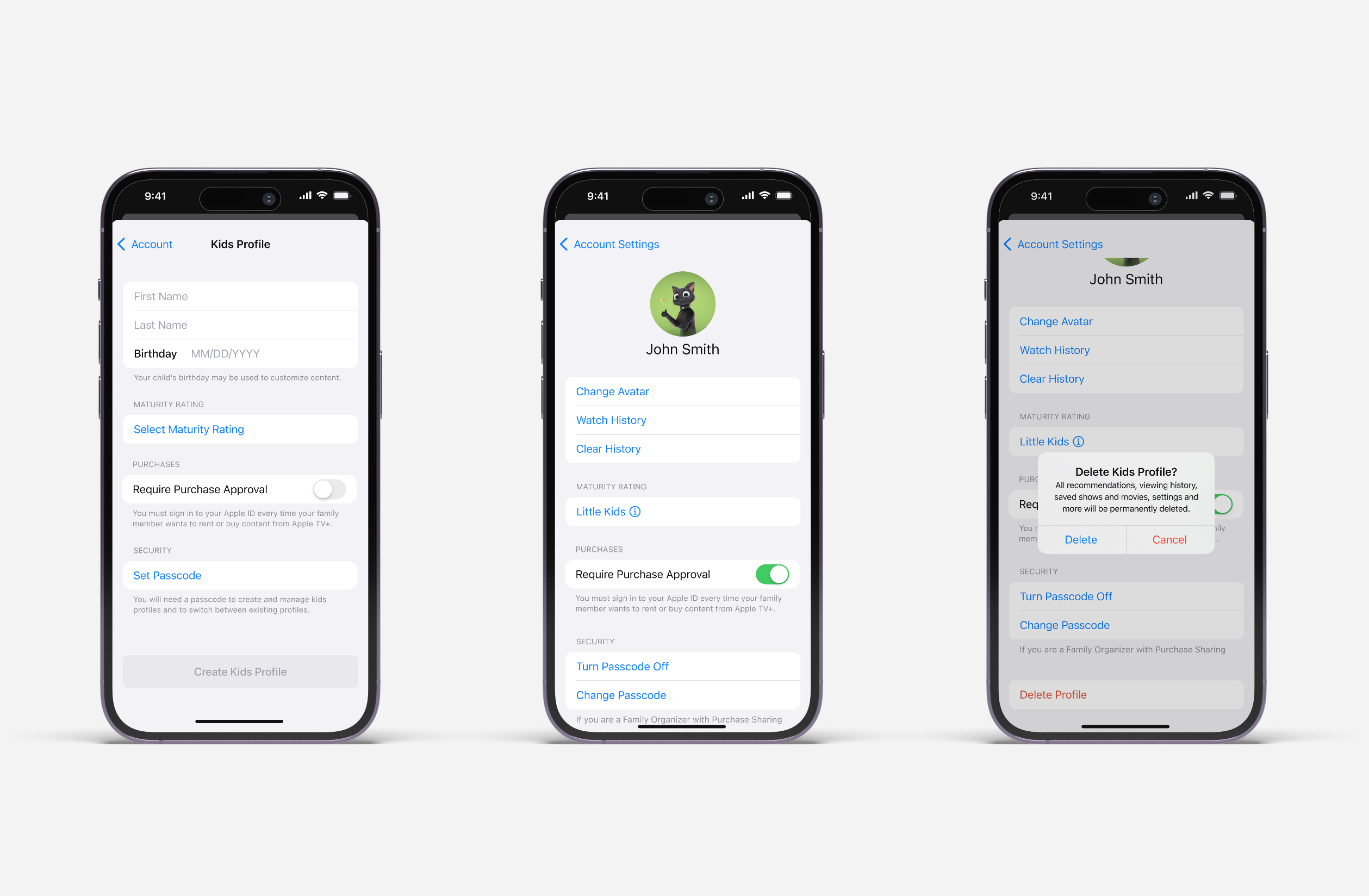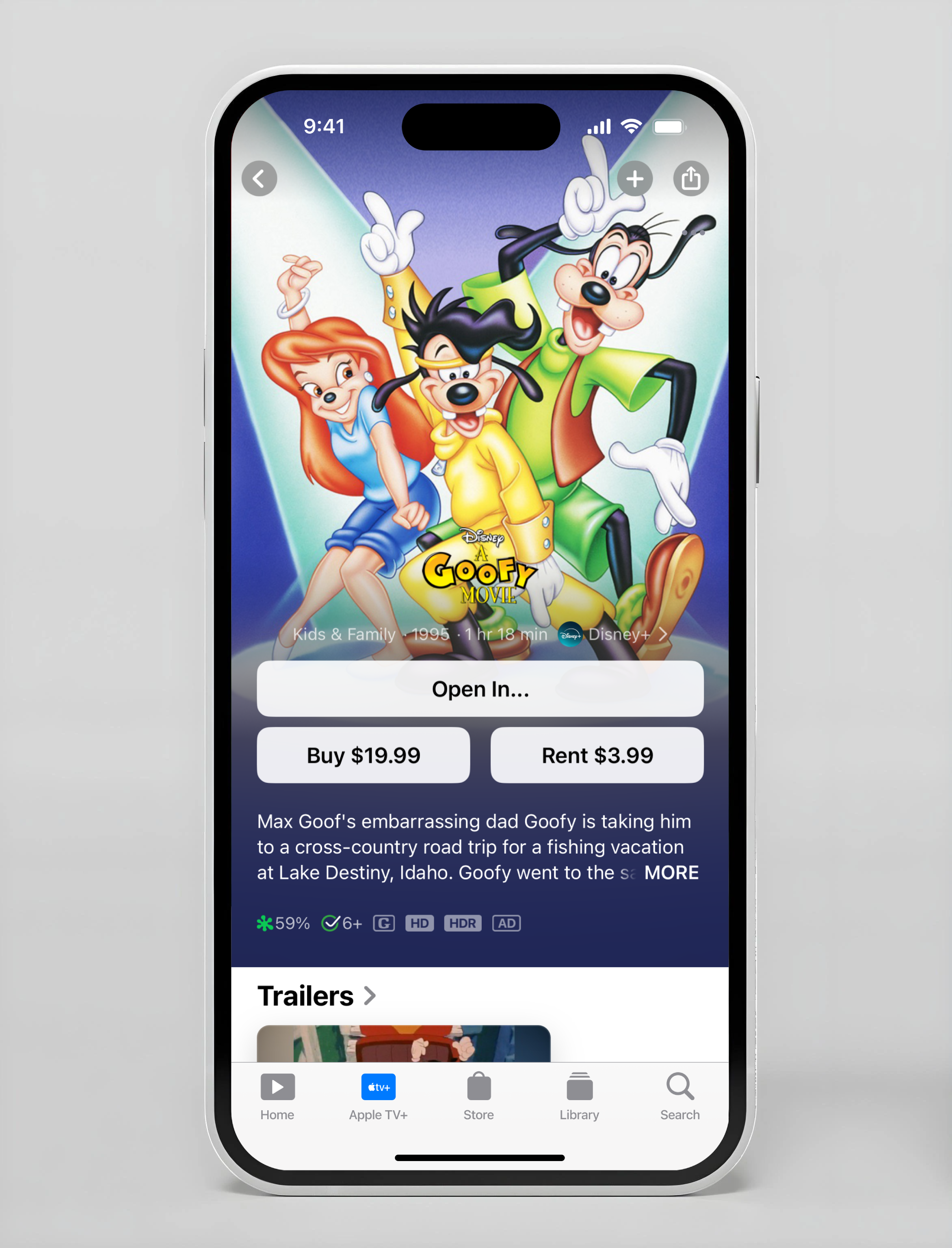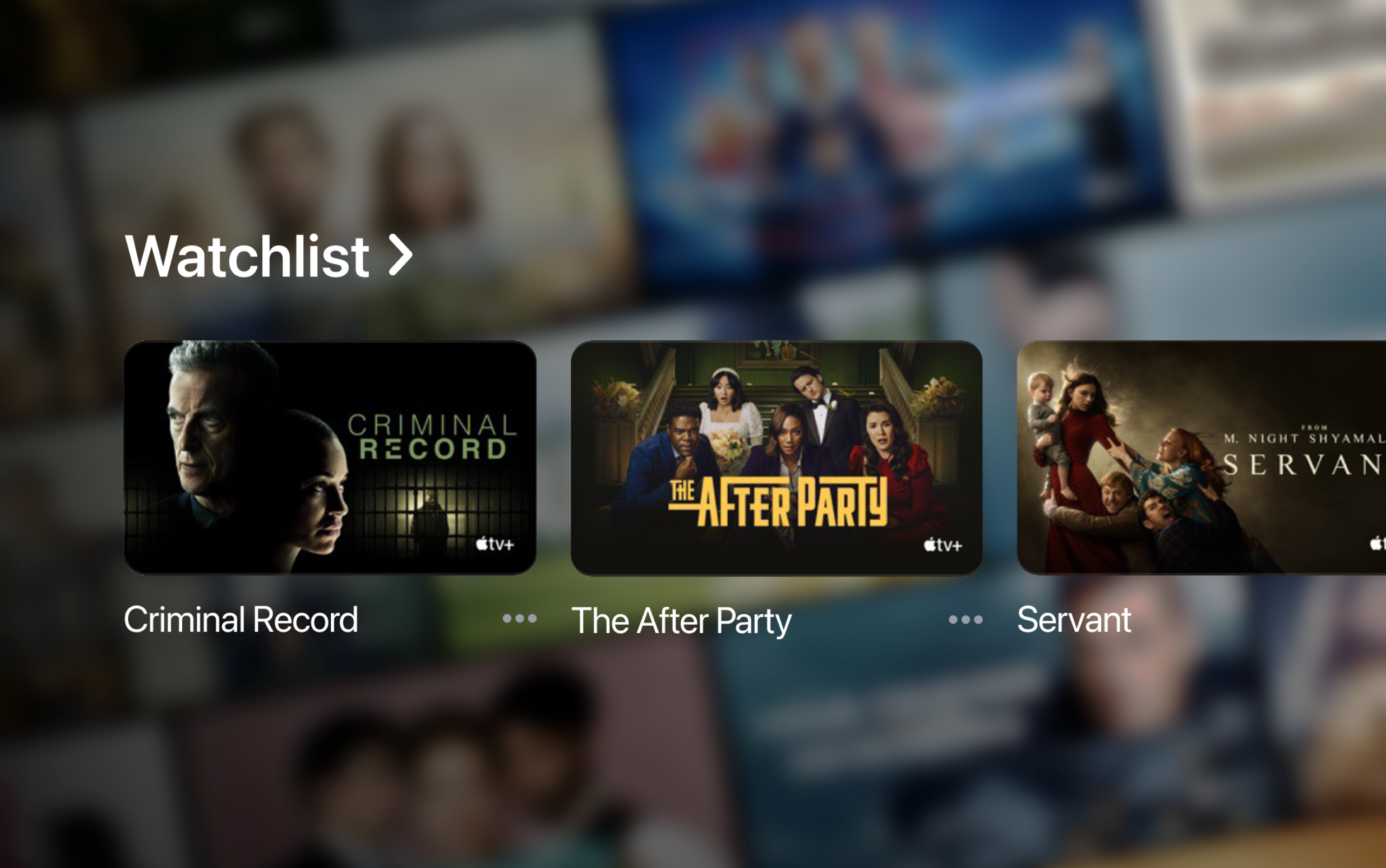
Apple TV is the only major streaming platform without dedicated kids' profiles. While competitors like Netflix, Disney+, and HBO Max offered robust parental controls and age-appropriate content filtering, Apple TV's family subscribers share a single profile across viewing—mixing adult content with kids' content and offering no control settings.
Concept Work
62M+ Subscribers
Promote Engagement & Retention
Individual Contributor

Apple TV is not really tapping into the family market. While every other major streaming platform offers a dedicated kids' profiles, Apple TV remains the only holdout - prompting parents or guardians into considering subscribing elsewhere and leaving a large market segment oddly underserved.
• 62M+ estimated subscribers with countless in family or guardian households
• Higher churn rate among families vs. individual users
• Lost acquisition opportunities as parents may chose competitor platforms
ViacomCBS CEO Bob Bakish stated that kids and family content was "the top genre on Paramount+ for both acquisition and engagement." Apple TV+ was leaving this opportunity on the table.
It's crucial to grasp the context in which families and children interact with streaming platforms like Apple TV. The following statistics shed light on the demographics, usage patterns, and parental concerns that underscore the need for a kids’ profile experience on the app.
• Children aged 2-11 in the US spent 62% of their increased TV time in June 2023 on streaming services. (Nielsen, June 2023)
• According to statistical data from the U.S. Census Bureau in 2023, the average number of children under 18 per family in the United States is 1.94.
• The largest user group is 6-11 years old (42%), followed by 2-5 year olds (34%) (JustWatch, 2023).
• Screen time worries 70% of parents, and 87% desire greater control over their kids' streaming (Common Sense Media, 2022).
One hour into research, I already knew this would be a bit tricky. I hit the classic designer's dilemma: how do you innovate within strict Apple Design System constraints?
My QA background kicked in immediately—I started thinking about failure points before they could derail the project. Apple's design system wasn't just the guideline—it was like a "trust signal" parents need to feel confident letting their kids stream independently.
The biggest reality check? This feature needed to follow Apple TV+'s functionality, not just fill a competitive gap. Every design decision for the new profile had to feel distinctly Apple.
Maintaining consistency with Apple’s design system.
•
Implications: Maintaining consistency with Apple's design system is crucial for a cohesive and intuitive user experience.
→ This involves thoroughly analyzing existing design patterns, UI components, and interactions before and during testing.
Balancing user experience for both children and parents while ensuring ease of navigation and robust parental controls (’identifying the must-haves’).
•
Implications: This involves researching the needs and preferences of the ‘most common’ features, considering restrictive factors such as "sprint bandwidth."
Building on the Apple TV+ brand experience.
•
Implications: The Kids profile should not only be functional but also enhance the overall Apple TV brand and strengthens its value proposition for families.
After diving deep into family streaming apps and sitting down with some parents, a clear picture emerged: parents just needed a simple feature, and Apple TV+ was clearly missing that.
How might we ensure that the feature seamlessly integrates with existing design systems, allowing for intuitive setup and management?
How can we create a safe, engaging viewing experience for kids, and how might we distinguish that experience from the adult experience?
How might we personalize kids' profiles based on age, interests, or watch history for age-appropriate recommendations?
How can we ensure a streamlined setup process for kids' profiles and intuitive management options within the app?


How do you create a kids' streaming profile experience that feels like Apple while meeting the standards parents expect from other platforms?
With market research complete and these insights in hand, I faced the ultimate product challenge: how do you catch up to competitors while designing distinctly Apple?
I approached feature planning like a strategic sprint, asking "What would make parents choose Apple TV+ over Netflix for their kids?" The answer was just nailing the fundamentals.
•
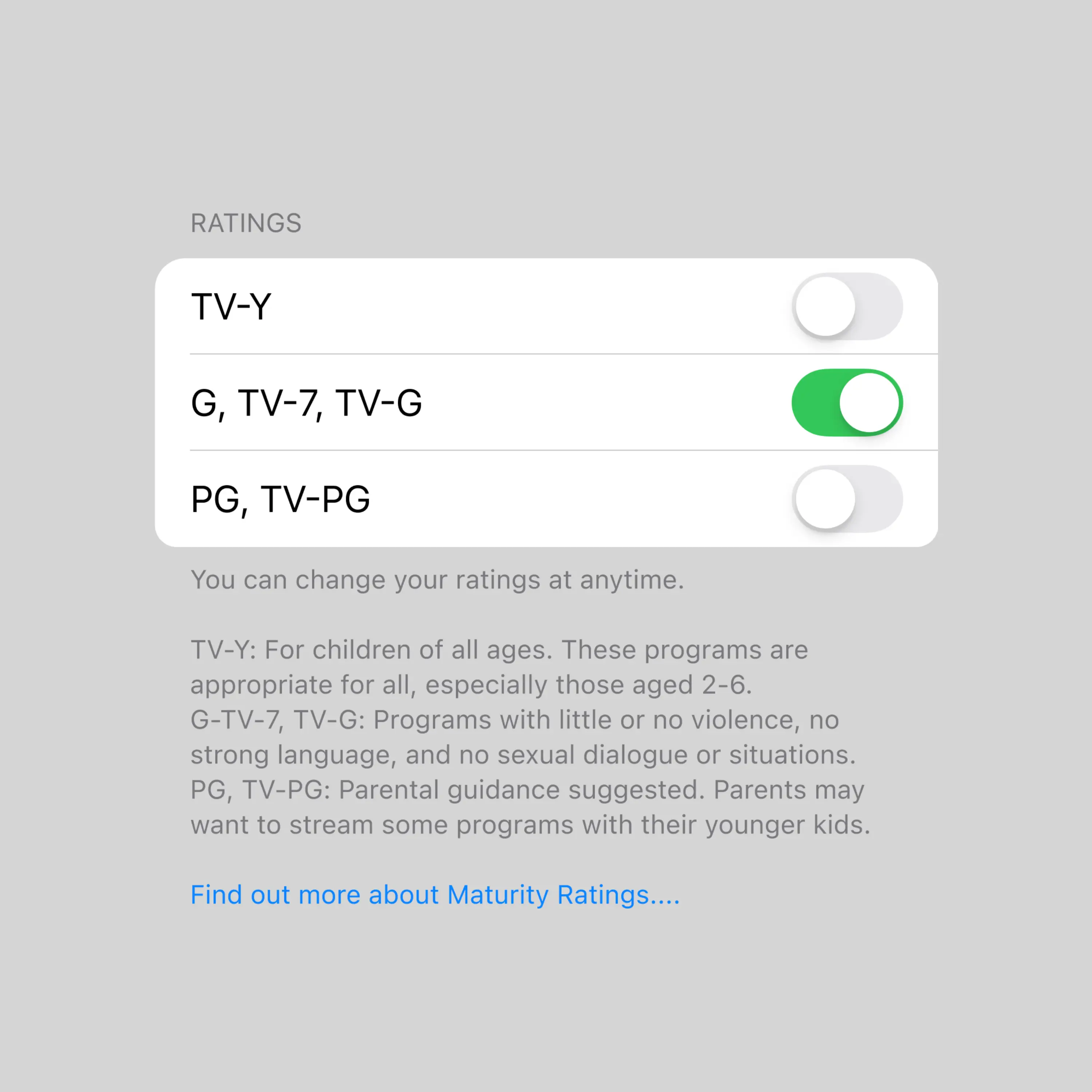
Content Maturity Ratings: Restricts access to content based on age ratings (2-4, 4-6, 6-10, 10-12) or pre-defined categories (e.g., educational, animated).
•
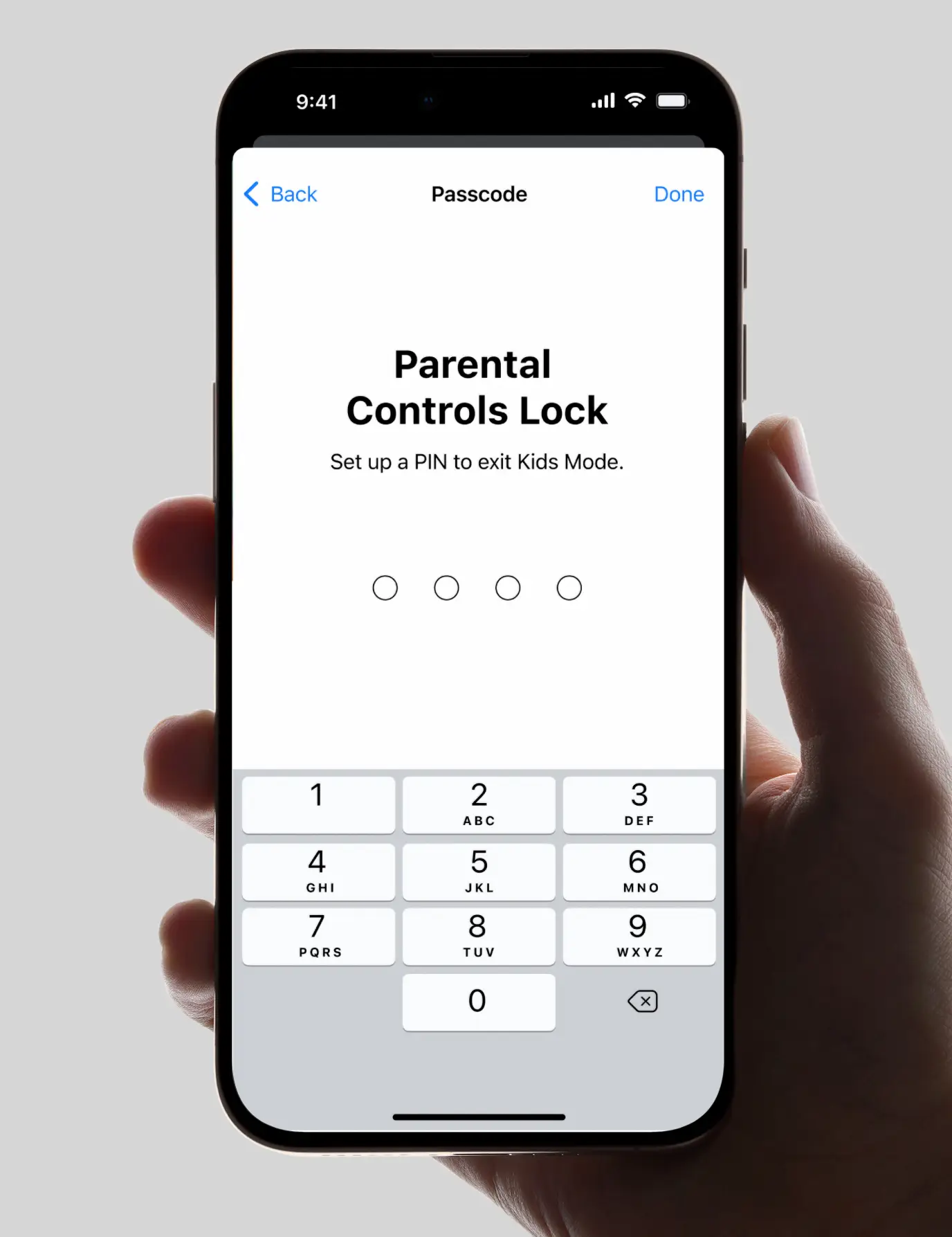
PIN Protection: Requires a PIN to switch out of the kid's profile, preventing unsupervised access to content not catered to kids (4 digits is standard).
•
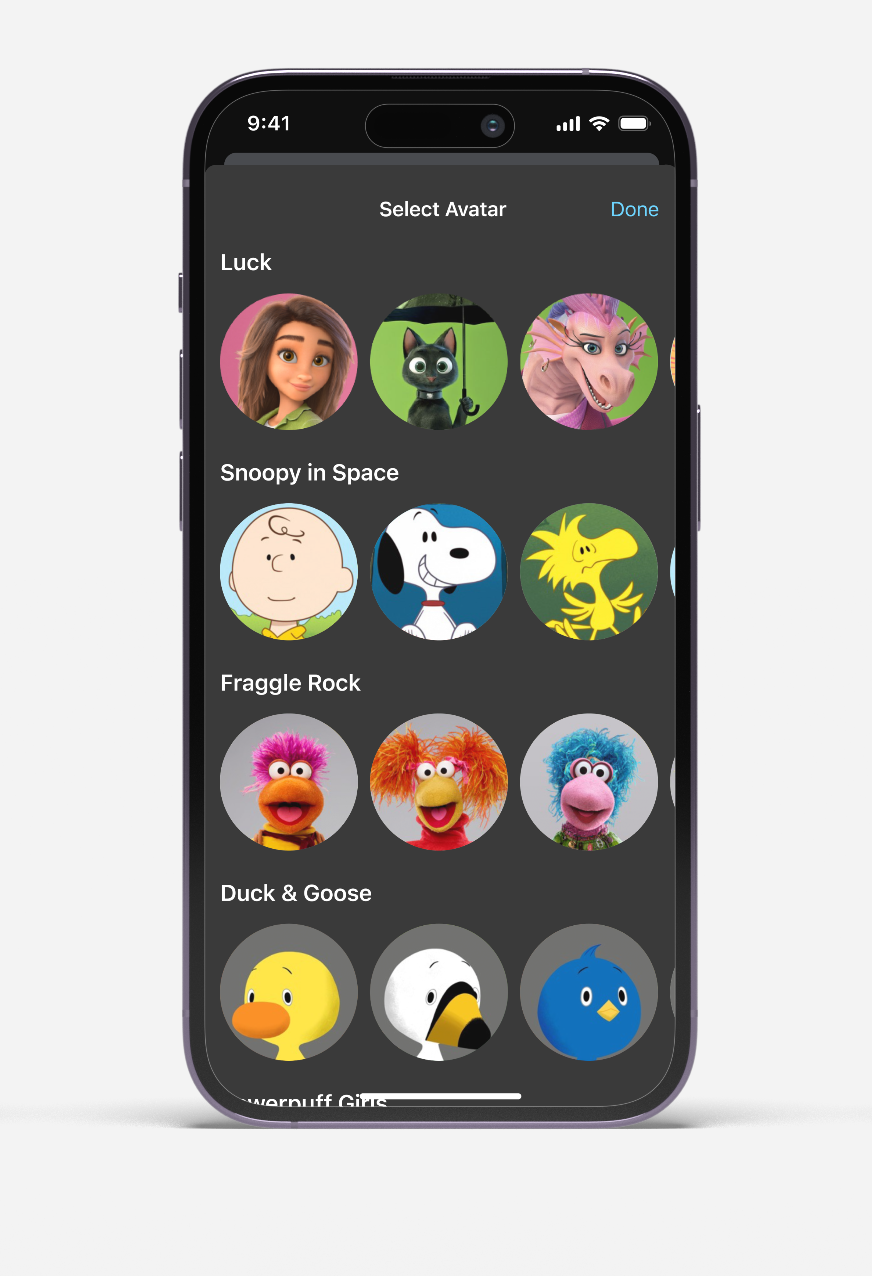
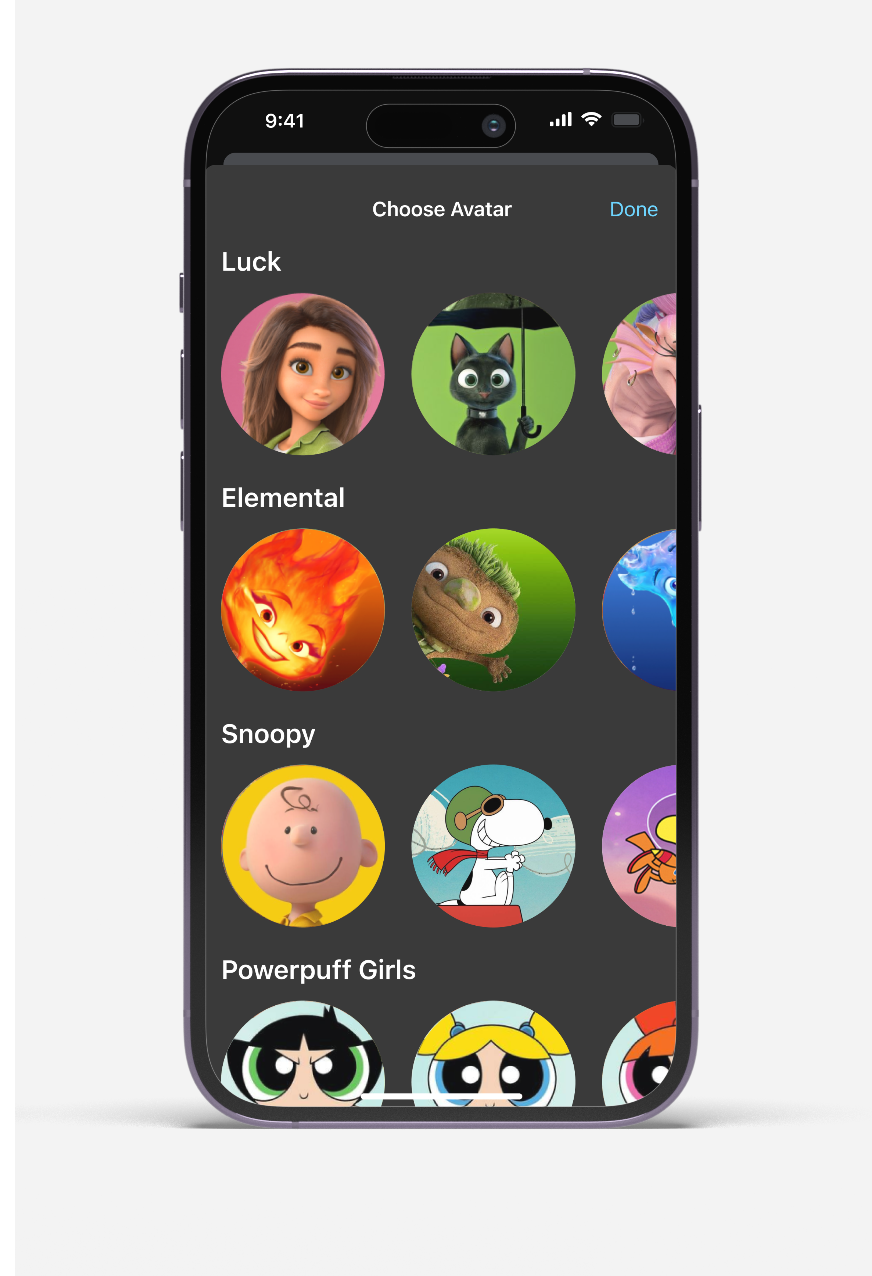
Avatars: Profile personalization for a kid’s profile, which is basic customization offered across streaming services currently in the market.
•
Viewing Time Limits: Daily or sessional viewing time limits to allow parents to set a maximum amount of time a child can spend per day or per session.
•
Curated Content: Curating genre-specific shows upon selecting at least 3 genres, which are chosen in profile settings or selected during profile creation
•
Personalized Themes: Personalized, color-based themes for the TV experience and transitional animations when entering or exiting Kids’ Profiles.
•
Personalized Recommendations: AI-powered recommendations based on viewing history and watchlist adds to introduce new, relevant educational content or entertainment.
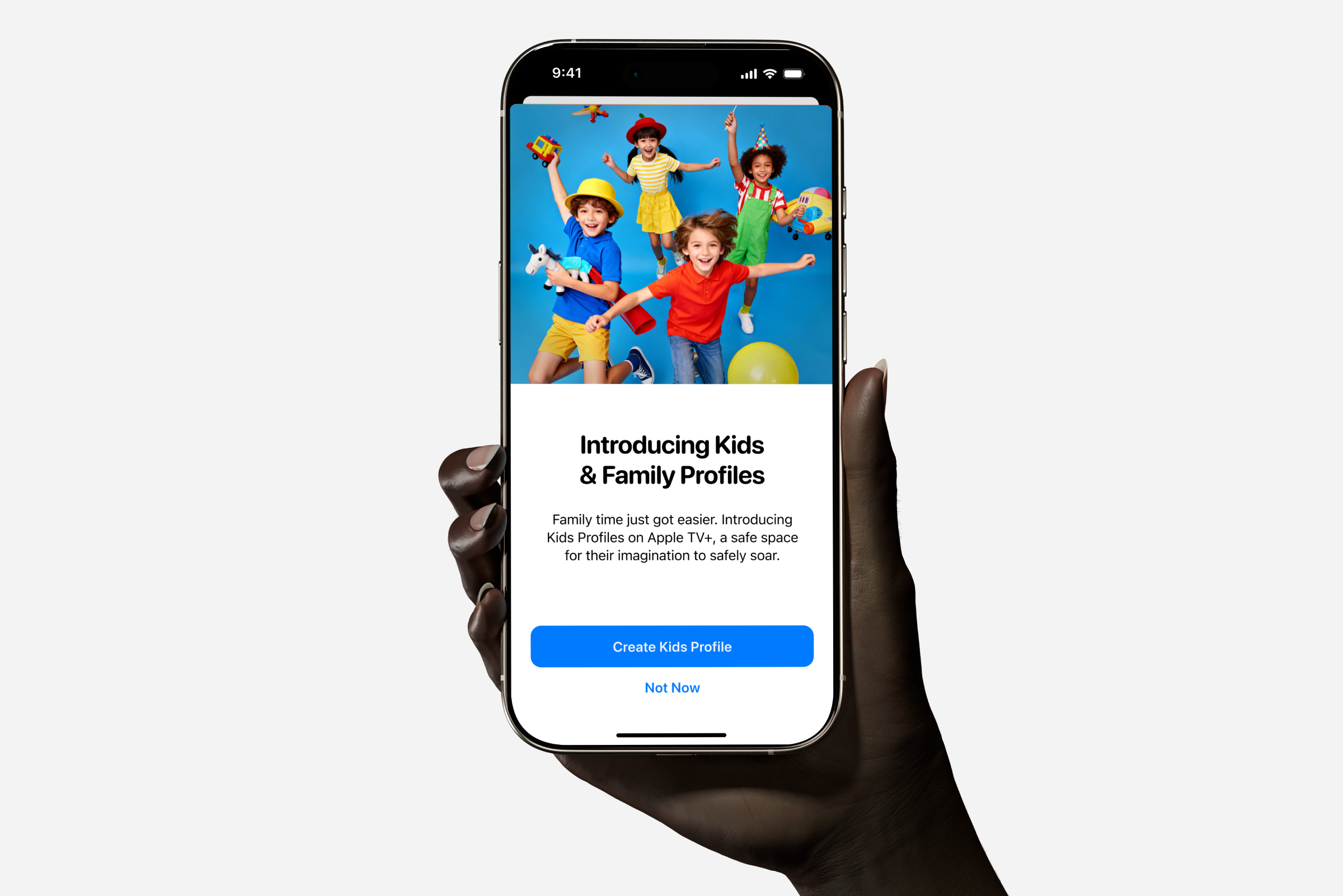
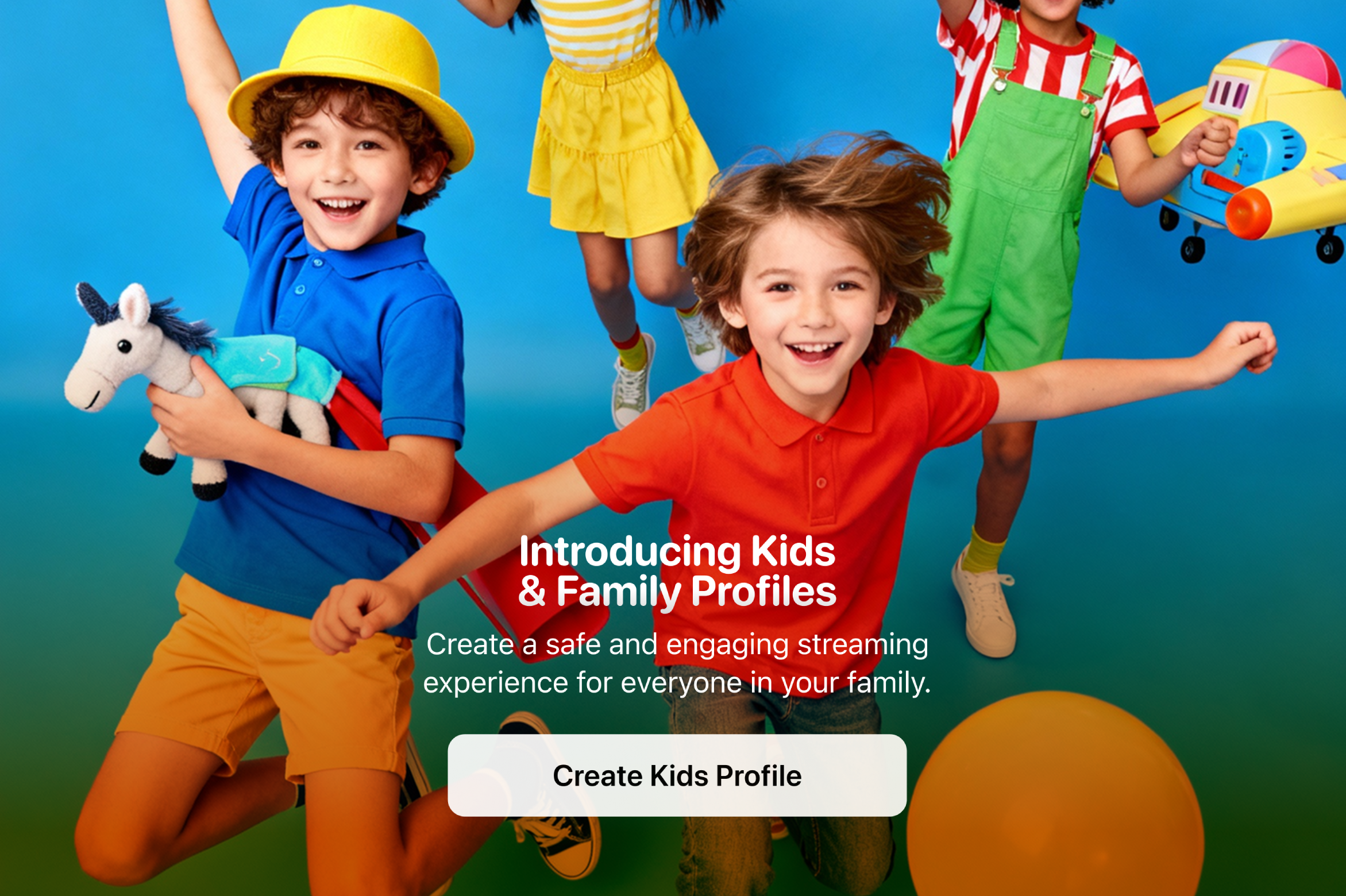
Introducing Apple TV+ for Kids—a dedicated profile experience that transforms click-heavy family viewing into a controlled, engaging experience with maturity rating controls.
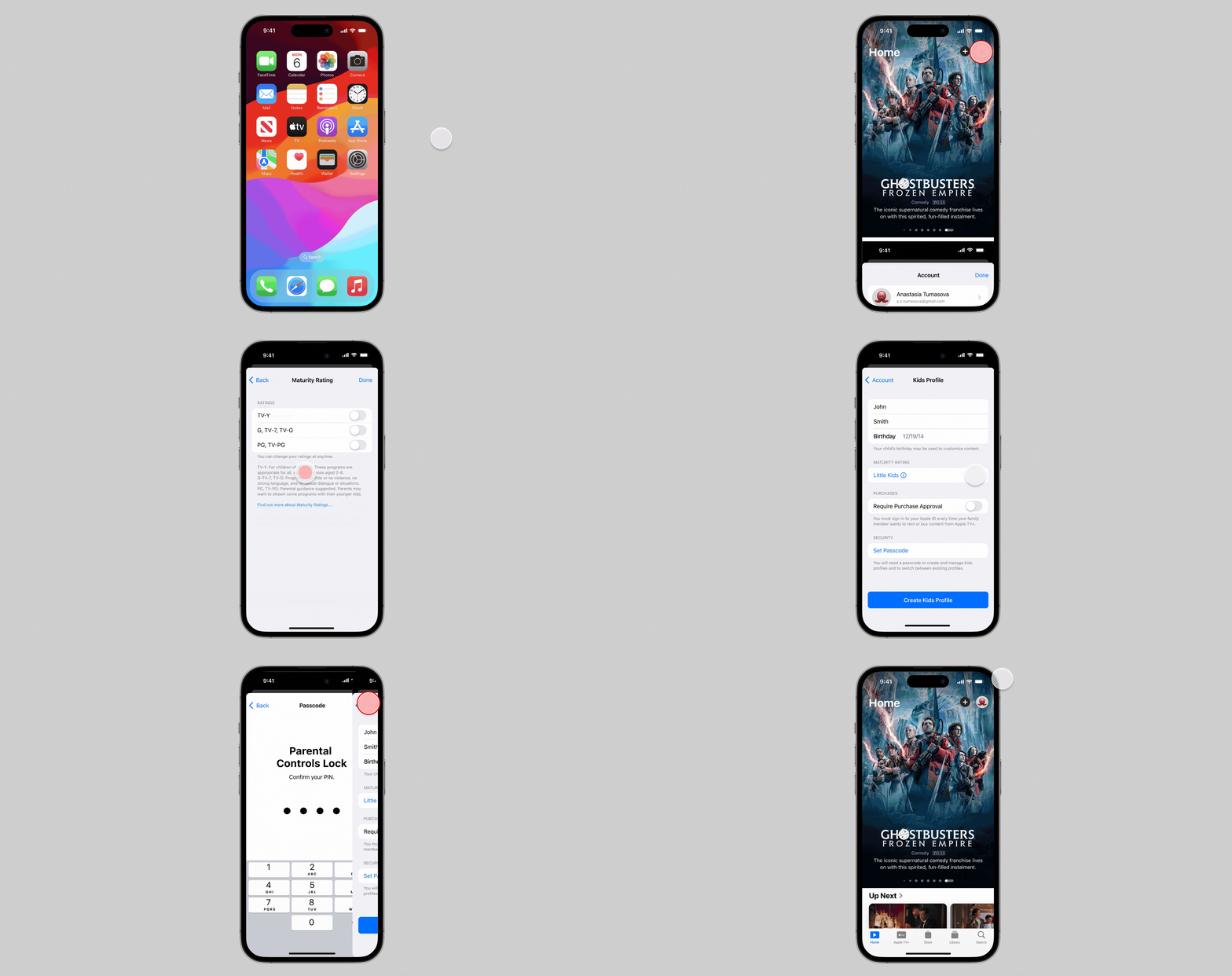
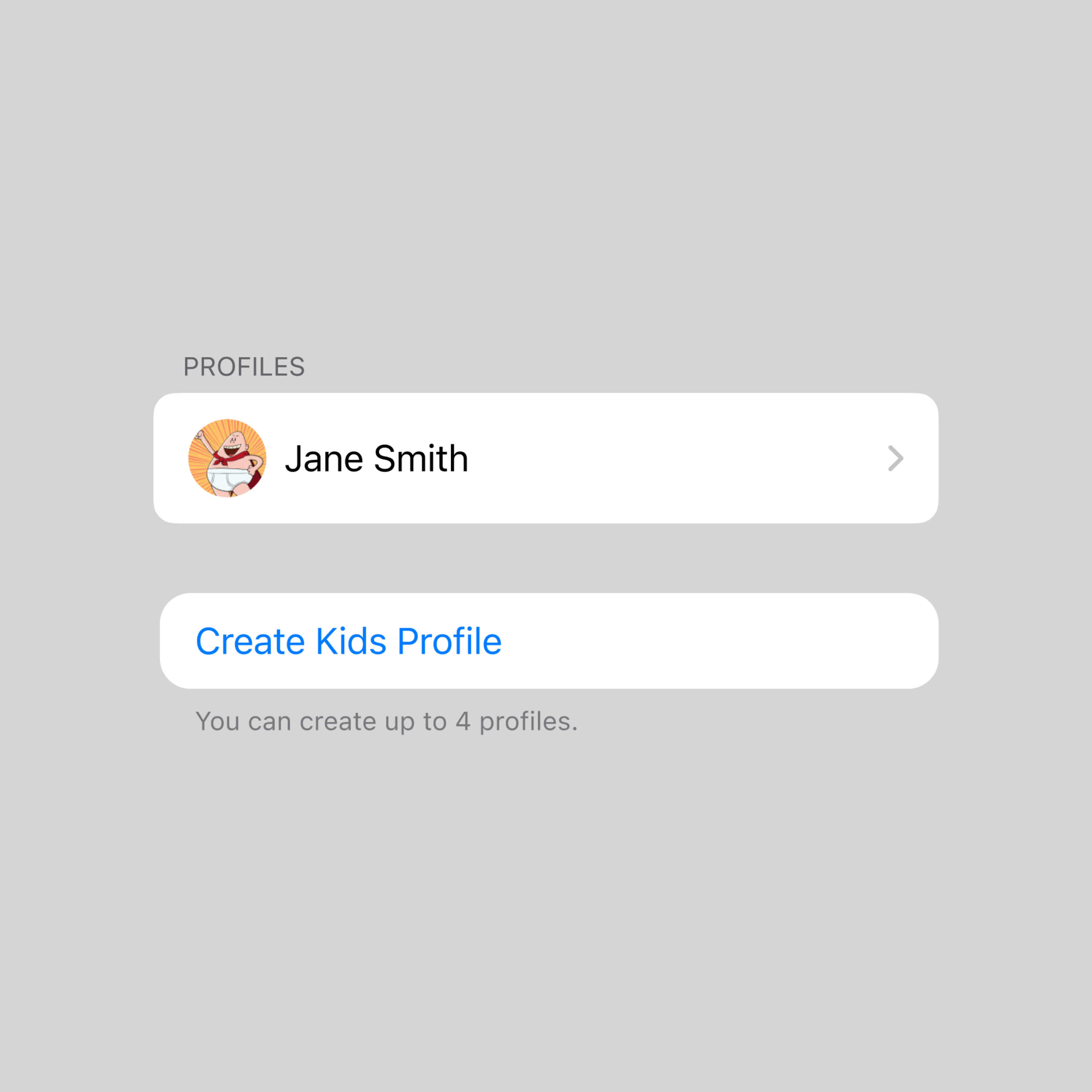
• A few-click profile setup from account landing
• Age-appropriate content filtering (2-4, 4-6, 6-10, 10-12)
• Custom avatar selection for personalization
• 4-digit PIN prevents unsupervised profile switching
• Maintains parental control without complexity
• Standard across all streaming platforms
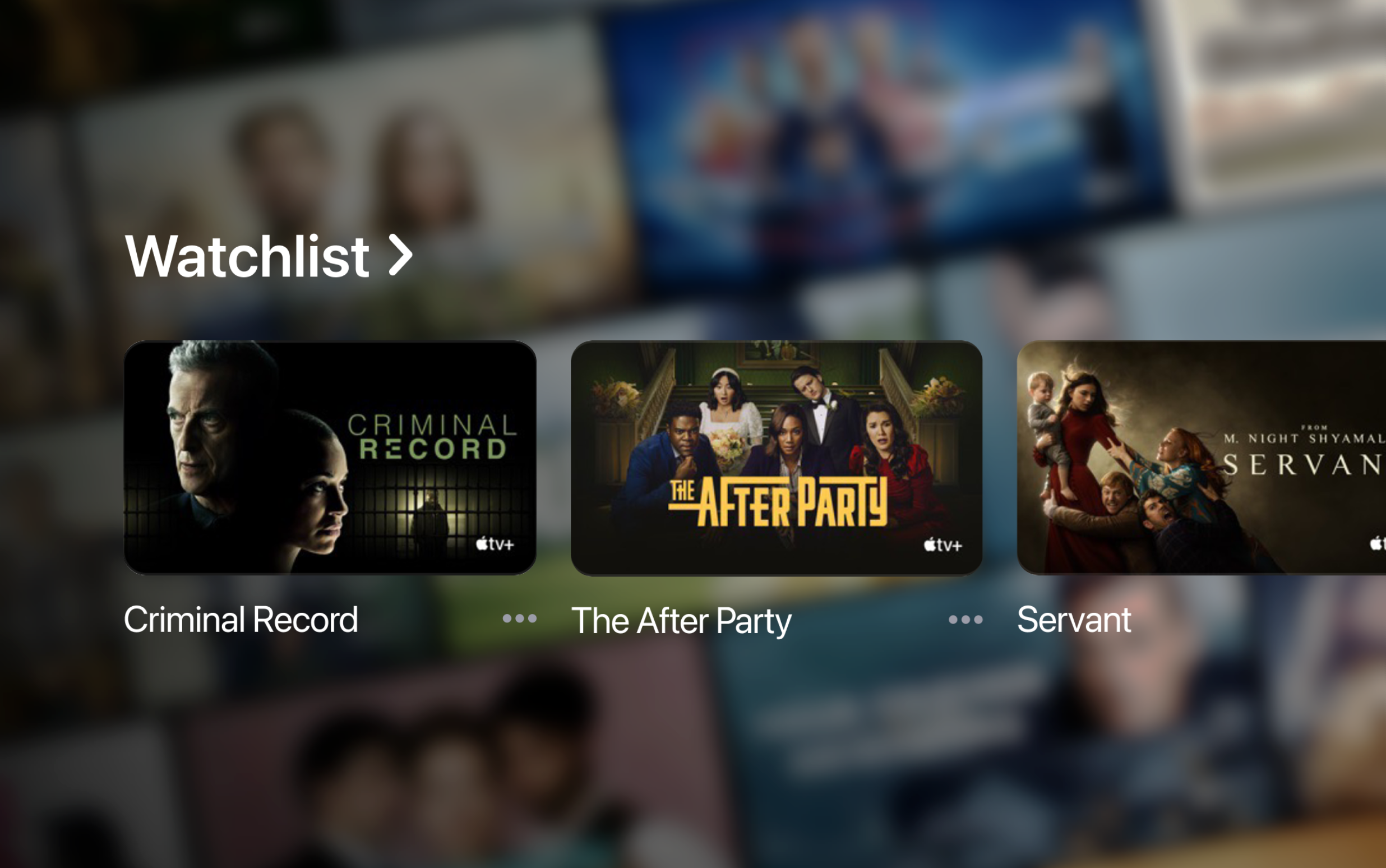
• Dedicated watchlist for their saved content
• Easily switch between profiles from 2 places
• No exposure to mature content previews
How do I introduce Kids Profiles to Apple TV+ users in a way that feels natural, non-intrusive, and clearly communicates the value proposition for families?
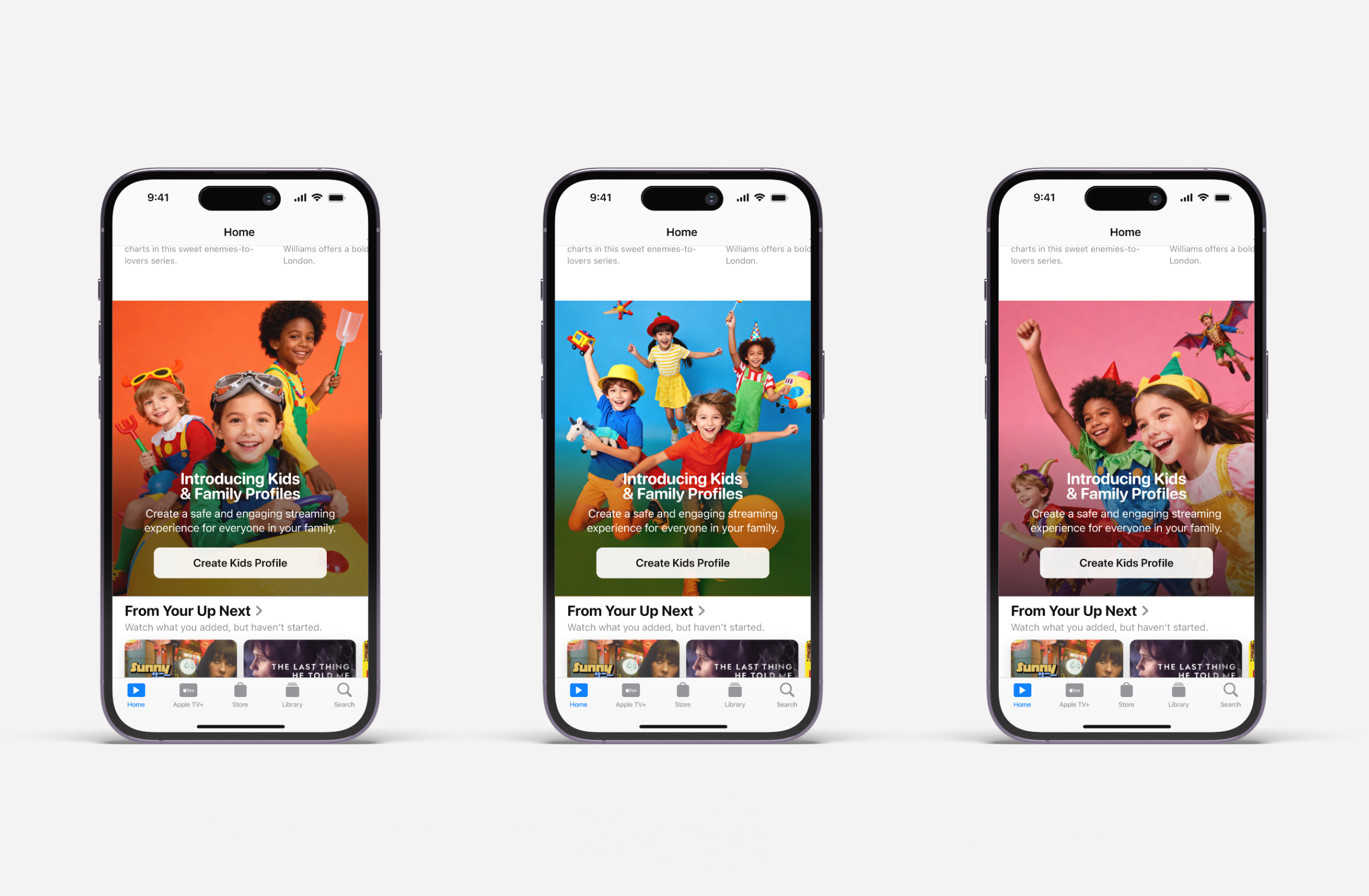
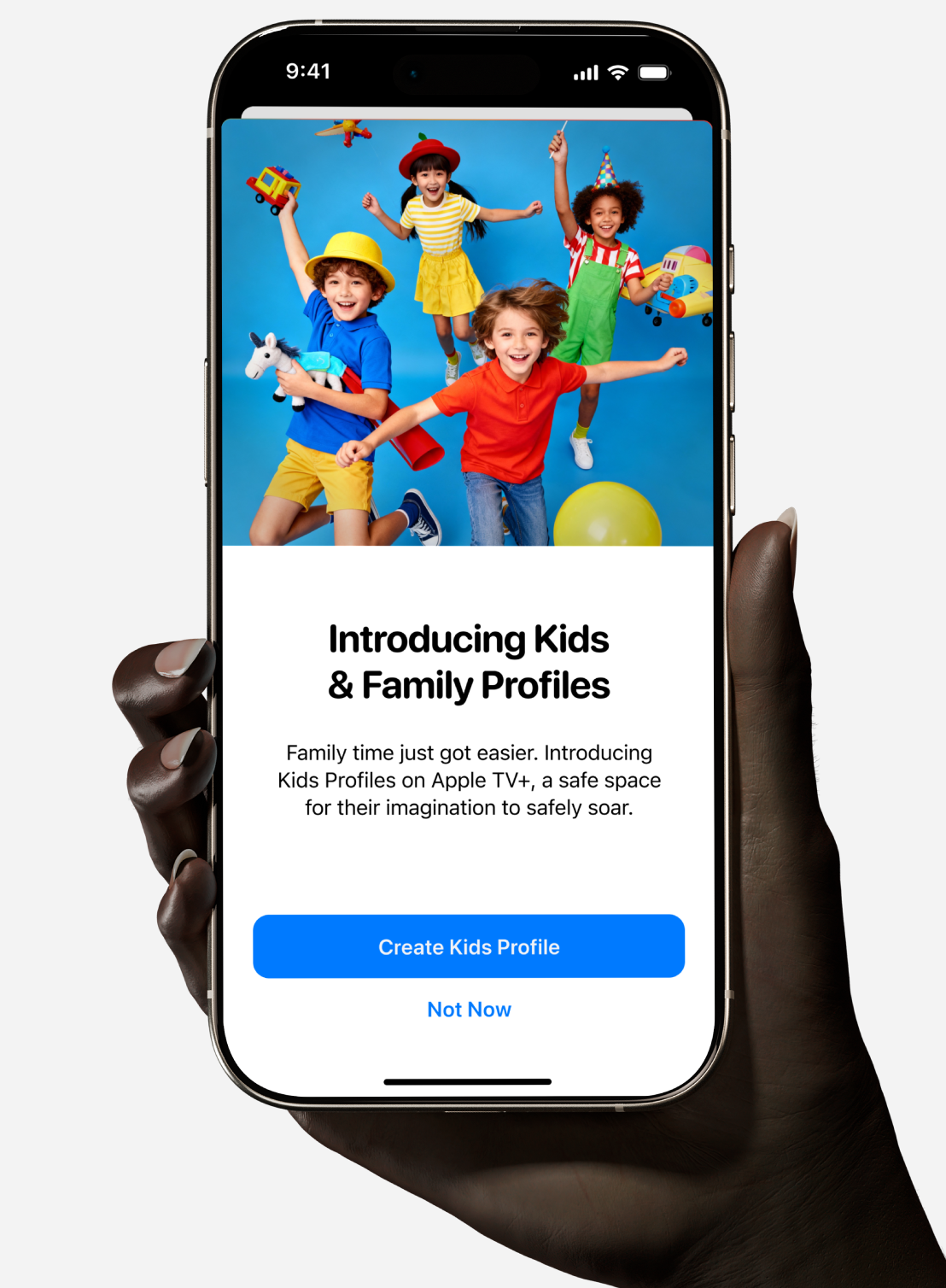
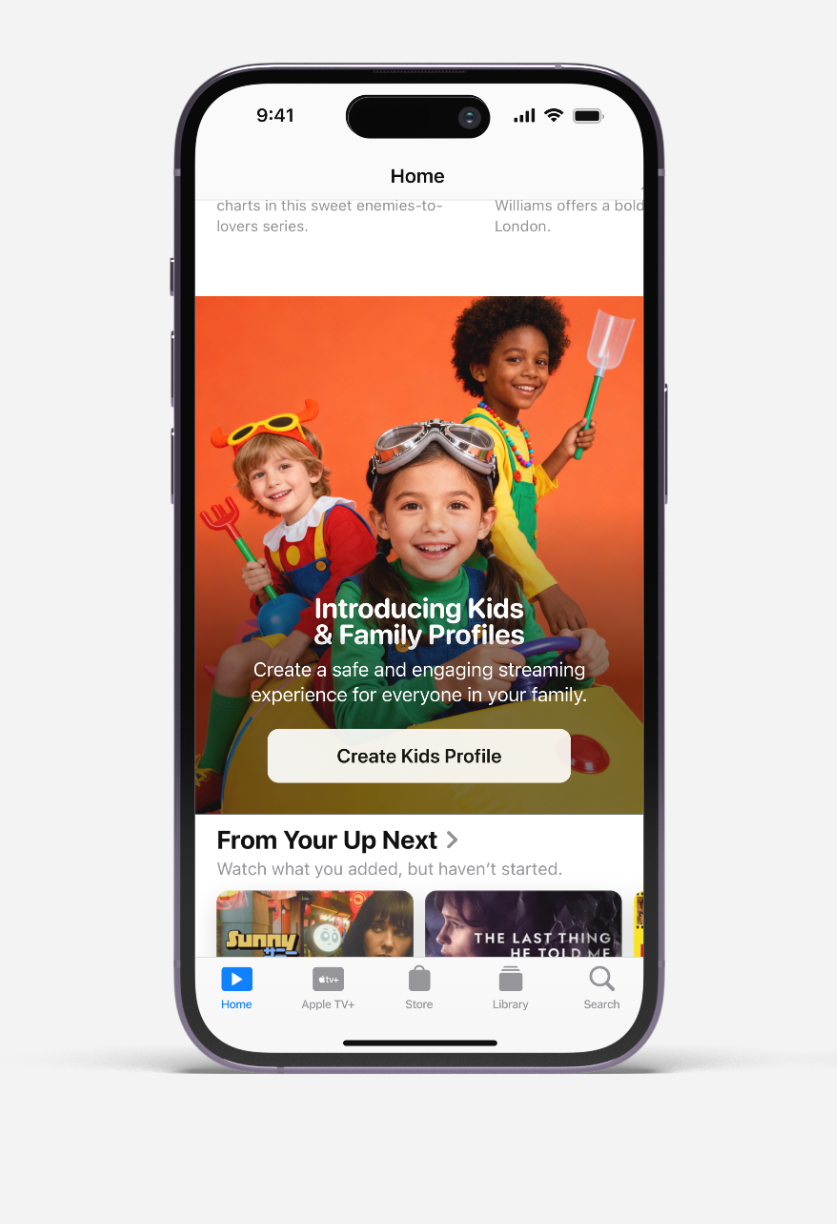
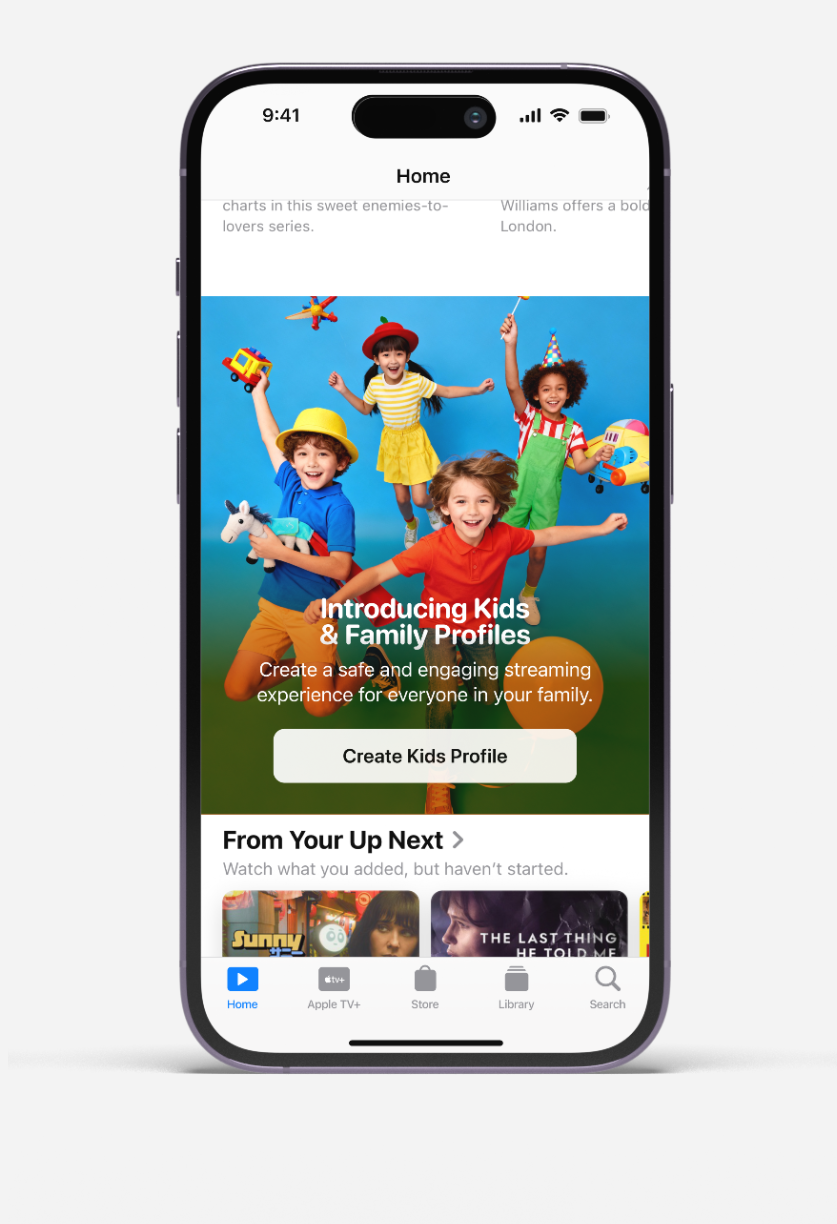
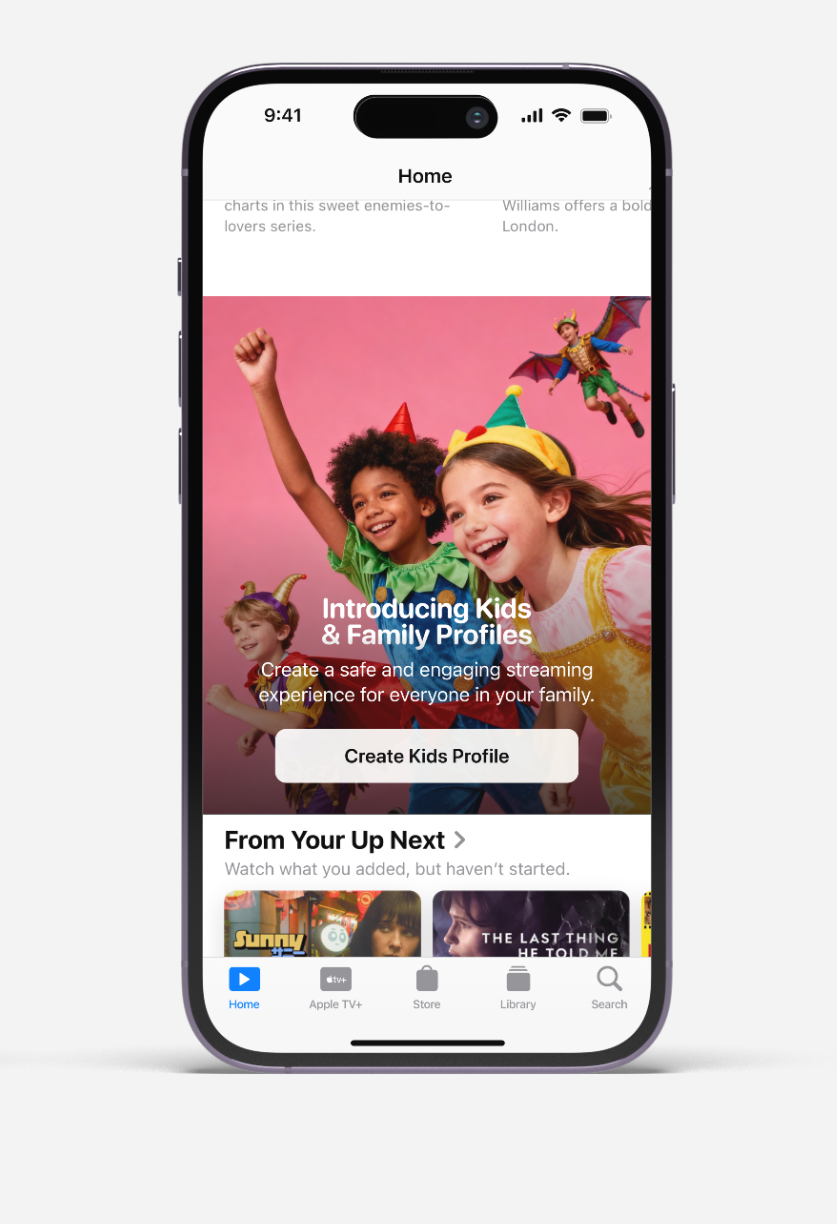
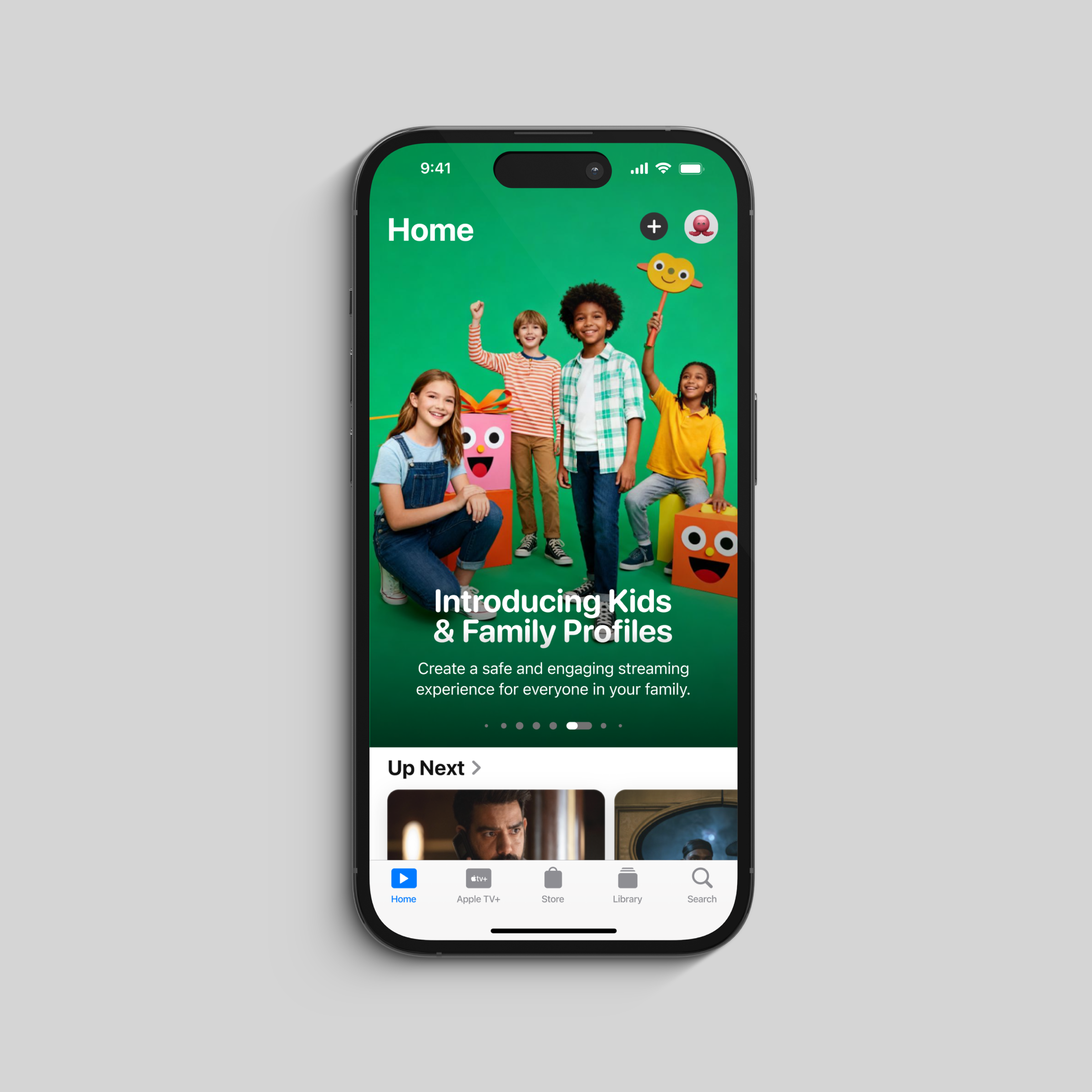
I explored three distinct approaches to announcing the Kids Profiles feature, each exploring different levels of user engagement and branding integration:
Embedded announcement within the existing home feed as a prominent card, reserved typically for content placements, but is highly visible to subscribers.
Integrated announcement on the homepage, providing less of an immediate announcement about the new feature but is still highly visible to subscribers.
Full-screen announcement with focused messaging and clear call-to-action, which was ultimately chosen as the dedicated space for the feature announcement.


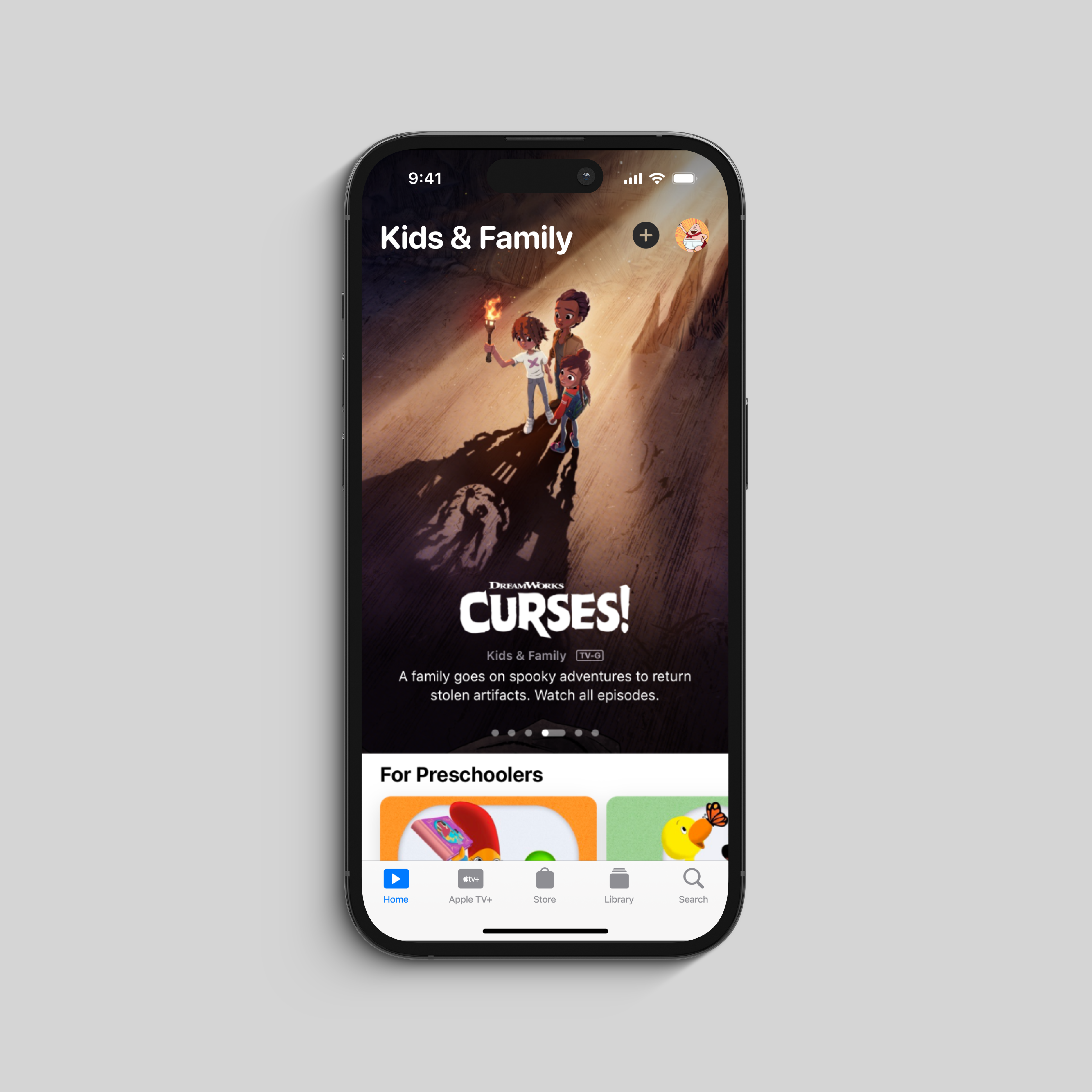
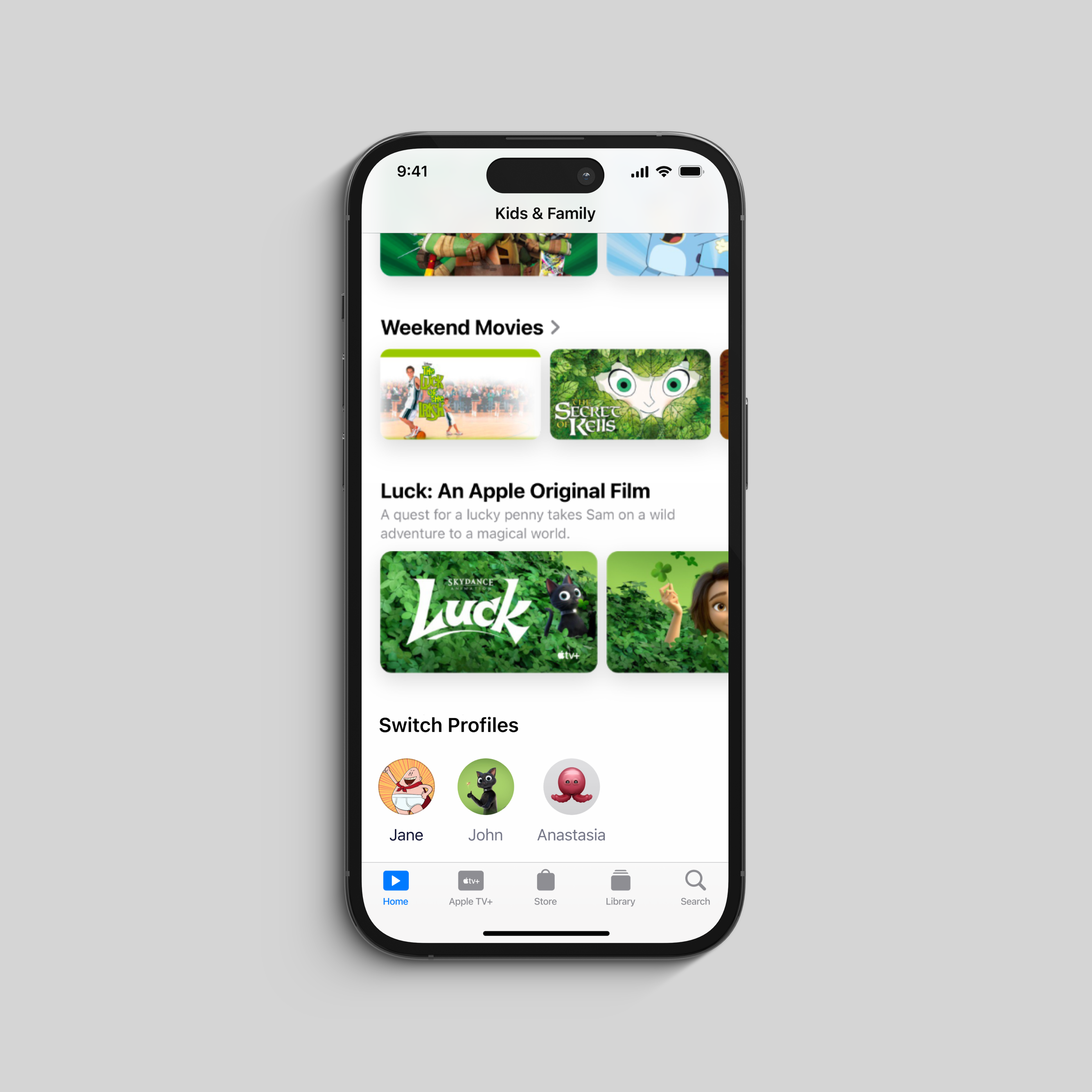
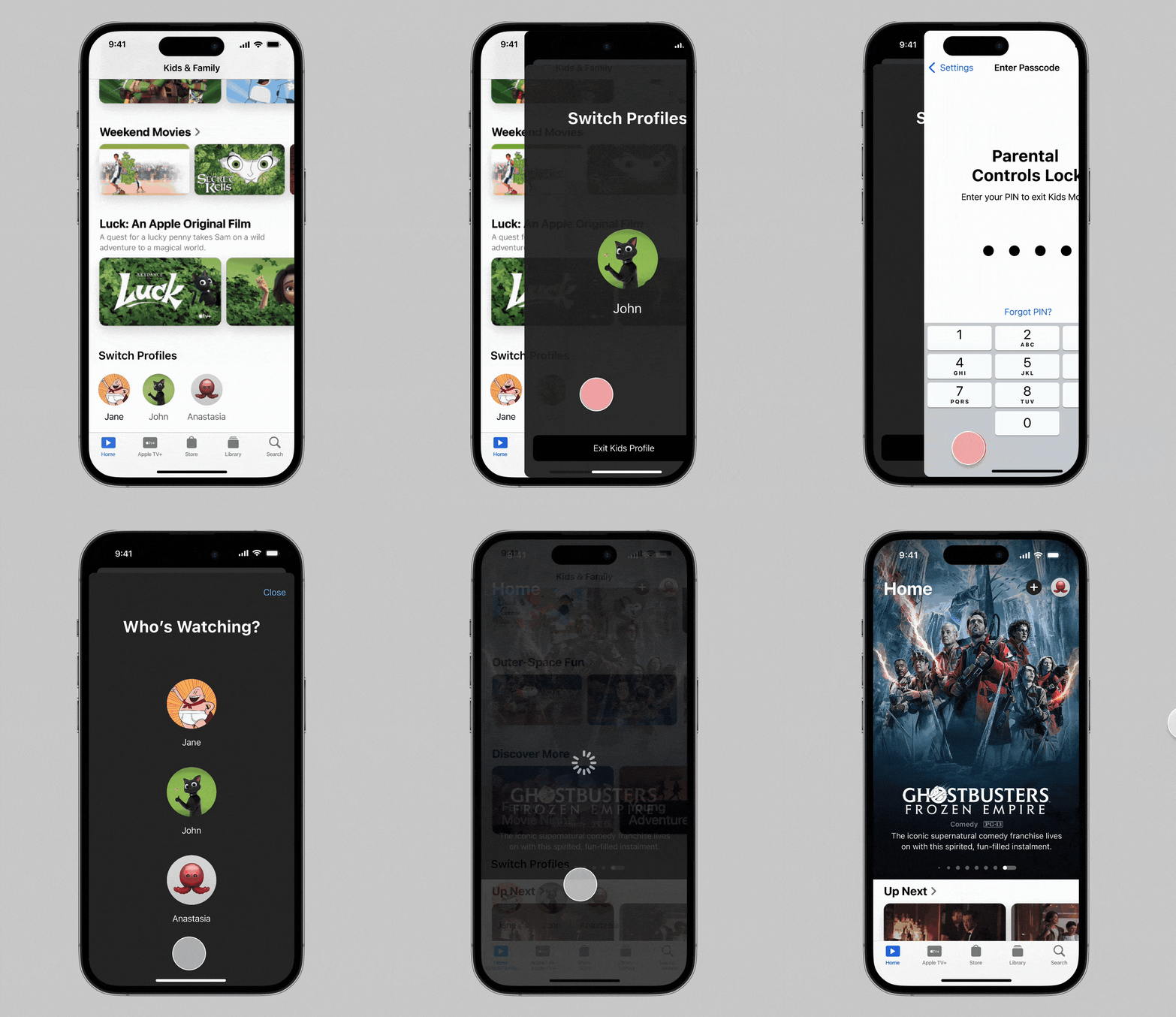
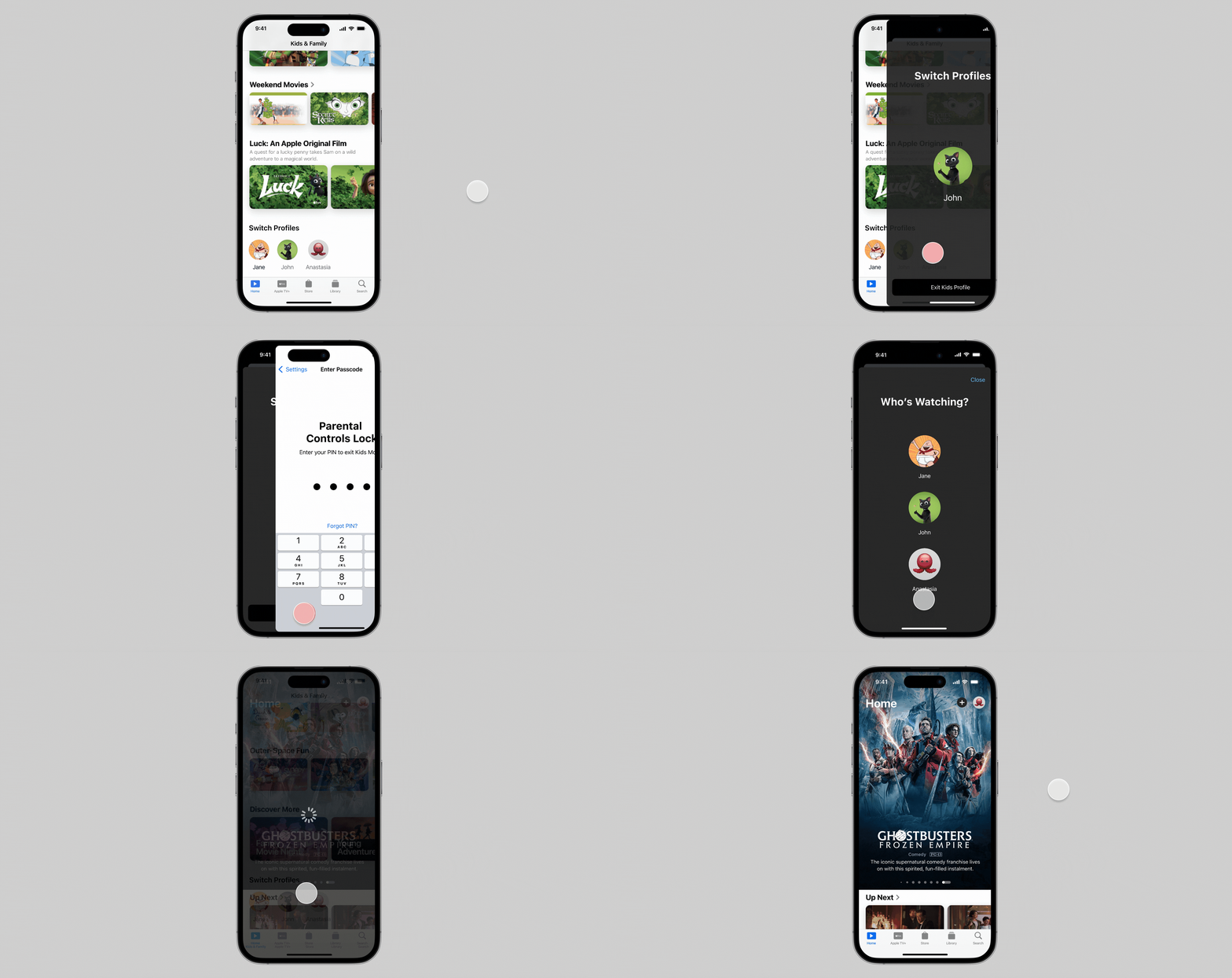
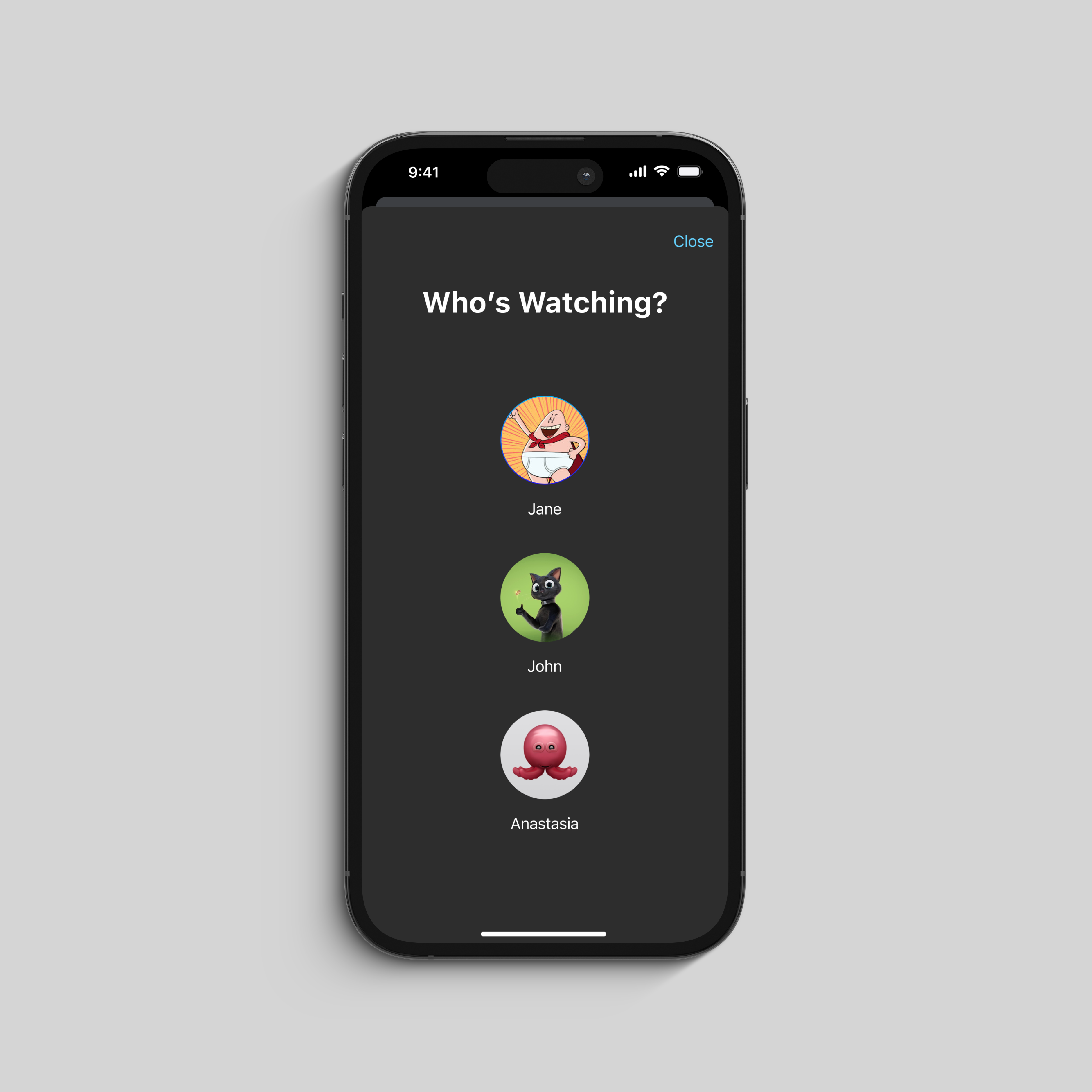
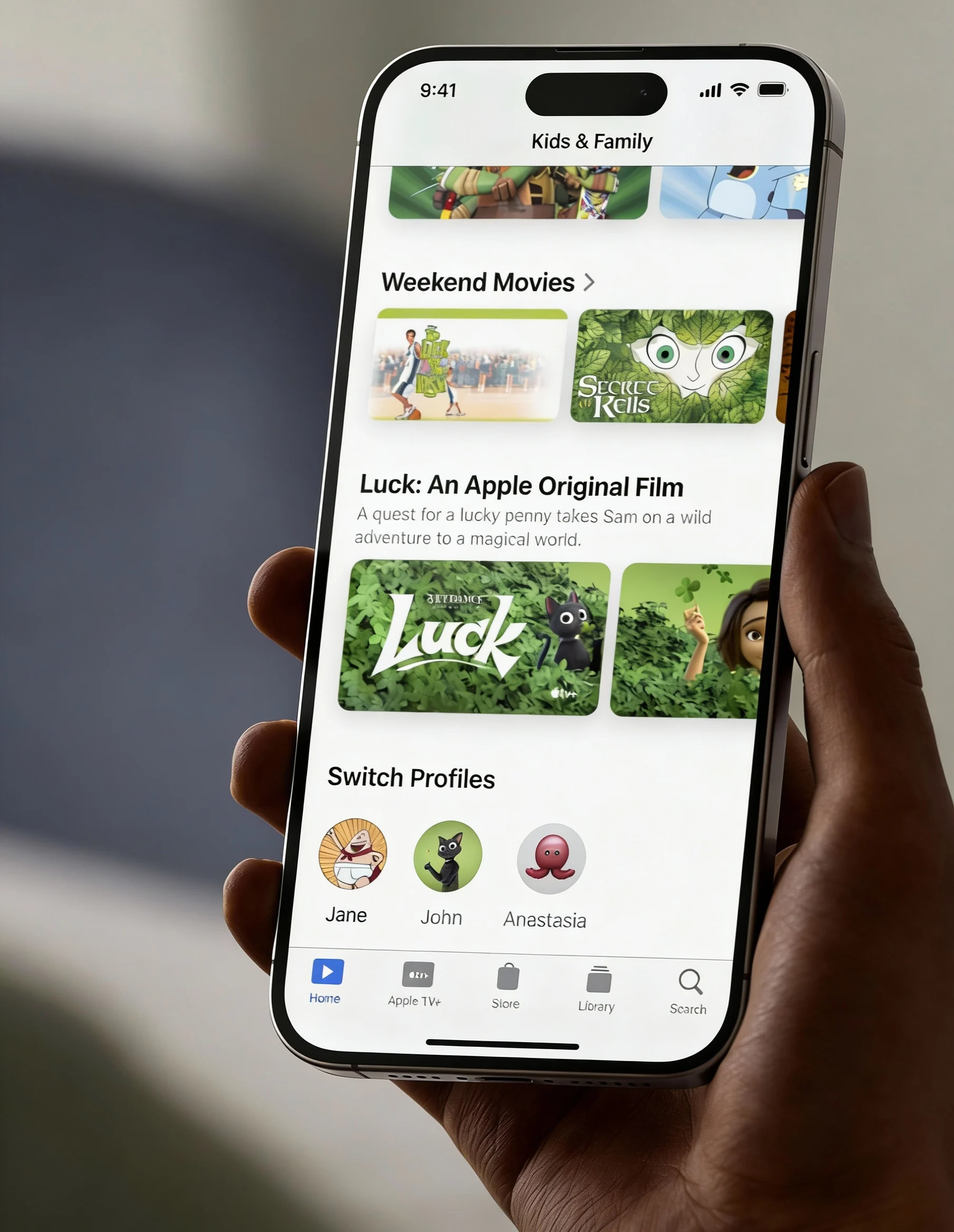
The home screen features curated content sections like "For Preschoolers" and "Weekend Movies." A prominent "Switch Profiles" section allows easy profile switching among family members.


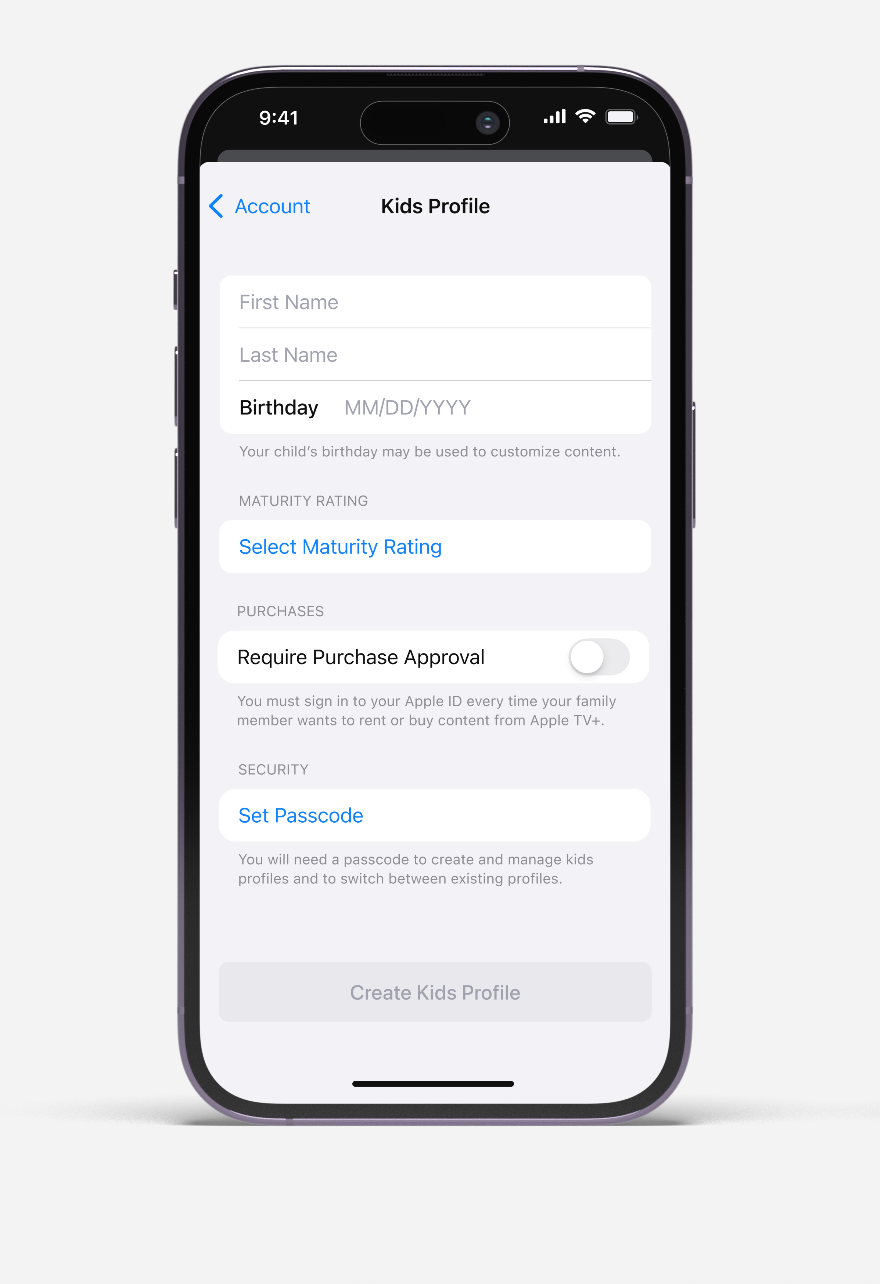
While Kids Profiles are easy to create, the app also implements mandatory age-appropriate content filtering to ensure children only access content suitable for their developmental stage.
.gif)


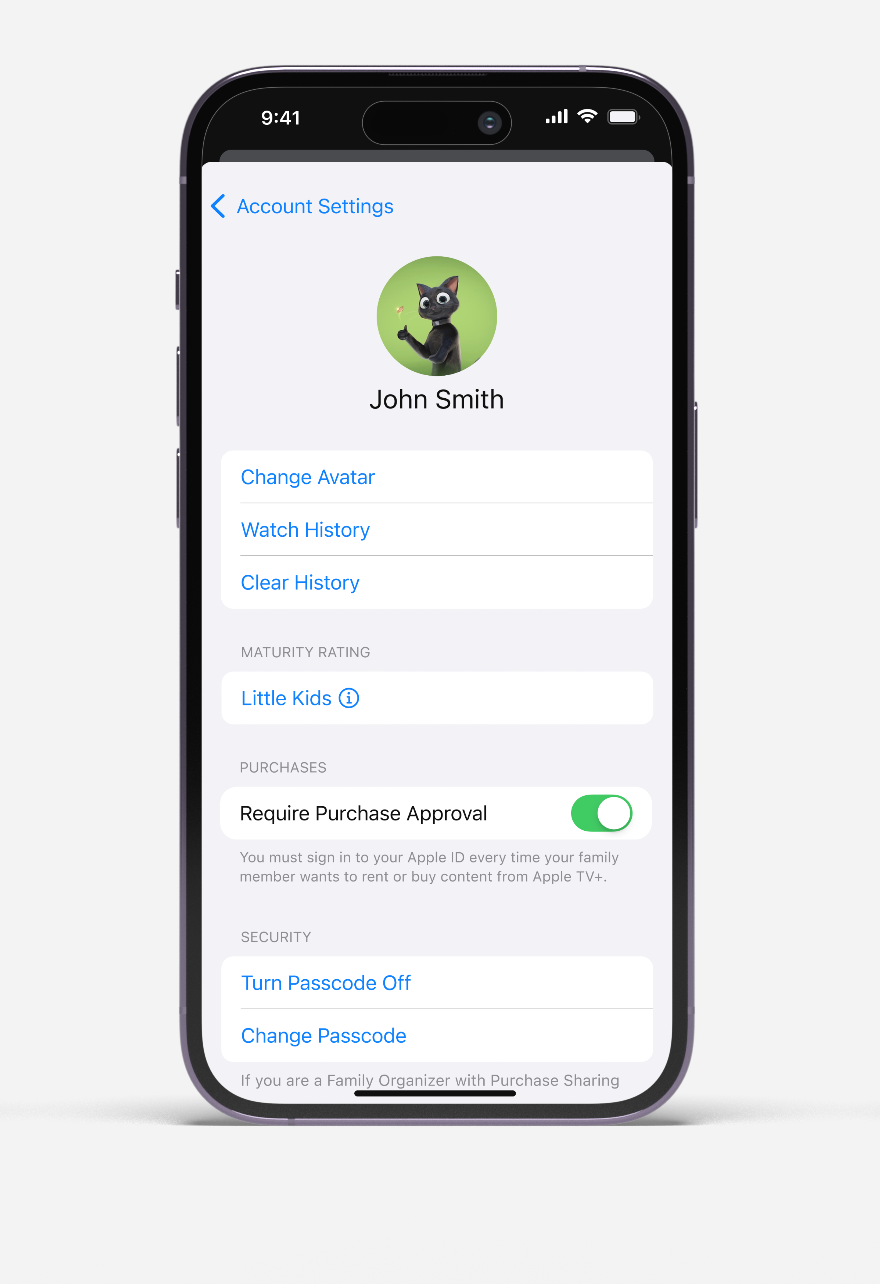
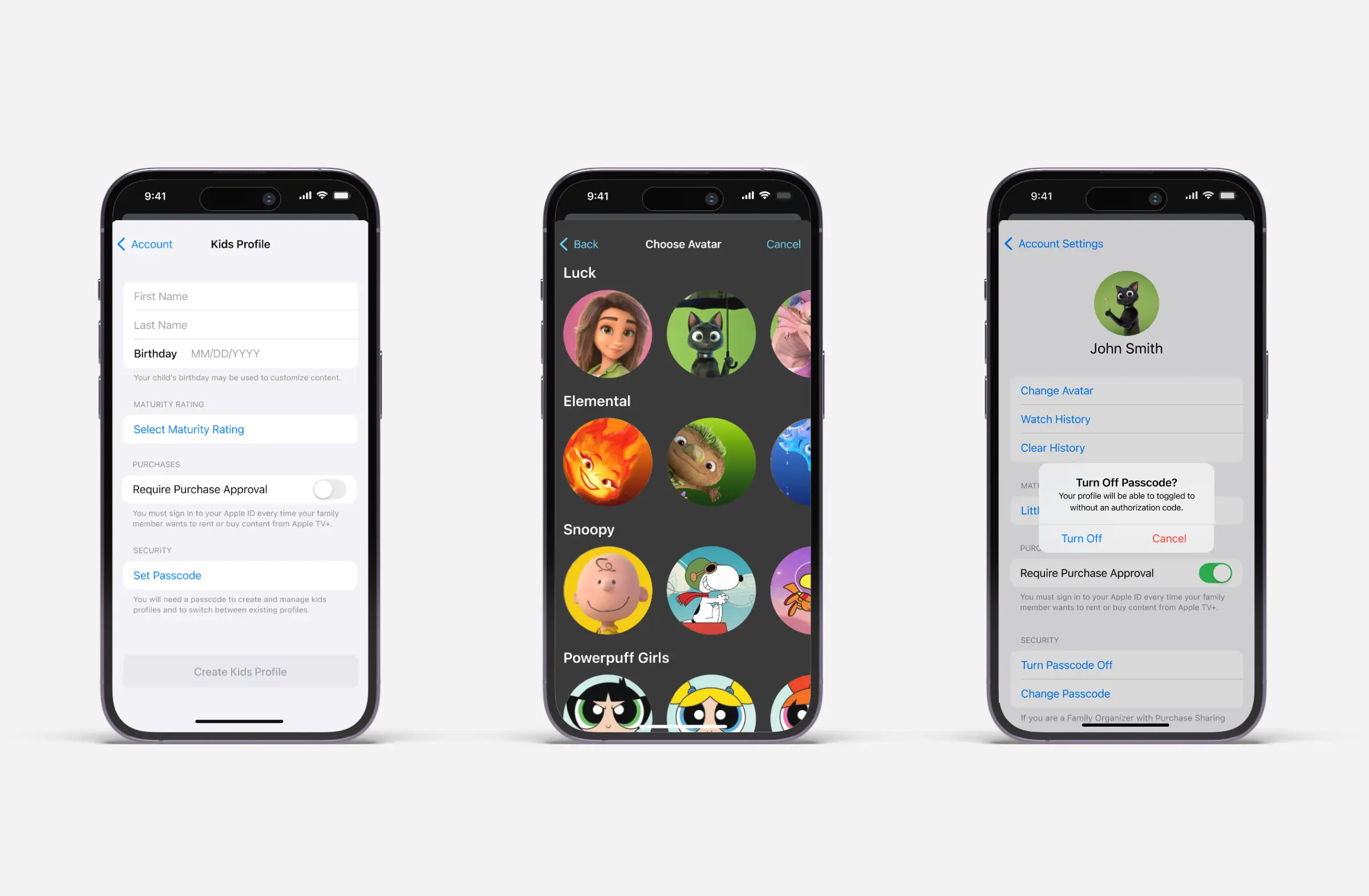
Parents can optionally enable Purchase Approvals, which requires account authentication before kids can rent or buy content, providing an additional layer of control against excess charges.


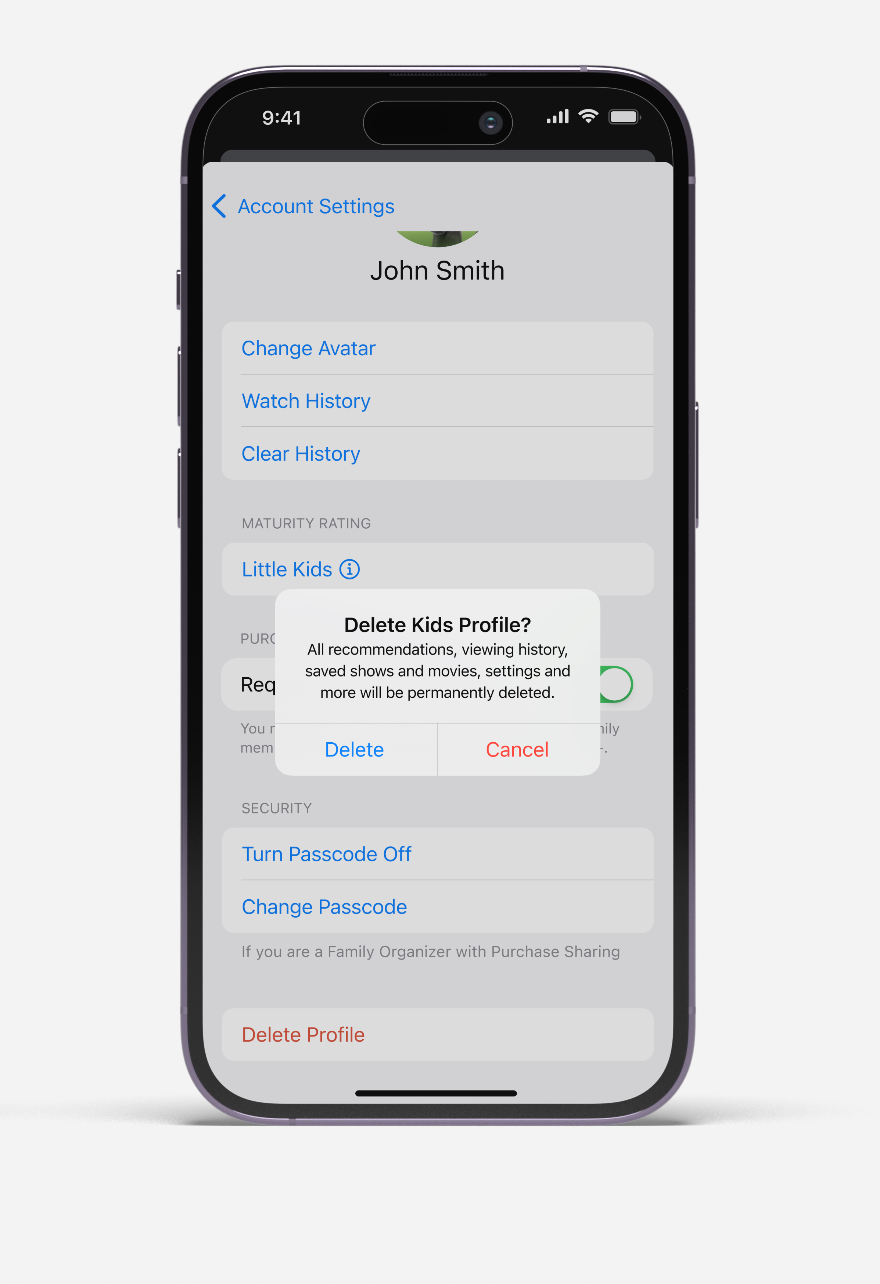
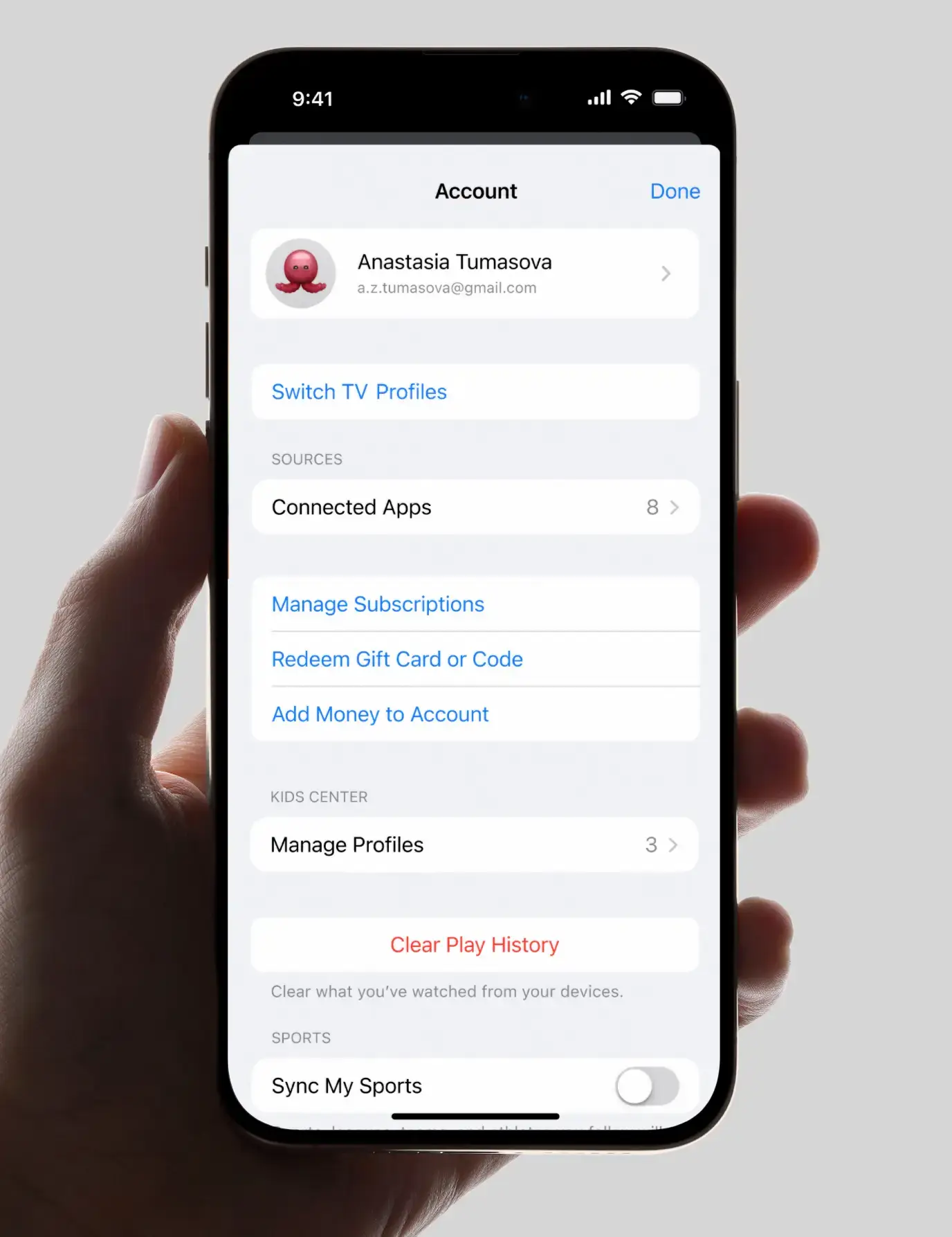
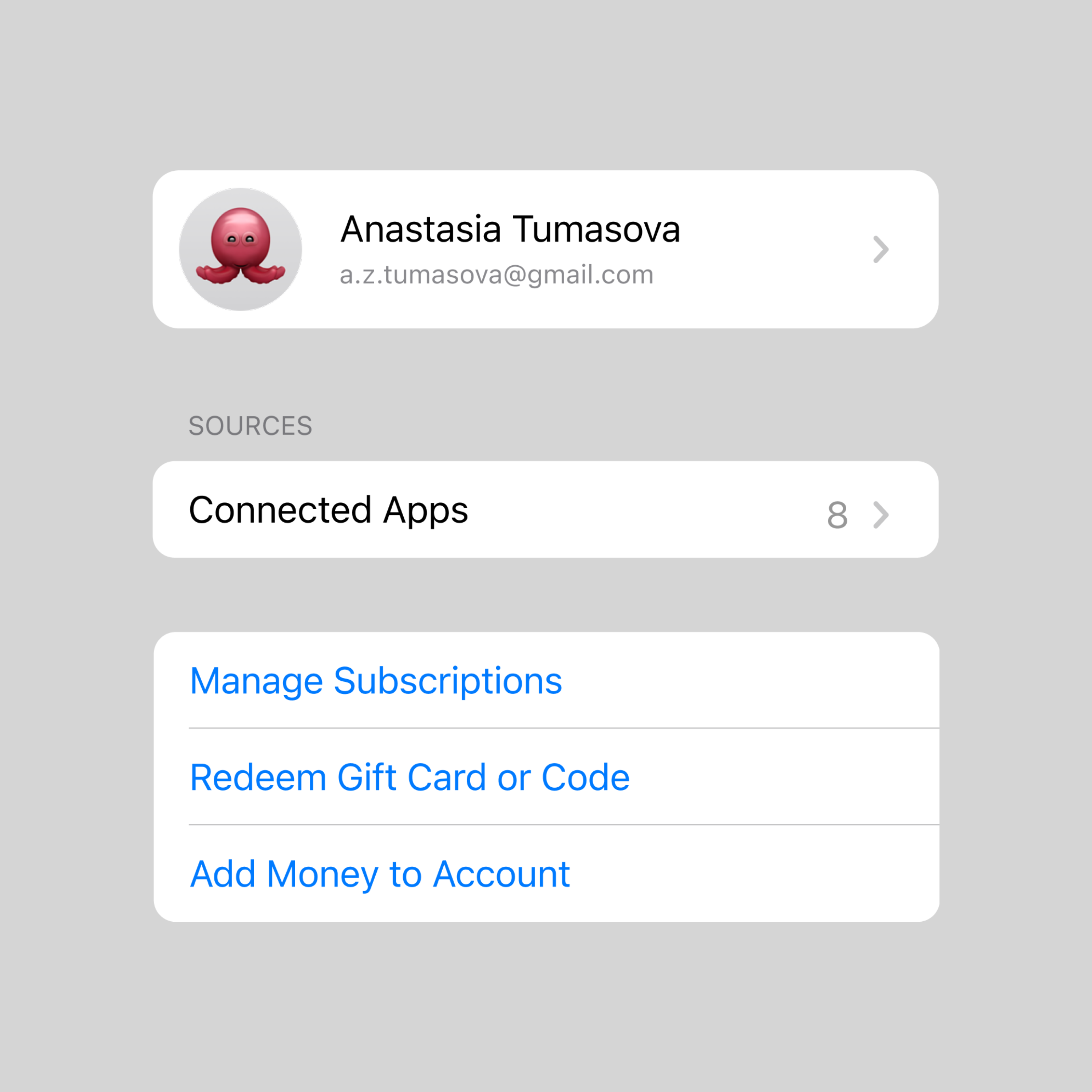
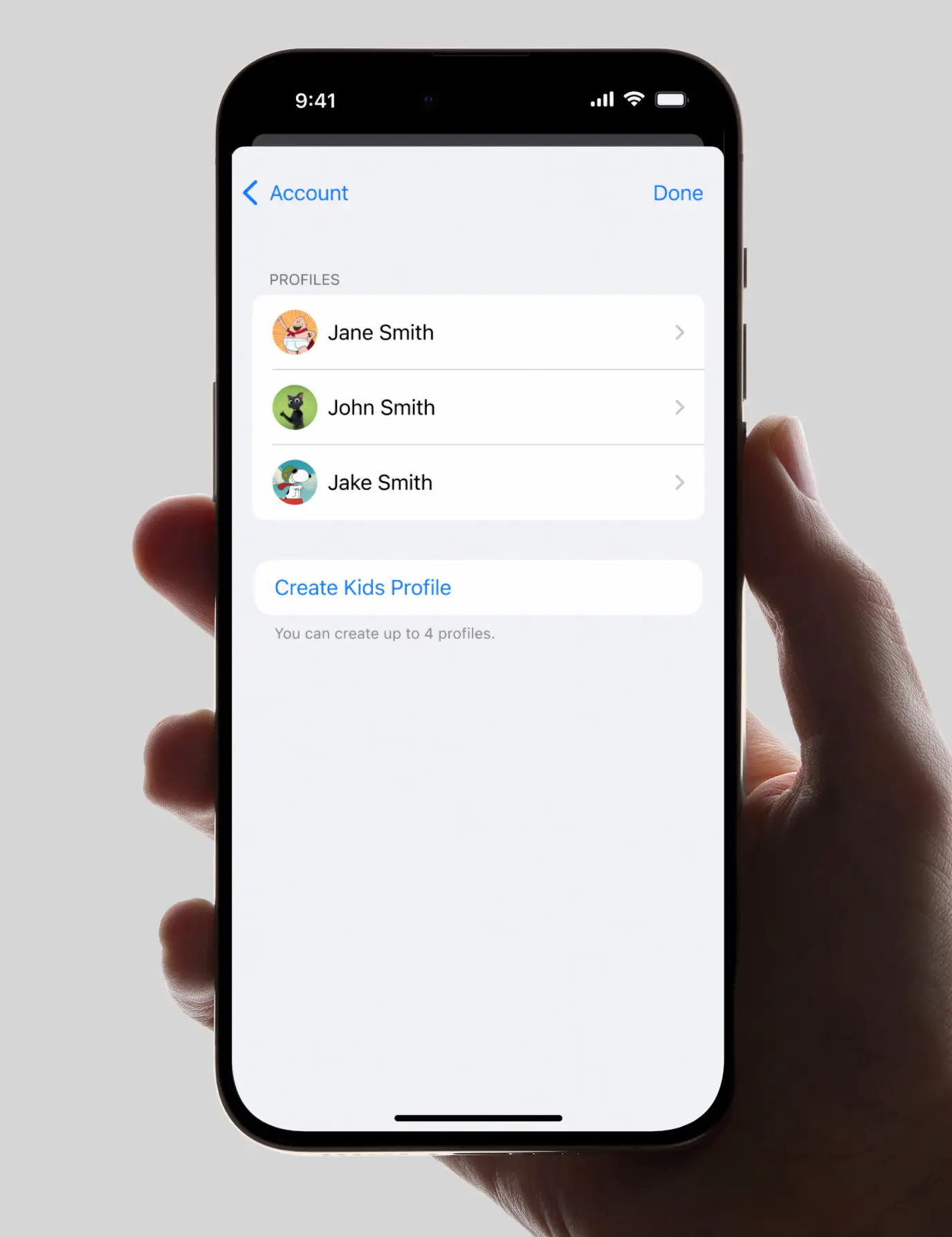
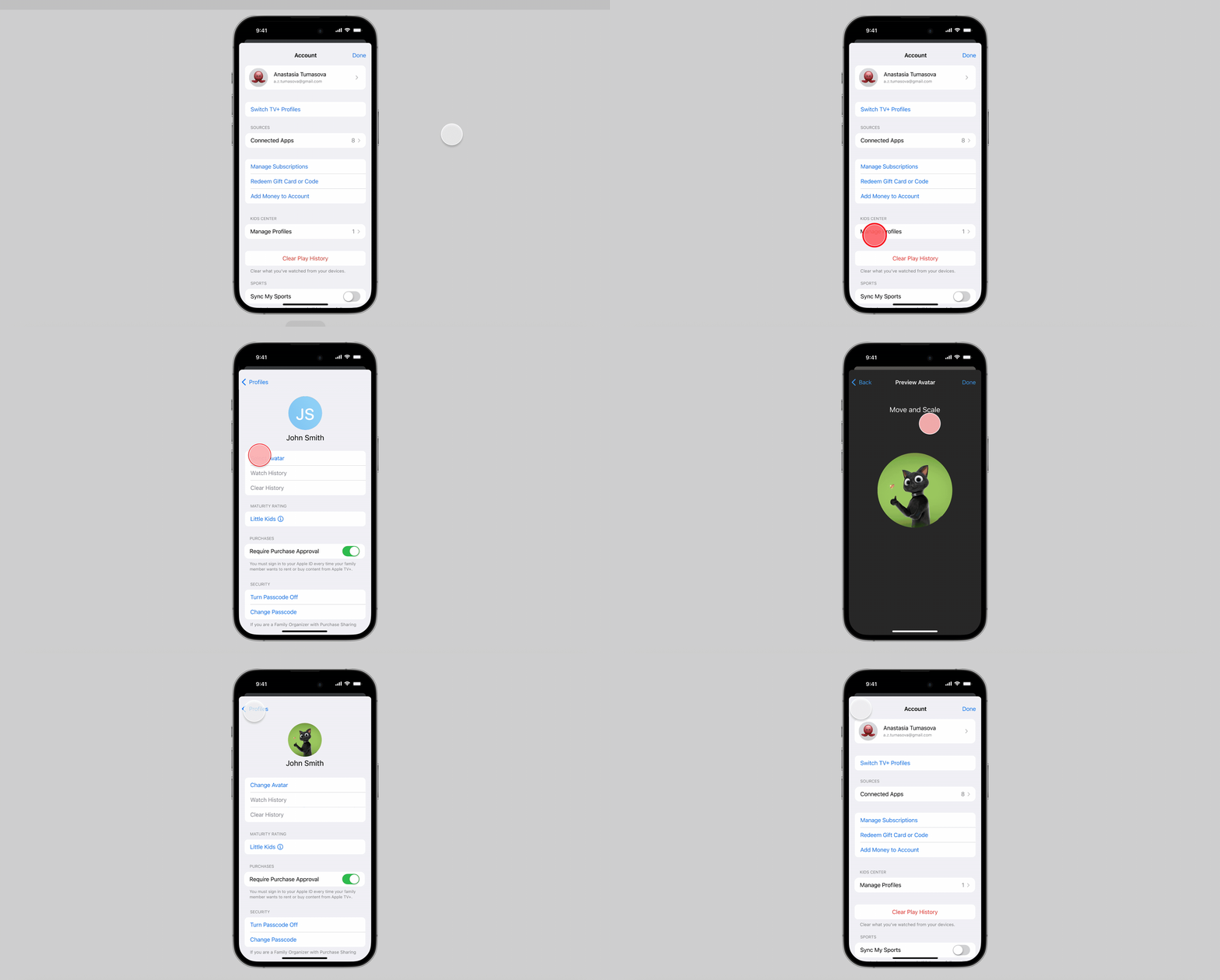
Account landing provides parents with centralized control over family viewing through the "Manage Profiles" section within the Kids Center. This dedicated area consolidates all kids profile settings, making it easy for parents to configure and adjust restrictions across multiple profiles. The interface clearly displays the total number of profiles, helping parents track their family's streaming setup at a glance.


A 4-digit PIN requirement—consistent with streaming industry best practices—creates a secure barrier that prevents children from switching to other profiles.


→ It is a very common pattern to use a PIN code vs. biometric authentication for switching out of kids mode. PINs are standard and easy to set up and remember for parents.
Biometrics are not present on all viewing devices (e.g. smart TVs).
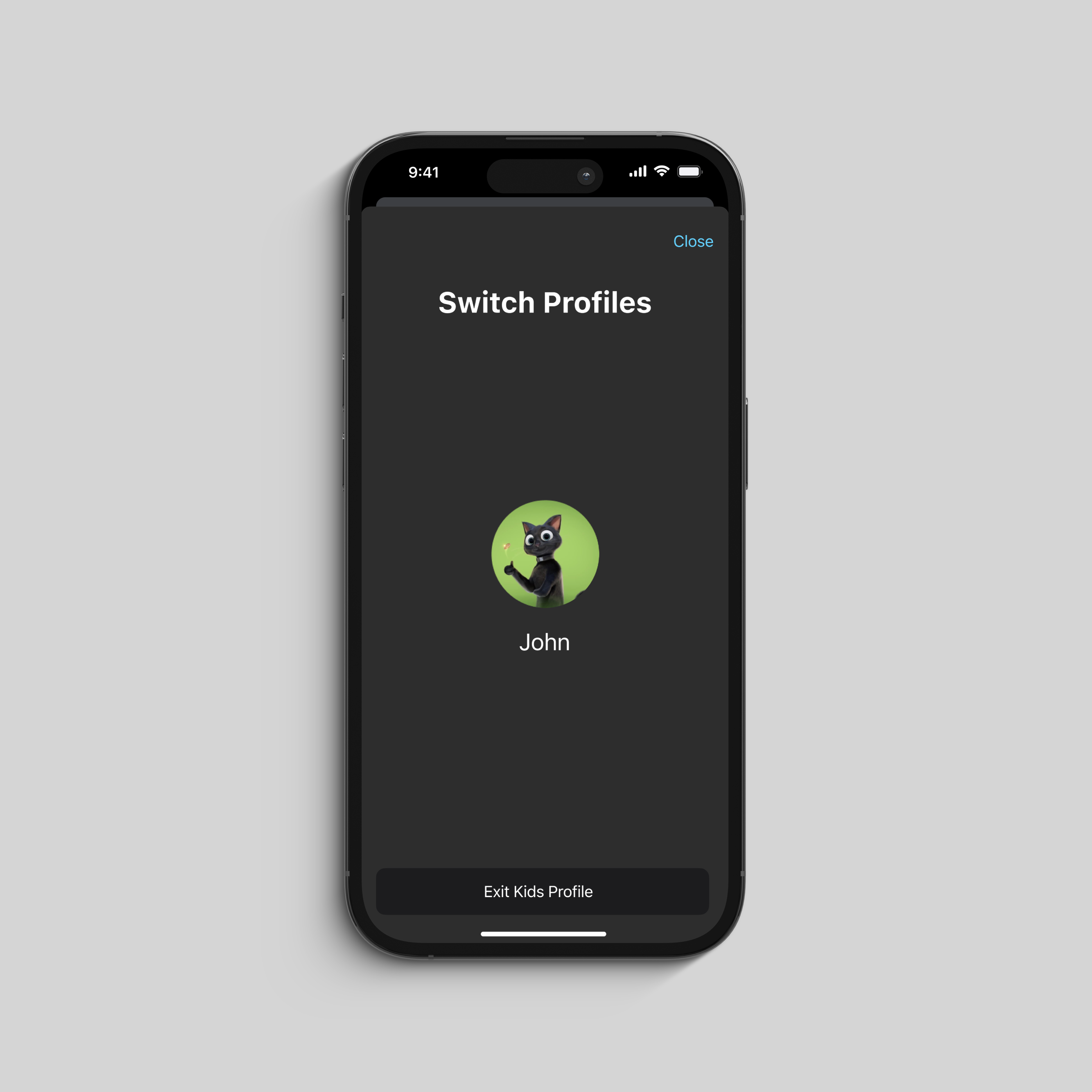
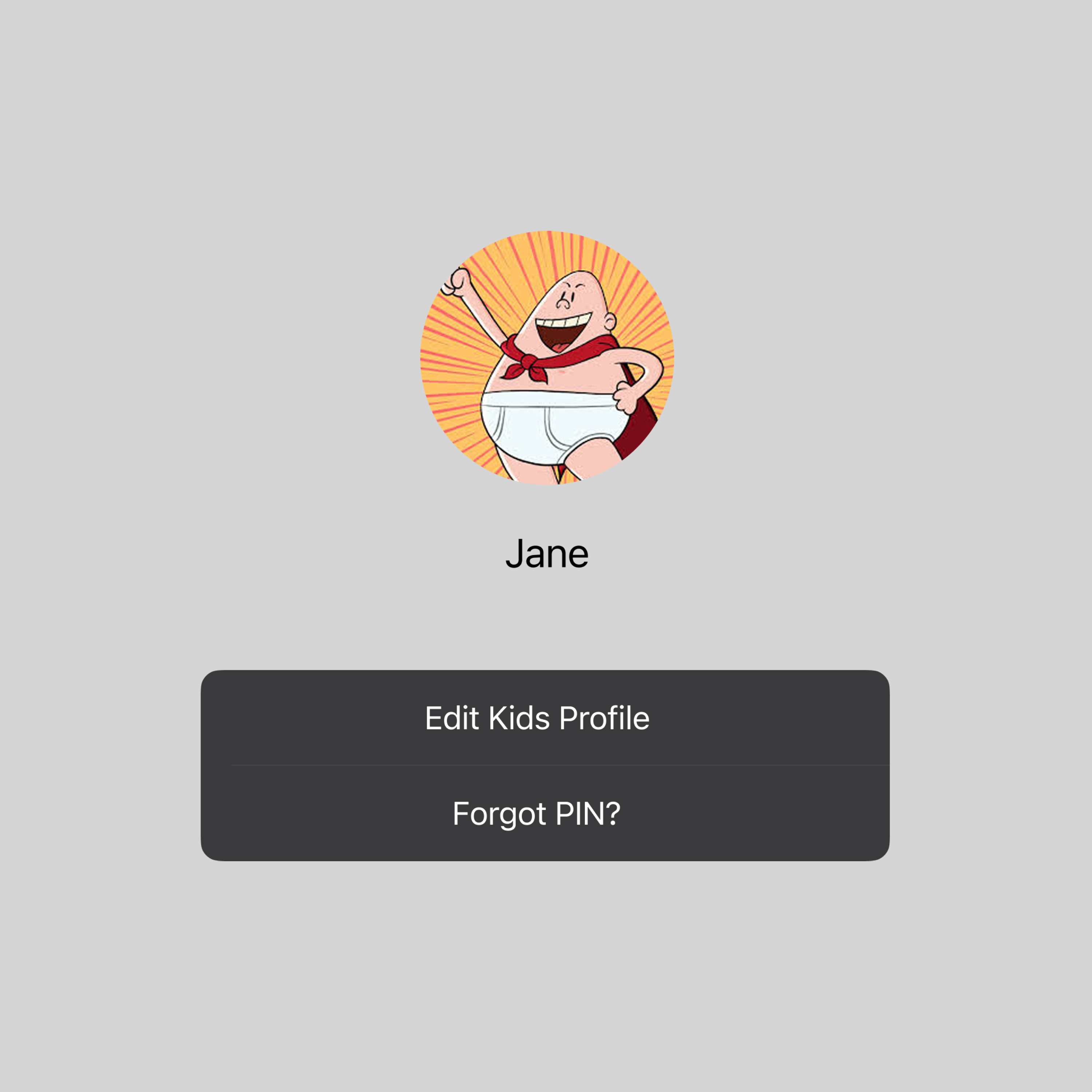
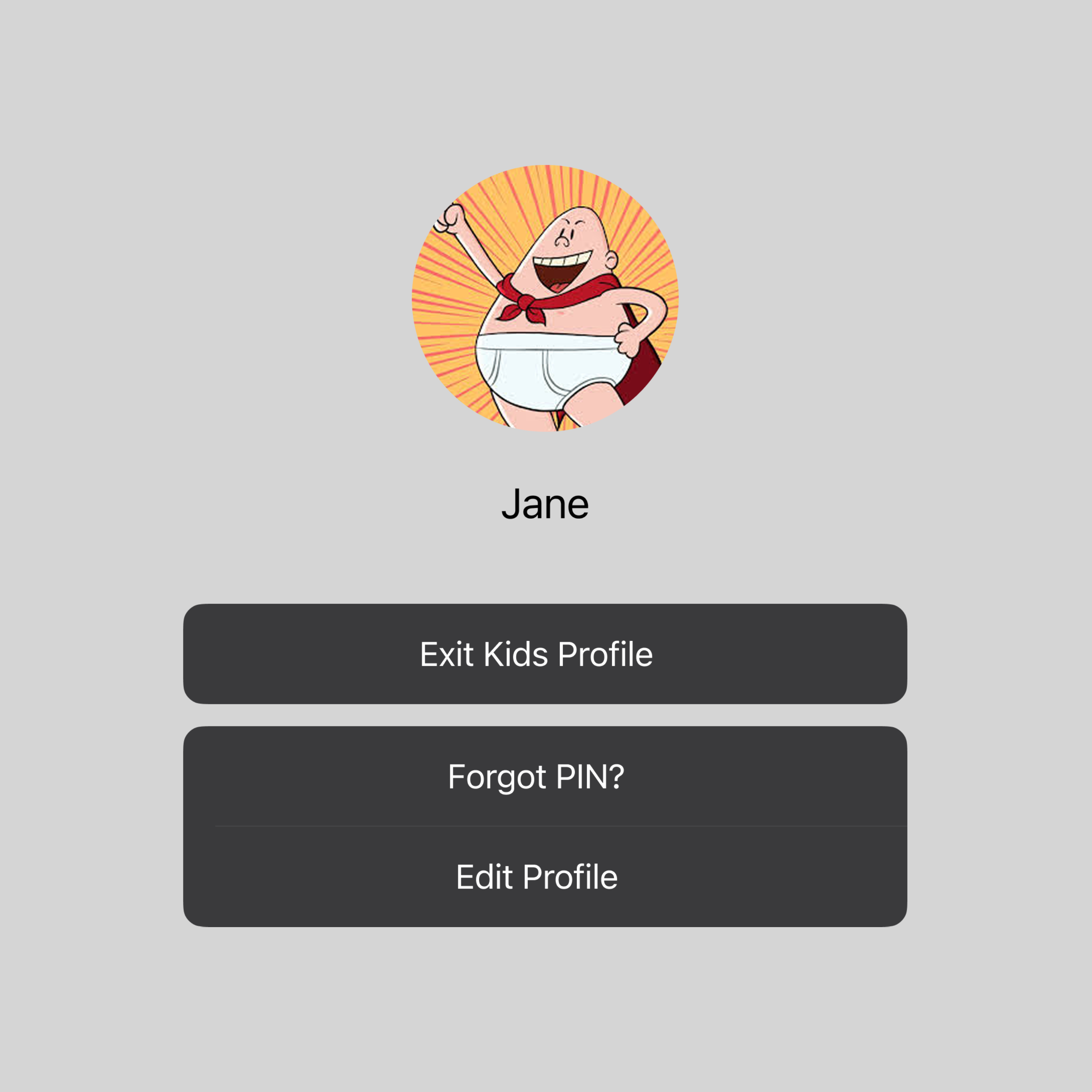
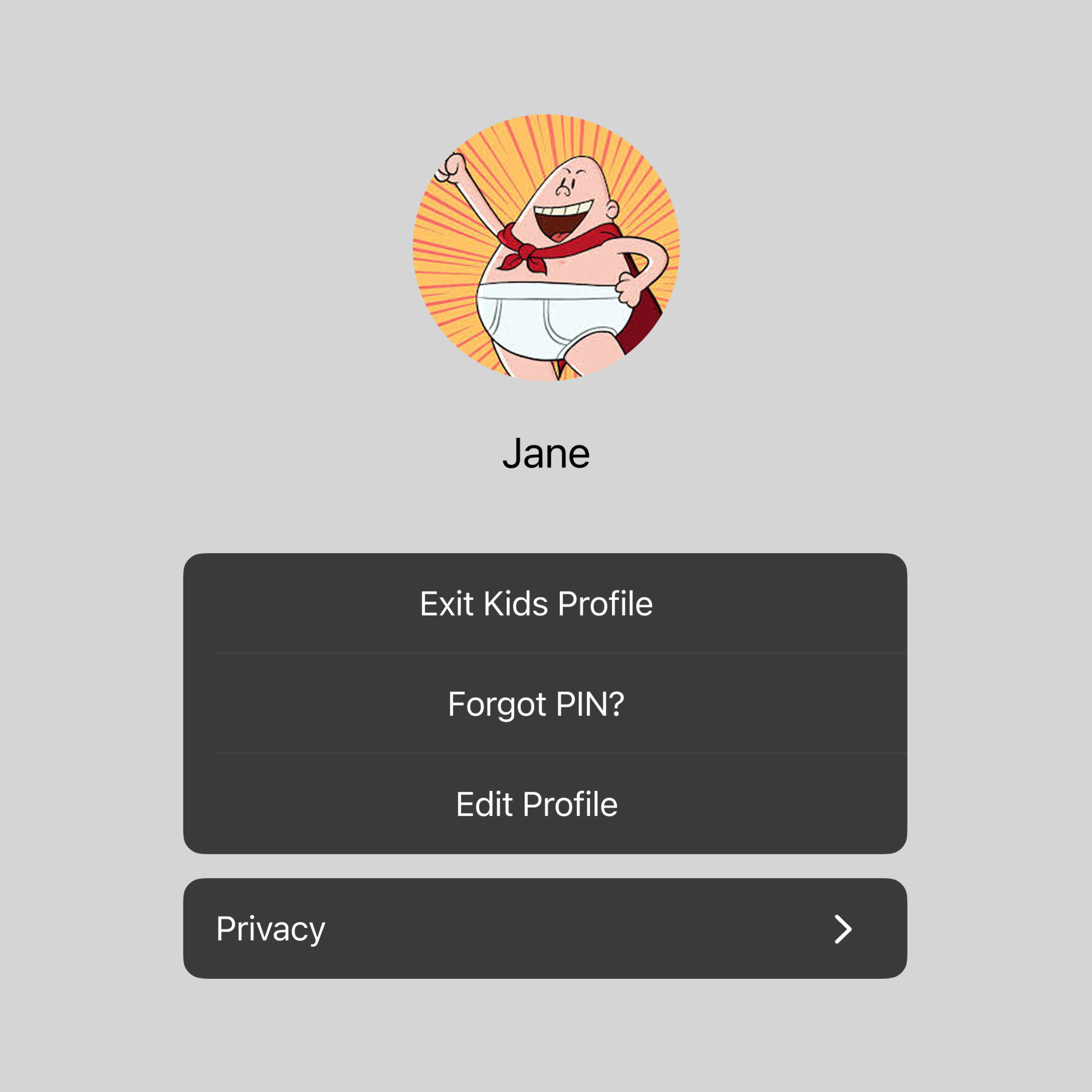
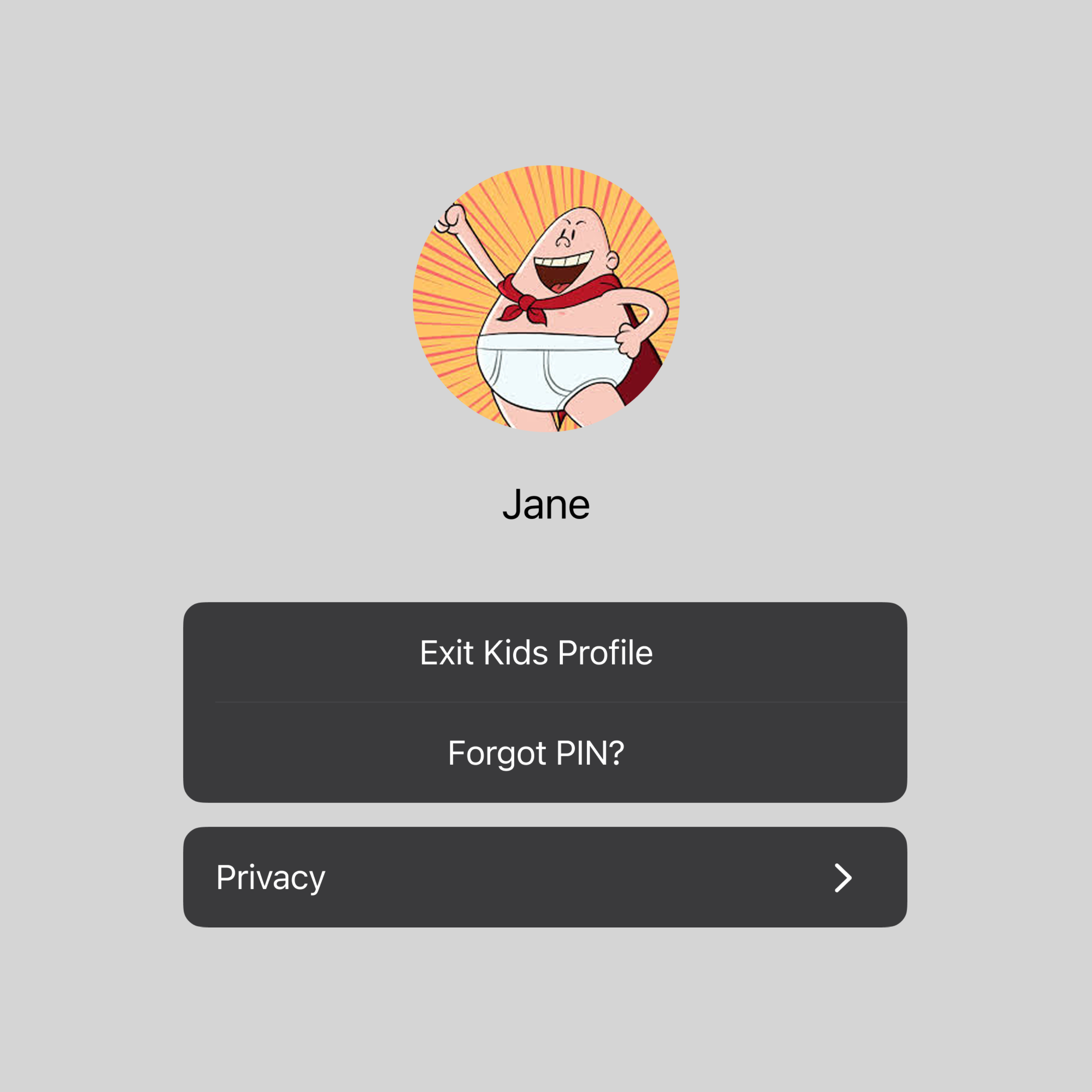
I did explore other layouts for profile switching, testing combinations of actions and information hierarchy. These iterations show the evolution from a more complex multi-option layout to a streamlined final design that prioritizes the core actions parents need most—simply, just to exit kids mode.


Simplified two-option interface focusing on the most essential functions—"Edit Kids Profile" and "Forgot PIN?" combined in a single, streamlined action group.
Separated action layout with another grouping for each function—"Exit Kids Profile" as the main CTA and "Forgot PIN?" and the additional "Edit Profile" CTA as a secondary grouping.
Expanded single-profile view with all of the CTAs grouped together by hierarchy. This version consolidates three key functions while keeping a new "Privacy" disclaimer separate.
Basic profile switching interface with essential actions grouped together—"Exit Kids Profile" and "Forgot PIN?" in one button group, with a separate "Privacy" option below.


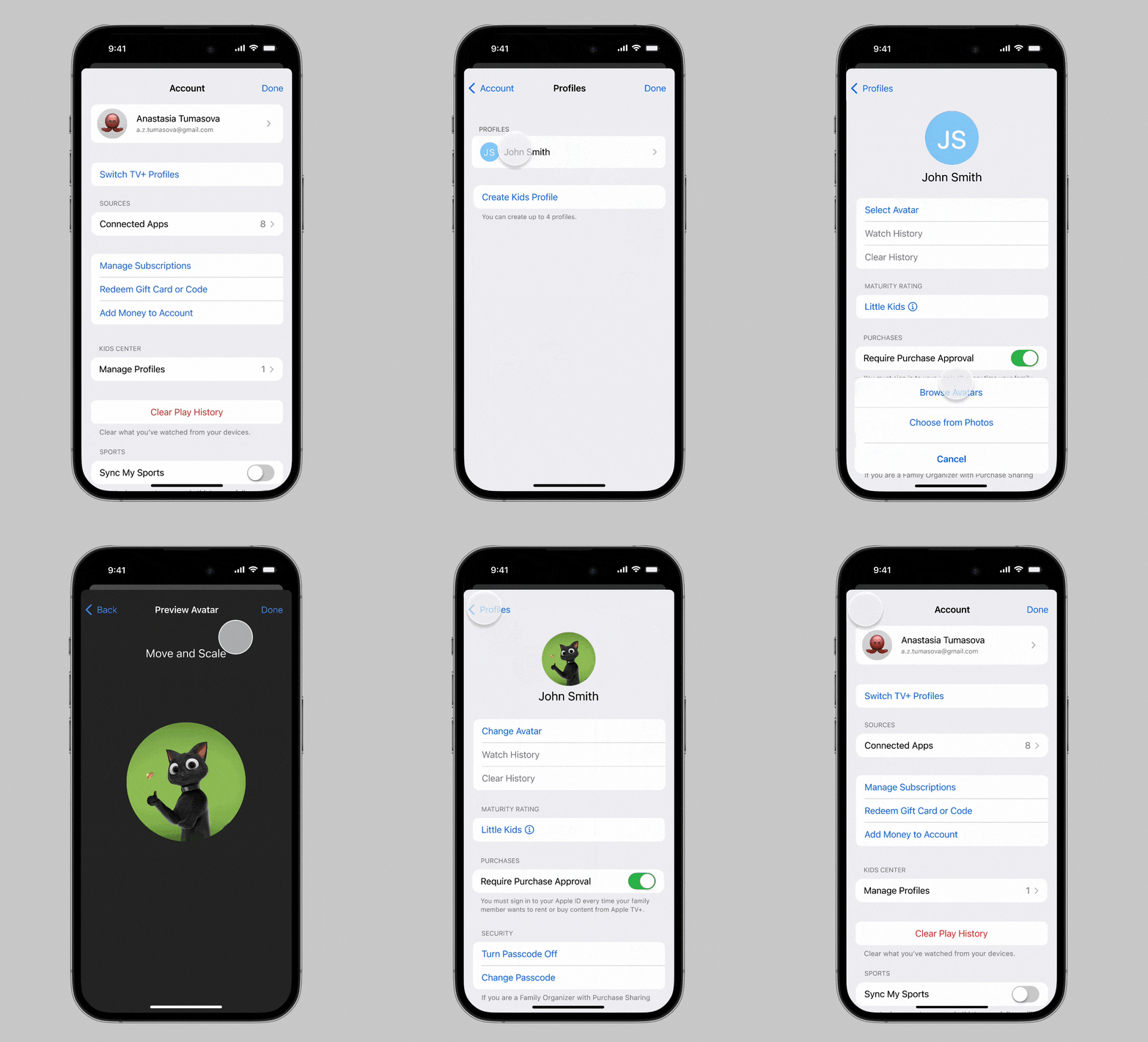
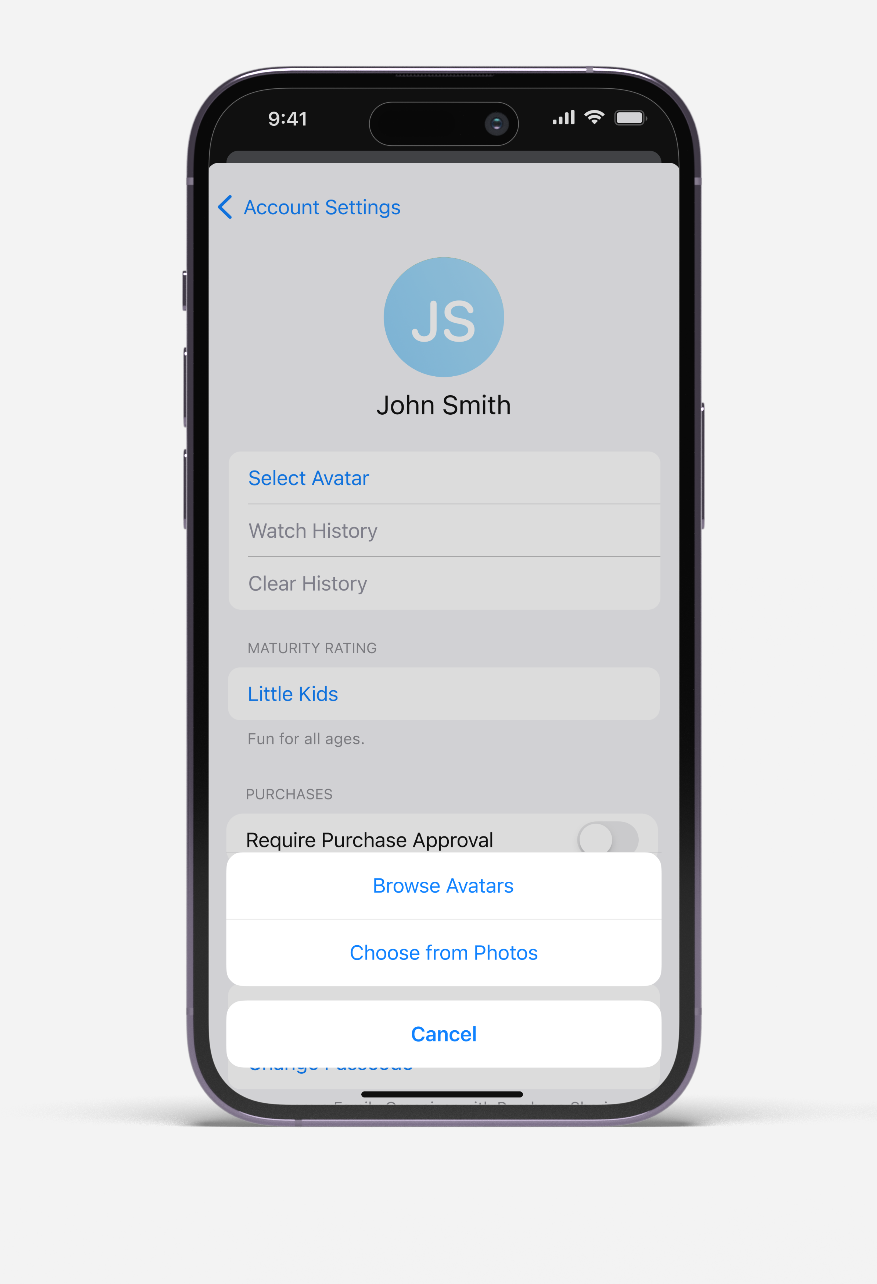
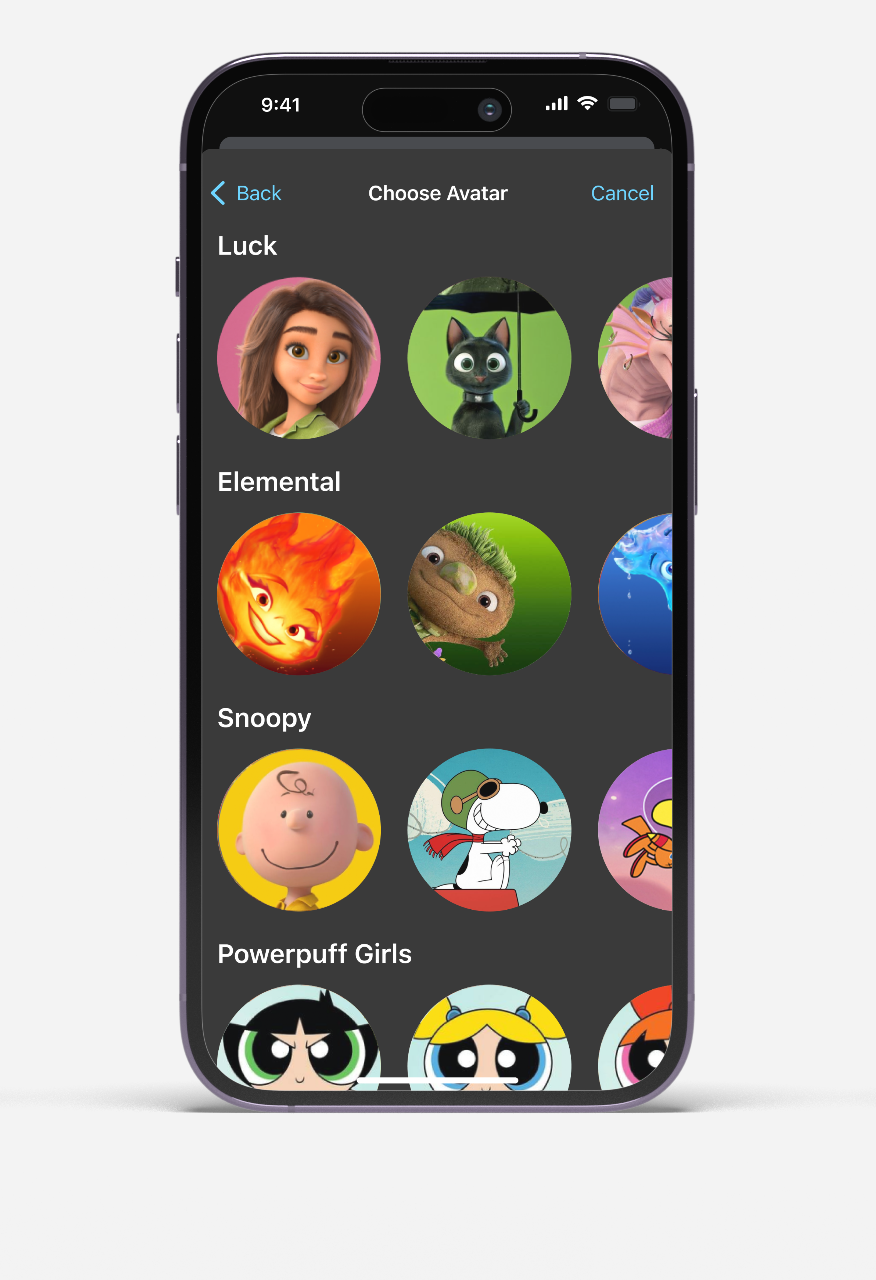
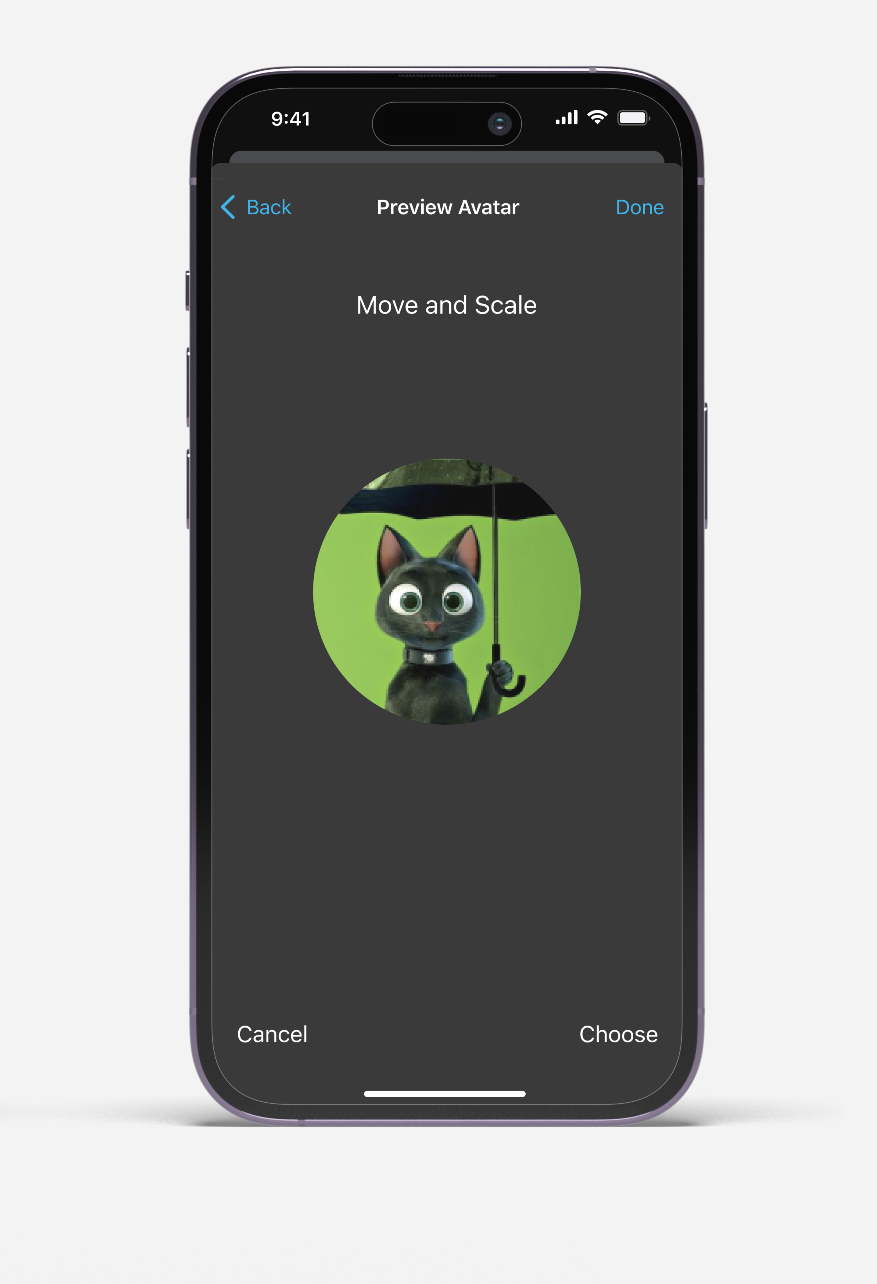
Profile avatars as well as potential future features like Kids themes personalize the experience, making it their space and customizable whenever change is wanted.
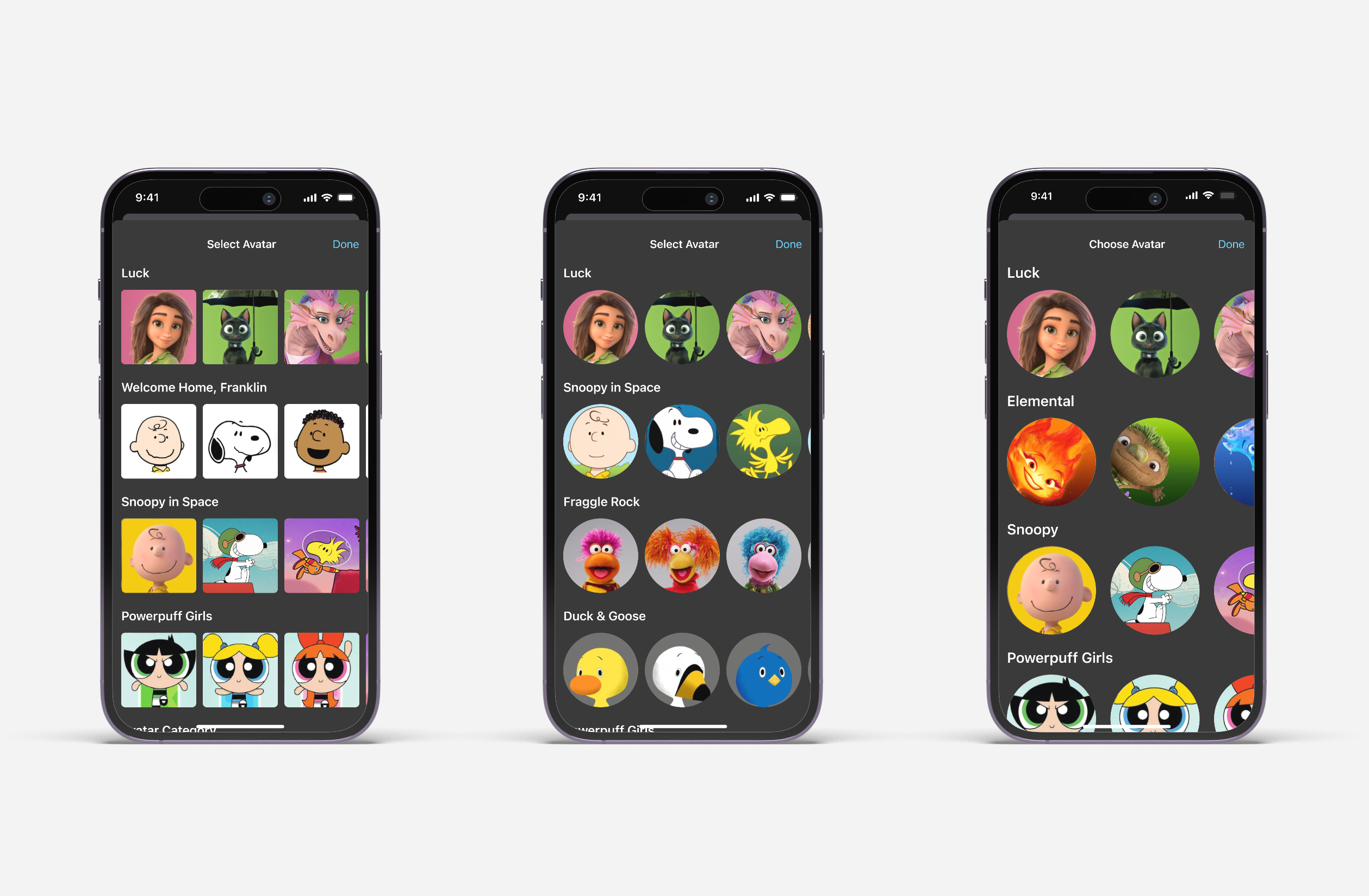
From left to right (below):
•
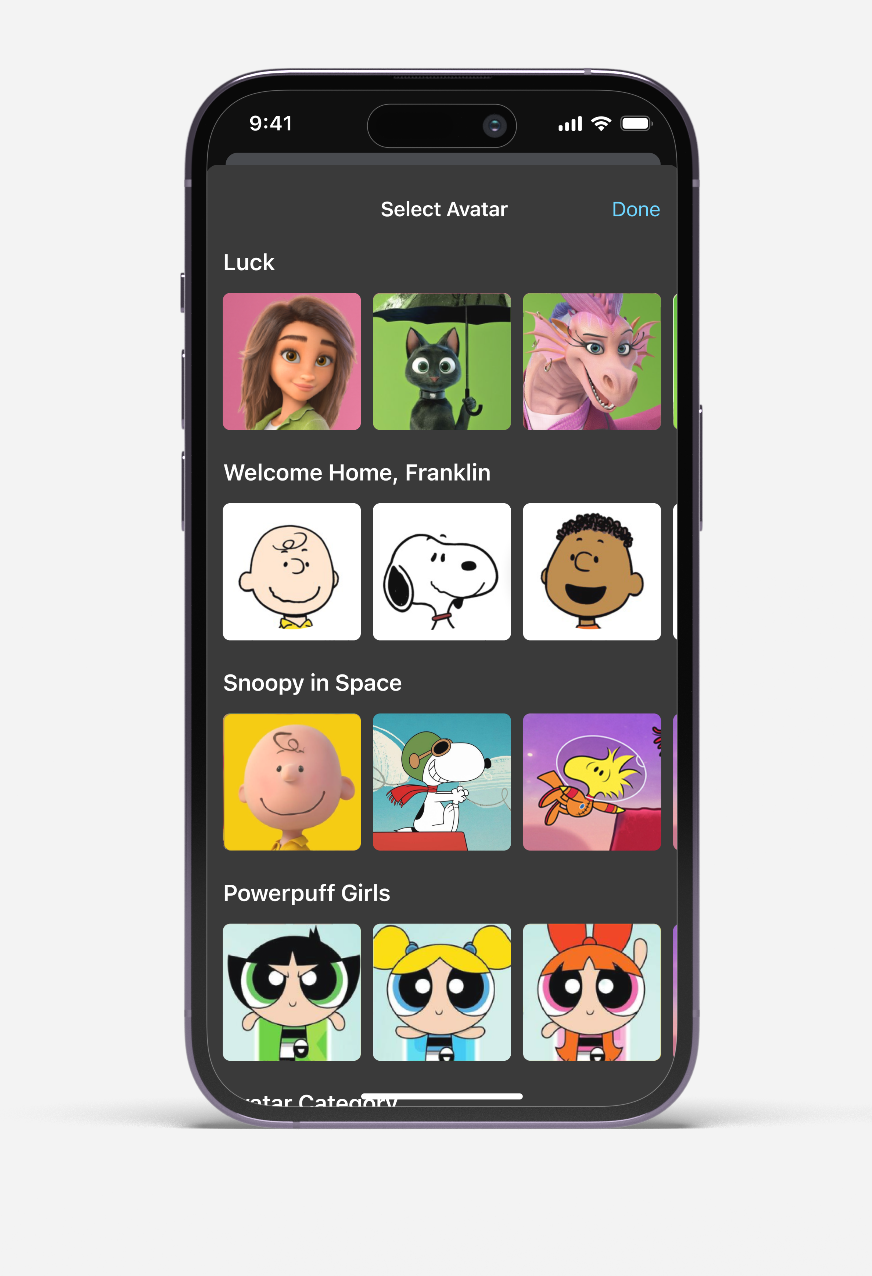
Introduced thematic groupings ("Luck," "Elemental," "Snoopy") with square thumbnails.
•
Maintains categorical structure but introduced circular avatars for easier navigation and viewing.
•
Chosen design. Improved upon Version 2 by increasing the size of the avatars.
Note: The final design incorporated a Back button for intuitive navigation.
While Apple's Family Sharing provides device-level controls, user research revealed that families preferred immediate, in-app content segregation for shared devices like iPads, reducing cognitive load.
Compatibility across all Apple TV devices (including smart TVs without biometrics), familiar pattern from Netflix/Disney+, and fast setup without any additional requirements made PINs the clear winner.
The profile creation flow prioritizes the most critical decision first: age-appropriate content filtering. This ensures appropriate viewing is never compromised for convenience.


Good design means nothing without clear business metrics. A design focusing on churn reduction and acquisition can give a concept project like this executive buy in and development priority.
Parents are often multitasking. The profile solution needed to work in under 15 seconds, not 1 minute.
Maintaining Apple's design system wasn't just about aesthetics—it was about ensuring parents felt confident in the security and control settings of the kids' experience.
With the foundation established, the next iteration could explore:
• Enhanced parental insights and screen time management
• An animated loading screen when entering Kids mode
• A genre selection screen after Kids Profiles setup is complete